


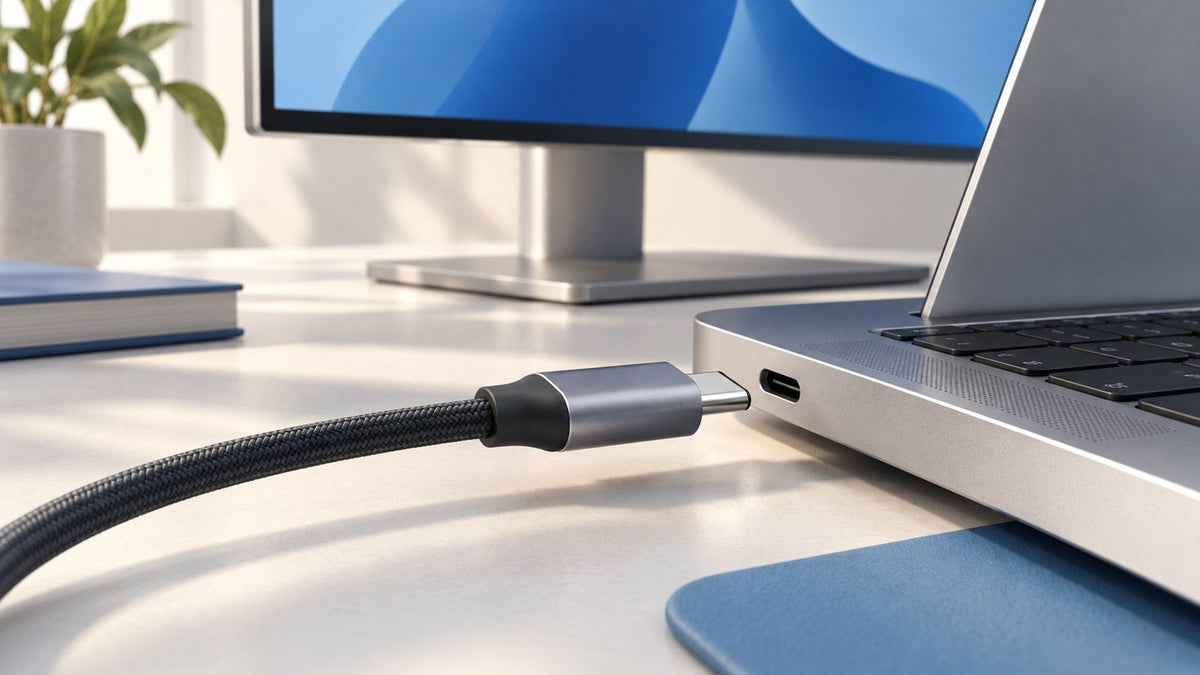
A USB-C port can transfer files, charge devices, and connect an external monitor—but those capabilities are not automatically bundled together.
For a USB-C display connection to work, the laptop must have a supported video path behind the port. In many systems, that means sending a native DisplayPort signal through USB-C using DisplayPort Alt Mode. Newer USB4 and Thunderbolt connections can transport display traffic through different architectures.
The useful way to understand USB-C video is not to ask what the connector looks like, but to follow the signal:
Laptop GPU / display engine → display protocol → USB-C connection → cable → monitor, adapter, hub, or dock
Once that path is clear, many confusing USB-C display terms start to make sense.

USB-C Is a Connection System, Not a Guaranteed Feature Set
USB Type-C defines a connector and connection system. It does not mean that every USB-C port implements the same data, charging, or display capabilities.
That distinction explains why two ports can look identical while behaving differently.
A USB-C port may provide:
| Capability | What It Means for the User |
|---|---|
| USB data | Connects peripherals and transfers data at the speeds supported by the host and device |
| Power / USB Power Delivery | Can provide or receive power when the required charging capabilities are implemented |
| Display output | Can send video when the host provides a compatible display path |
| USB4 | Uses USB4 architecture when implemented by the device |
| Thunderbolt | Provides Thunderbolt capabilities on supported hardware |
The connector therefore tells you how a device physically connects, but not the complete feature set behind the port.
This is especially important for displays. Plugging a monitor into a USB-C socket does not make that socket a video output. Something inside the laptop still has to generate and route a display signal to it.
What Can Travel Through a USB-C Port?
For display users, it helps to separate USB-C into three practical functions: data, power, and video.
Data
USB-C can carry USB data between a laptop and devices such as storage drives, keyboards, cameras, network adapters, monitors, and docks.
The actual data performance depends on the USB technology implemented by the host, peripheral, and cable. The connector itself does not tell you the available data rate.
This matters because a display connection may share the same physical USB-C link with USB peripherals.
Power
Compatible USB-C equipment can also exchange power.
A desktop monitor, for example, may receive video from a laptop while supplying power back to that laptop. A portable display may instead draw power from the computer.
Power and display output are still separate functions. A connection can successfully supply power without carrying video.
Video
Video requires a supported display path.
One of the most widely used native methods is DisplayPort Alternate Mode, usually shortened to DisplayPort Alt Mode or DP Alt Mode.
VESA developed DisplayPort Alt Mode so compatible USB Type-C hardware can repurpose USB-C high-speed lanes for DisplayPort video while still allowing other USB-C functions, depending on the configuration.
That is the key to understanding native USB-C video: USB-C is the route; DisplayPort is often the video signal traveling through it.
How DisplayPort Alt Mode Carries Video Through USB-C
DisplayPort Alt Mode allows a compatible source device to send a DisplayPort signal through a USB-C connection.
The important word is compatible. The laptop needs display hardware capable of generating the signal, the USB-C port needs to support the required mode, and the connected equipment needs to accept it.
Conceptually, a native connection looks like this:
GPU / Display Engine
↓
DisplayPort Signal
↓
USB-C Controller and Port
↓
Video-Capable USB-C Cable
↓
Monitor or Display Adapter
What happens when you connect the display?
At a high level, the process works in four stages.
1. The USB-C connection is detected.
The laptop and connected device recognize that a USB-C connection has been established.
2. Supported capabilities are identified.
Compatible hardware determines whether the connection can use an appropriate Alternate Mode such as DisplayPort Alt Mode.
3. High-speed lanes are configured for video.
USB-C's available lanes can be allocated so that DisplayPort traffic travels through the connection.
4. The display engine sends the image.
The laptop's GPU or display engine drives the DisplayPort signal toward the external screen.
The USB-C connector is therefore not converting ordinary USB data into a picture. In a native DP Alt Mode connection, the laptop is routing a real DisplayPort display signal through the USB-C interface.
This distinction also separates native USB-C video from software-assisted USB graphics technologies, where display information is processed and transported differently.
Why USB-C Lane Allocation Matters
DisplayPort Alt Mode does not always use USB-C's high-speed lanes in exactly the same way.
VESA's DisplayPort Alt Mode design allows DisplayPort to use some or all of the available high-speed lanes. A configuration using fewer lanes for DisplayPort can leave lanes available for simultaneous high-speed USB data, while assigning more lanes to DisplayPort provides more resources to the display connection.
A simplified view looks like this:
| Connection Approach | Display Use | USB Data Use | Practical Effect |
|---|---|---|---|
| More lanes allocated to DisplayPort | More link resources available for video | Less high-speed USB bandwidth may remain | Useful when display bandwidth is the priority |
| DisplayPort and USB share the high-speed connection | Display uses part of the available lane resources | High-speed USB can operate simultaneously | Balances monitor output and peripheral data |
This is one reason USB-C display performance cannot be understood from the connector alone.
A monitor, dock, or adapter may need to divide the available connection resources between video and high-speed USB peripherals. The exact result depends on the DisplayPort generation, host implementation, connected hardware, and requested display mode.
That brings us to another important concept: bandwidth.
How Bandwidth Affects USB-C Resolution and Refresh Rate
A display signal has to transport information for every pixel shown on the screen.
Increase the resolution and there are more pixels to send.
Increase the refresh rate and those pixels must be updated more frequently.
Increase color depth and each pixel may require more information.
That means a high-resolution, high-refresh-rate monitor normally requires more display bandwidth than a lower-resolution display operating at a standard refresh rate.
For this reason, a statement such as “USB-C supports 4K” is incomplete.
USB-C is not the part that defines a single maximum resolution. The practical display mode depends on the complete connection, including:
- DisplayPort capability provided by the host
- Link bandwidth and lane allocation
- Laptop GPU and display engine
- Cable capability
- Adapter or dock implementation
- Monitor capability
- Resolution and refresh rate
- Color format and color depth
- Display Stream Compression (DSC), when supported
A laptop may therefore drive one display configuration successfully while failing to provide enough display bandwidth for another configuration that requires more data.
A more useful question is:
What resolution and refresh rate can this specific laptop-to-display path support?
That question focuses on the complete system rather than the USB-C connector in isolation.
DisplayPort Alt Mode vs USB4 DisplayPort Tunneling
As USB-C systems have evolved, not every display connection uses the same underlying transport method.
Traditional DisplayPort Alt Mode configures USB-C high-speed lanes to carry a native DisplayPort signal.
USB4 introduces a different architecture. Instead of dedicating the connection in the same way, USB4 can transport protocols through tunnels across the USB4 fabric. USB-IF technical materials specifically document DisplayPort tunneling alongside USB3 and PCI Express tunneling.
The conceptual difference is:
DisplayPort Alt Mode
GPU / Display Engine
→ DisplayPort
→ USB-C Alt Mode lanes
→ Display
USB4 DisplayPort Tunneling
GPU / Display Engine
→ DisplayPort traffic
→ USB4 tunnel
→ USB4 connection
→ Display output
For a user, both may result in a monitor connected through a USB-C-shaped port. Internally, however, the transport method is different.
This distinction matters because it prevents a common oversimplification:
USB-C video, DisplayPort Alt Mode, USB4, and Thunderbolt are related technologies, but they are not interchangeable names for the same thing.
USB4 support also should not be treated as a universal promise of every possible monitor configuration. The laptop's documented display capabilities, GPU/display engine, implementation, and external-display limits still matter.
USB-C vs Thunderbolt for Displays
Modern Thunderbolt connections also use the USB-C connector, but Thunderbolt describes a connectivity architecture rather than the connector itself.
From a display perspective, the useful difference is how display traffic is transported.
A straightforward USB-C DisplayPort Alt Mode connection routes DisplayPort through USB-C's Alternate Mode mechanism. Thunderbolt can carry DisplayPort traffic as part of a broader high-speed transport architecture. Intel's technical documentation describes DisplayPort traffic being mapped and transported through Thunderbolt connections.
| Display Question | USB-C With DisplayPort Alt Mode | Thunderbolt |
|---|---|---|
| Uses USB-C connector | Yes | Yes on current implementations |
| Can carry external display traffic | Yes | Yes |
| Display transport | Native DisplayPort Alt Mode | Display traffic transported through Thunderbolt architecture |
| Maximum practical display setup | Depends on host and connected hardware | Depends on Thunderbolt generation, host hardware, and display engine |
| Laptop display limits still apply | Yes | Yes |
You therefore do not need Thunderbolt simply to connect a USB-C monitor.
If the laptop provides the required native video output through USB-C, DisplayPort Alt Mode can be sufficient. Thunderbolt becomes relevant when the laptop and connected devices are designed to use that architecture and its broader connectivity capabilities.
Why a USB-C Port Can Charge but Not Output Video
Charging does not prove that video is available.
A USB-C connection may successfully negotiate power even if the laptop does not expose a compatible display path through that port. A cable can also be suitable for charging without supporting the connection required for the intended video setup.
That is why a laptop can begin charging while the monitor remains blank.
If your equipment is supposed to support video but the display still reports no signal, use INVZI's dedicated troubleshooting guide rather than treating power delivery as evidence that the video path is working.
USB-C Monitor No Signal? Common Causes and Fixes
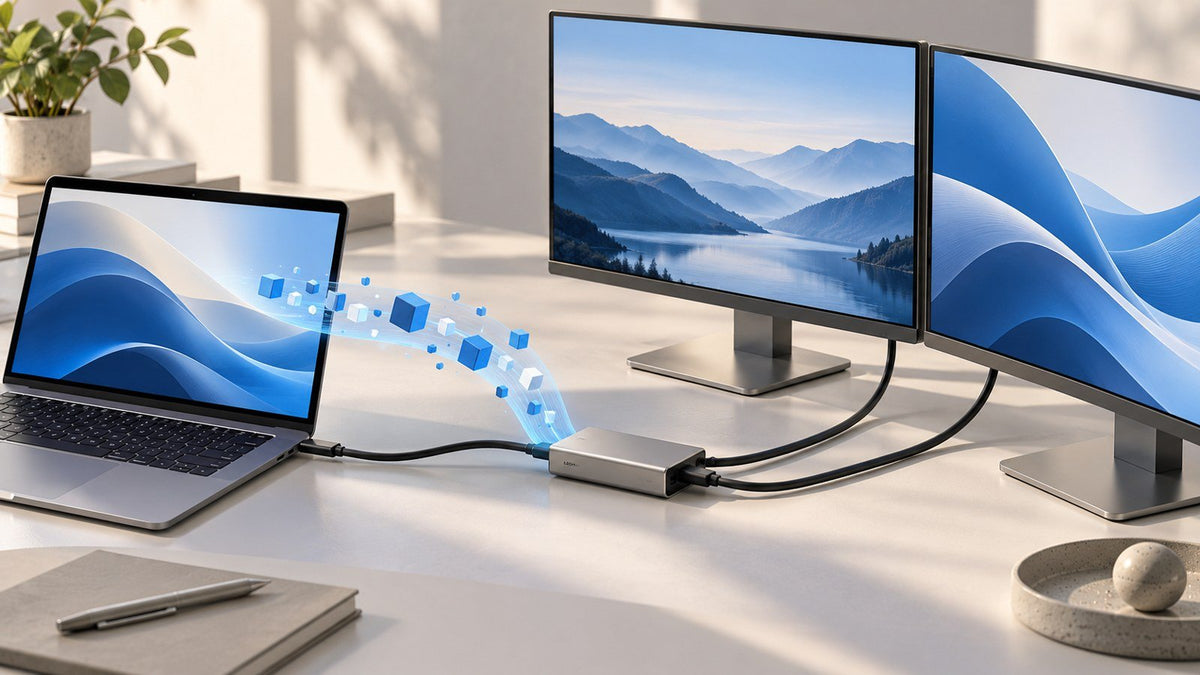
How Docks and Hubs Handle USB-C Video
A conventional USB-C dock does not automatically create native display capability where none exists upstream.
Instead, it receives a signal or transport method supported by the laptop and processes that connection according to its own design.
A typical native signal path might look like this:
Laptop GPU
→ USB-C display output
→ Dock
→ DisplayPort or HDMI output
→ Monitor
The dock may route or convert the incoming video signal into another connector format, such as HDMI or full-size DisplayPort.
The important point is that an HDMI socket on a dock does not, by itself, prove that every USB-C laptop can drive that socket. The host connection still needs to provide whatever display technology the dock expects.
Some USB display products use software-assisted graphics instead of the native path described here. Those systems work differently and should not be treated as ordinary DisplayPort Alt Mode connections.
How to Check Whether a Laptop Supports USB-C Video
For this article, the important principle is simple: check the exact laptop model rather than judging the port by shape alone.
Look in the manufacturer's specifications or manual for terminology such as:
- DisplayPort over USB-C
- DisplayPort Alt Mode
- USB-C with DisplayPort
- Thunderbolt
- USB4 with documented display support
- External display support
Port icons can provide useful clues, but the specifications for the exact laptop model are more reliable.
For a complete compatibility-checking process, see INVZI's dedicated guide:
Does My USB-C Support Display? 5 Ways to Check
What a USB-C Display Connection Actually Requires
A working USB-C external display is the result of several compatible components working together.
| Part of the Signal Path | What It Contributes |
|---|---|
| GPU / display engine | Generates and manages the external display signal |
| Laptop display capability | Determines what external display configurations the system can drive |
| USB-C implementation | Provides the required Alt Mode, USB4, Thunderbolt, or other supported display path |
| Cable | Carries the required signals and bandwidth |
| Dock or adapter, if used | Routes or converts the signal according to its design |
| Monitor | Accepts the incoming connection and requested display mode |
Put those pieces together and the complete native path becomes:
GPU → display protocol → USB-C implementation → cable → optional adapter or dock → monitor
No single component can override the limitations of the rest of that chain.
A more capable cable cannot add video support to a laptop port that does not provide it. A high-bandwidth dock cannot make the laptop's display engine support more outputs than the computer was designed to drive. And a capable laptop cannot reach a requested display mode if an intermediate device becomes the limiting part of the connection.
Thinking in terms of the entire signal path is much more reliable than thinking in terms of connector shape.
Where USB-C Displays Fit Into Modern Laptop Workspaces
USB-C video is useful because a compact connector can support external screens without requiring a traditional desktop-only setup.
At a permanent desk, that may mean connecting a laptop to a larger monitor. For hybrid or travel work, it can also mean portable external displays or multi-screen laptop accessories.
The connection method is not identical across every product. Some portable display solutions rely on native USB-C video, while others may use different cables or software-assisted display technology.
If you are building a portable multi-screen workspace, review the connection requirements of the specific model rather than assuming every screen extender uses the same USB-C display path.
Explore INVZI laptop screen extenders and portable monitor extenders
USB-C Display: The Key Takeaway
A USB-C display connection works because the laptop has a display technology behind the USB-C connector—not because the connector itself automatically produces video.
In a native DisplayPort Alt Mode setup, the laptop's display engine generates a DisplayPort signal and USB-C provides a path for that signal to reach the monitor. Lane allocation and link bandwidth influence what the connection can carry.
USB4 can transport DisplayPort through protocol tunneling, while Thunderbolt uses its own broader transport architecture.
The practical lesson is to follow the signal:
GPU / display engine → display transport → USB-C connection → cable → optional intermediate hardware → monitor
When every part of that path supports the required configuration, USB-C can provide a clean and flexible way to connect external displays.
Frequently Asked Questions
Does every USB-C port support video?
No. A USB-C port can support data, power, video, or different combinations of those functions. External display output requires a compatible display implementation behind the port.
What is DisplayPort Alt Mode over USB-C?
DisplayPort Alt Mode allows compatible USB-C hardware to configure high-speed lanes for DisplayPort video. This lets a laptop send a native DisplayPort signal through the USB-C connector to a compatible monitor, adapter, or dock.
Can USB-C carry video, data, and power at the same time?
It can when the devices and connection support the required combination. DisplayPort Alt Mode can share USB-C connectivity with USB data and power, although lane allocation and device implementation affect how the connection operates. VESA documents configurations that combine DisplayPort with USB data and power through USB Type-C.
Is USB4 display output the same as DisplayPort Alt Mode?
Not exactly. DisplayPort Alt Mode configures USB-C lanes for DisplayPort signaling, while USB4 can transport DisplayPort traffic using protocol tunneling through the USB4 connection. Both can result in video through a USB-C-shaped port, but the underlying transport architecture differs.
Do I need Thunderbolt for a USB-C monitor?
No. A laptop with compatible DisplayPort Alt Mode or another supported USB-C display implementation can connect to an external monitor without requiring Thunderbolt. Always check the display requirements and the specifications for the exact laptop model.

Leave a comment
This site is protected by hCaptcha and the hCaptcha Privacy Policy and Terms of Service apply.