


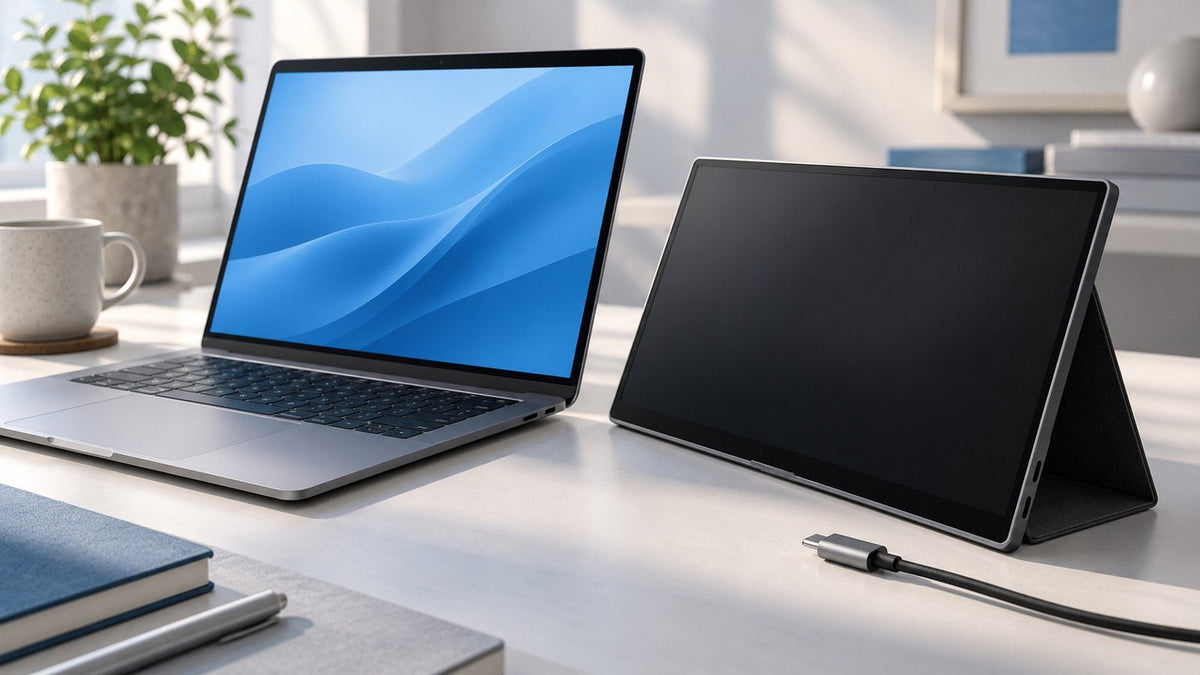
A USB-C monitor no signal message usually means the monitor has power but is not receiving a usable video signal from the connected device.
The fastest way to find the cause is to treat USB-C display output as a complete signal path:
Laptop USB-C port → cable → monitor → operating system → hub or dock → display limits
A failure anywhere along that path can leave the screen blank. The fact that USB-C charging still works does not prove that video is working too, because power and display output are separate capabilities.
Use the checks below in order rather than changing several parts of the setup at once.

Quick Diagnosis: Where Is the USB-C Signal Failing?
| What You See | Where to Look First | First Check |
|---|---|---|
| USB-C charges the laptop but the monitor says No Signal | Port or cable | Confirm that the port and cable support video |
| HDMI works but USB-C does not | USB-C signal path | Check the USB-C port, cable, and monitor input |
| Direct USB-C works but a dock does not | Dock or upstream connection | Check the dock's host port, power, and display support |
| One external monitor works but the second does not | Display limits | Check the laptop's supported external-display configuration |
| The USB-C monitor worked before but suddenly stopped | Connection state, software, or dock | Power-cycle the display and test a direct connection |
These symptoms point you toward a likely starting point, but they do not prove which component is responsible. Isolating one part of the connection at a time is more reliable than replacing cables, docks, and settings at random.
Why Can USB-C Work but Still Show No Video?
USB-C describes the connector, but it does not guarantee that every USB-C port, cable, or device supports the same features.
Depending on the hardware, a USB-C connection may provide:
- Power
- USB data
- Video
- Or a combination of these functions
This is why a laptop can start charging from a USB-C monitor while the screen still displays No Signal. Power delivery has succeeded, but the video path may still be missing or interrupted.
Many native USB-C display connections use DisplayPort Alt Mode, which allows a compatible USB-C connection to carry DisplayPort video. VESA describes DisplayPort over USB-C as a way for compatible hardware to combine video, USB data, and power through the same connector. VESA: DisplayPort over USB-C
The practical takeaway is simple:
Charging is evidence that power is working. It is not proof that video is working.
Check Whether the Laptop USB-C Port Supports Video
Before troubleshooting software, confirm that the exact USB-C port you are using can output video.
A laptop may use USB-C for charging and data without providing native display output through that port. Other USB-C ports may support technologies such as:
- DisplayPort Alt Mode: Carries a native DisplayPort video signal through USB-C.
- Thunderbolt: Uses the USB-C connector on modern versions and supports display connectivity, subject to the computer's display limits.
- USB4: Can carry multiple data and display protocols, but actual display support and configurations still depend on the device implementation. USB-IF describes USB4 as an architecture that can dynamically share a high-speed USB-C connection among data and display protocols. USB-IF: USB4 overview
Do not judge a port only by its shape.
Check the specifications or manual for the exact laptop model and exact USB-C port. Look for wording such as:
- DisplayPort over USB-C
- DisplayPort Alt Mode
- Thunderbolt
- USB4 display support
- External display support
Different USB-C ports on the same laptop can have different functions.
If you need to determine a port's complete capabilities, handle that as a separate compatibility check. For a No Signal problem, the immediate goal is simply to confirm whether the host port is capable of supplying the video path your monitor requires.
Rule Out the USB-C Cable
Once the port is confirmed to support video, check the cable.
USB-C cables can look identical while supporting different functions. A cable may work for charging or basic data transfer without supporting the display connection required by your monitor.
To isolate the cable:
- Try the USB-C cable supplied with the monitor, if available.
- Test a known video-capable USB-C cable.
- Check the cable manufacturer's documented video or display capabilities.
- Do not assume that a cable used successfully for phone charging will also work with an external monitor.
If changing only the cable restores the image, the original cable is either incompatible with the required video connection or is no longer functioning correctly.
There is no need to replace the laptop, monitor, or dock until you have ruled out this simpler failure point.
Check the Monitor Input and Power
If the port and cable are compatible, move to the monitor itself.
Select the correct input
Many monitors provide several inputs, such as:
- USB-C
- HDMI
- DisplayPort
The monitor may not automatically switch when you connect USB-C.
Open the monitor's on-screen menu and select USB-C as the active input. If you were previously using HDMI or DisplayPort, the monitor may still be waiting for that source.
Use the correct USB-C port on the monitor
A monitor can have more than one USB-C connector without giving every connector the same function.
One port may accept upstream video from the computer, while another may be intended for peripherals, service, charging, or another purpose.
Check the monitor manual and make sure the laptop is connected to the USB-C input that accepts video.
Confirm that the display has enough power
Desktop monitors normally use their own power supply, while portable displays may depend on USB-C power or an additional power input.
If a portable monitor appears unstable or remains blank, connect the recommended power source and test again.
However, additional power cannot fix an incompatible video path. If the laptop port does not provide the required display output, supplying more power will not create a video signal.
USB-C Dock or Hub Connected but Still No Signal
A hub or docking station adds more components to the display path.
A direct connection looks like:
Laptop → USB-C cable → monitor
A docked connection may look like:
Laptop → host cable → dock → display output → monitor
That creates several additional places where a USB-C monitor connection problem can occur.
Check the upstream or host port
Many docks have a specific connector labeled:
- Host
- Upstream
- Laptop
- Computer
Make sure the laptop is connected to that port.
A different USB-C connector on the dock may provide charging, storage, or peripheral connectivity without serving as the intended host connection.
Confirm that the laptop provides the display method the dock expects
A conventional dock that relies on native DisplayPort Alt Mode needs a compatible video signal from the laptop.
Adding HDMI or DisplayPort connectors through a dock does not automatically create native display capability if the host connection does not provide the required display path.
DisplayLink-based devices work differently because they use USB data and software to create display output. They should therefore be evaluated separately from native USB-C video.
Verify that the hub or dock supports display output
Not every USB-C hub includes video capability.
Check the device specifications for:
- Supported display outputs
- Required host connection
- Power requirements
- Supported monitor configurations
Different USB-C hubs and docking stations can use different host connections, display technologies, and power arrangements. When troubleshooting, compare the dock's documented requirements with the laptop and monitor rather than relying on the number of physical ports alone.
Consider bandwidth only when the symptoms point to it
Bandwidth becomes a stronger suspect when:
- A lower resolution works but a higher one does not
- One display works until a second monitor is connected
- The problem appears only with a more demanding multi-display configuration
For a basic single-monitor No Signal problem, check the port, cable, input, and dock connection before assuming bandwidth is the cause.
Check dock power
Some docking stations require external power for full functionality.
If the dock has a dedicated power input, connect the recommended power supply and retest the display.
Microsoft notes that USB-C display problems can occur when the PC, external display, cable, port, or connected device does not support the required Alternate Mode or when a device is connected through an incompatible hub or dock. Microsoft Support: Fix USB-C problems in Windows
Try a Direct Connection Before Troubleshooting the Dock
If your monitor currently connects through a hub or dock, removing that device is one of the most useful isolation tests.
Change:
Laptop → dock → monitor
to:
Laptop → monitor
if your hardware allows a compatible direct connection.
If the direct connection works
The basic laptop-to-monitor video path is working.
Focus on:
- The dock
- Host cable
- Upstream port
- Dock power
- Display output
- Dock configuration
If the direct connection still shows No Signal
Focus first on:
- Laptop USB-C video support
- USB-C cable
- Monitor USB-C input
- Operating-system detection
Apple similarly recommends connecting an external display directly to a Mac when troubleshooting a display that is currently connected through a hub or dock. Apple Support: External display troubleshooting
USB-C Monitor Worked Before but Now Shows No Signal
A setup that worked yesterday can still fail without any hardware being permanently damaged.
Sleep and wake cycles, reconnecting a dock, software updates, firmware state, or a failed USB-C negotiation can sometimes leave the display connection in an unusable state.
Try a clean reconnection:
- Disconnect the USB-C cable.
- Turn off the monitor.
- Disconnect the monitor from power for several seconds if possible.
- Reconnect the monitor's power.
- Connect the display directly to the laptop if you normally use a dock.
- Restart or wake the computer.
- Reconnect USB-C and test again.
If the direct connection works, reconnect the dock afterward.
If the problem started after a system update or affects a dock that previously worked reliably, check for appropriate:
- Operating-system updates
- Graphics or system updates
- Dock firmware updates
- Thunderbolt or USB4 support updates where applicable
Avoid installing random third-party display drivers unless the hardware specifically requires them.
Apple's current display troubleshooting guidance includes disconnecting the display and its power source, reconnecting it, sleeping and waking the Mac, detecting displays again, and restarting the computer.
Check Windows or macOS Display Settings
After verifying the physical connection, check whether the operating system can see the monitor.
Windows
Open:
Settings → System → Display
If the monitor does not appear, go to:
Multiple displays → Detect
Microsoft documents this as the manual detection path for a connected display that is not appearing in Settings.
You can also press Windows + P and choose an appropriate mode such as Extend when you want the external display to function as an additional desktop.
If Windows shows a message such as Display connection might be limited, return to the hardware path and verify that:
- The USB-C port supports the required display mode
- The cable supports the connection
- The correct USB-C port is being used
- A hub or dock is not preventing the required connection
macOS
Open:
System Settings → Displays
If the monitor is not recognized, hold the Option key to reveal Detect Displays, then select it.
Apple also recommends checking the cable, reconnecting the display, putting the Mac to sleep and waking it, and verifying that the Mac supports the connected display configuration.
For MacBook models, external-display limits vary by model and Apple chip, so use the specifications for the exact Mac rather than applying a rule from another generation.
Why Does One External Display Work but the Second One Doesn't?
If one monitor works normally and another does not, you may no longer be dealing with a basic USB-C connection failure.
The setup may be reaching a hardware or display-architecture limit involving:
- Native external-display count
- GPU or chip display paths
- MST
- Thunderbolt configuration
- Resolution and bandwidth
- DisplayLink
- Mac model limitations
The number of HDMI, DisplayPort, or USB-C connectors available on a dock does not necessarily equal the number of independent displays the laptop can drive.
Before replacing cables or monitors, check how many external monitors your laptop can support based on the exact computer, chip, and intended display setup.
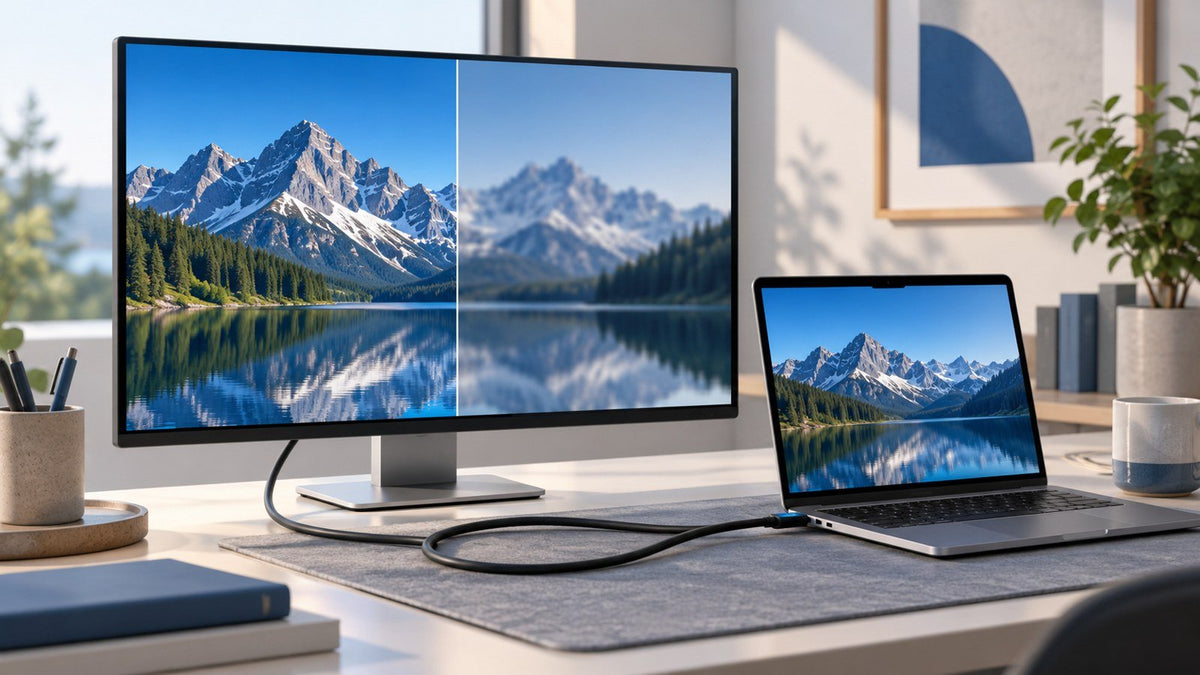
It is also useful to understand the difference between native USB-C video and DisplayLink. Native USB-C video uses a direct GPU-driven display path, while DisplayLink uses software and compatible hardware to send display data over USB.
For a single USB-C monitor showing No Signal, however, troubleshoot the direct signal path first.
USB-C Display Troubleshooting Checklist
Use this sequence if your USB-C display is not working.
Step 1: Check the laptop USB-C port
Does the exact port support video?
Look for documented DisplayPort Alt Mode, Thunderbolt, USB4 display support, or external-display support.
No: A native USB-C monitor connection that depends on host video output will not work through that port.
Yes or uncertain: Continue.
Step 2: Test the cable
Use a known video-capable USB-C cable.
Do not use successful charging as proof that the cable supports your display connection.
Step 3: Check the monitor
Confirm:
- The monitor is powered on
- USB-C is selected as the input
- The correct USB-C input is being used
- A portable monitor has adequate power
Step 4: Check the operating system
On Windows, check Settings → System → Display → Multiple displays → Detect.
On macOS, open System Settings → Displays, hold Option, and select Detect Displays if needed.
Step 5: Remove the hub or dock
Test the monitor directly from the laptop if possible.
Direct connection works: Focus on the dock path.
Direct connection still fails: Return to the host port, cable, monitor, and OS.
Step 6: Verify the dock
Check:
- Upstream/host port
- Required host video capability
- Display output support
- Power
- Host cable
- Supported monitor configuration
Step 7: Check display limits
If the first monitor works but another does not, verify how many external displays the computer supports and how those displays are being created.
Do not determine support by counting physical connectors alone.
What Your Test Results Tell You
Troubleshooting becomes much faster when each test gives you information about where the signal is failing.
Another USB-C cable works
The original cable is the likely problem or does not support the required display connection.
HDMI works but USB-C still shows No Signal
The monitor itself can display an image.
Focus on the USB-C-specific path:
- Laptop USB-C video capability
- USB-C cable
- Monitor USB-C input
- Native display compatibility
Direct USB-C works but the dock does not
The laptop, monitor, and direct display path are functional.
Focus on:
- Dock host connection
- Dock video support
- Host cable
- Dock power
- Dock configuration
The monitor worked before but stops after sleep, reconnecting, or docking
Reset the connection, power-cycle the display, restart the computer, and test without the dock.
If that restores the connection, software, firmware, or connection state may have been involved rather than a permanent hardware failure.
One monitor works but the second does not
Check the laptop's native display limit before replacing the second cable or monitor.
The issue may involve display paths, MST, Thunderbolt, DisplayLink, or the supported resolution combination.
The monitor fails with another known-compatible source
After testing another cable and the correct input, the monitor or its USB-C input becomes a stronger suspect.
That still does not prove hardware failure, but it narrows the troubleshooting considerably.
Final Takeaway
A USB-C monitor no signal problem is best treated as a broken display path, not automatically as a bad cable, defective monitor, or software problem.
Check the connection in this order:
Port → cable → monitor → operating system → hub or dock → display limits
First confirm that the laptop's USB-C port can provide video. Then rule out the cable and monitor input. If a dock is involved, remove it temporarily and test a direct connection. If the display worked previously, reset the connection and power-cycle the equipment before assuming something has failed.
And if one monitor works while another does not, check the computer's supported display configuration rather than relying on the number of available ports.
USB-C can simplify a professional workspace by carrying displays, data, peripherals, and power through fewer connections. Understanding which part of that signal path performs each function makes it much easier to diagnose problems when the screen suddenly says No Signal.
Frequently Asked Questions
Why does my USB-C monitor say No Signal even though my laptop is charging?
Power and video are separate capabilities. USB-C Power Delivery can work even when the laptop port, cable, monitor input, or dock is not providing a compatible video path.
Confirm that the laptop USB-C port supports display output, then test a known video-capable cable.
Can a USB-C cable cause a monitor to show No Signal?
Yes. USB-C cables support different combinations of power, data, and display capabilities.
If the laptop port and monitor support USB-C video but the screen remains blank, test with the monitor's supplied cable or another cable known to support the required video connection.
Why does HDMI work but USB-C show No Signal?
If HDMI works, the monitor panel is capable of displaying an image. The problem is more likely to be specific to the USB-C path.
Check the laptop's USB-C video support, the cable, the monitor's USB-C input, and any hub or dock between them.
Why did my USB-C monitor suddenly stop working?
A previously working connection can fail after sleep or wake, reconnecting a dock, software changes, firmware issues, or a failed connection negotiation.
Disconnect the display, power-cycle it, restart the computer, and test a direct laptop-to-monitor connection before replacing hardware.
Why does my monitor work directly but not through a USB-C hub?
A successful direct connection shows that the laptop and monitor can establish a video path.
The problem is therefore more likely to involve the hub or dock, including its host connection, cable, power, video capability, or supported display configuration.
Why does one USB-C monitor work but the second one doesn't?
The laptop may have reached its supported number of native external displays, even if the dock has another available video connector.
Check the exact laptop model's display limits and determine whether the setup uses native USB-C video, MST, Thunderbolt, DisplayLink, or another display method.
Can a USB-C hub add video if my laptop's USB-C port does not support native video?
A conventional hub that relies on DisplayPort Alt Mode cannot create a native DisplayPort signal when the host USB-C port does not supply one.
DisplayLink is different. A DisplayLink-enabled device uses USB data, software, and dedicated hardware to create display output, so it should not be treated as the same technology as native USB-C video.

Leave a comment
This site is protected by hCaptcha and the hCaptcha Privacy Policy and Terms of Service apply.