


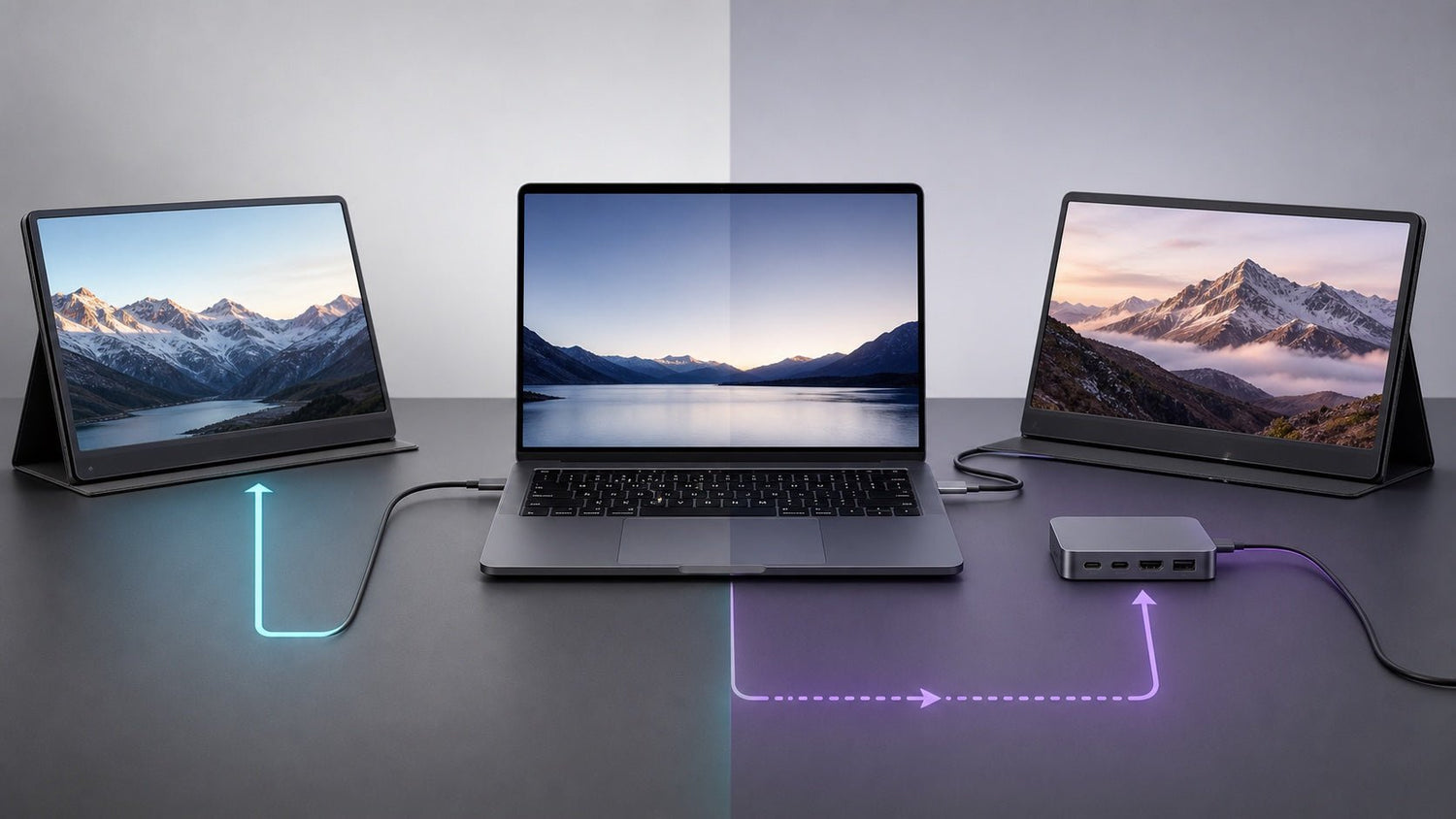
USB-C ports can look the same, but they do not always handle external displays in the same way. Some laptops send a native video signal through USB-C, while others need software-based technology such as DisplayLink to support more screens.
For anyone comparing USB-C video vs DisplayLink, the key question is not only “Which dock should I buy?” It is: How does my laptop create and send video to external monitors?
That difference affects setup complexity, driver requirements, latency, CPU/GPU usage, monitor count, MacBook compatibility, and whether the setup is suitable for a company laptop.

Quick Answer: USB-C Video vs DisplayLink
Native USB-C video sends a direct display signal from the laptop’s GPU through a USB-C port that supports DisplayPort Alt Mode, Thunderbolt, or USB4 display output.
DisplayLink uses software to process display data and send it over USB to a DisplayLink-enabled chip inside a dock, adapter, or monitor.
Native USB-C video is usually better for plug-and-play simplicity, low latency, and direct GPU-driven output. DisplayLink is usually better when you need more external monitors than your laptop can natively support.
Key Definitions
Native USB-C video is a direct display output method where the laptop sends a GPU-driven video signal through a compatible USB-C port.
DisplayPort Alt Mode is the technology that allows a USB-C port to carry a DisplayPort video signal when the laptop, cable, and connected device support it.
DisplayLink is a software-based display method that sends compressed display data through USB to a DisplayLink chip, which then outputs video to an external monitor.
How Native USB-C Video Works
Native USB-C video uses the laptop’s built-in graphics system to send a real display signal through USB-C. In many modern laptops, this is handled through DisplayPort Alt Mode, Thunderbolt, or USB4 display support.
The path is direct:
Laptop GPU → USB-C port with video support → Cable / hub / dock → Monitor
In this setup, the laptop’s GPU drives the external monitor directly. The USB-C connector is simply the physical pathway carrying the display signal.
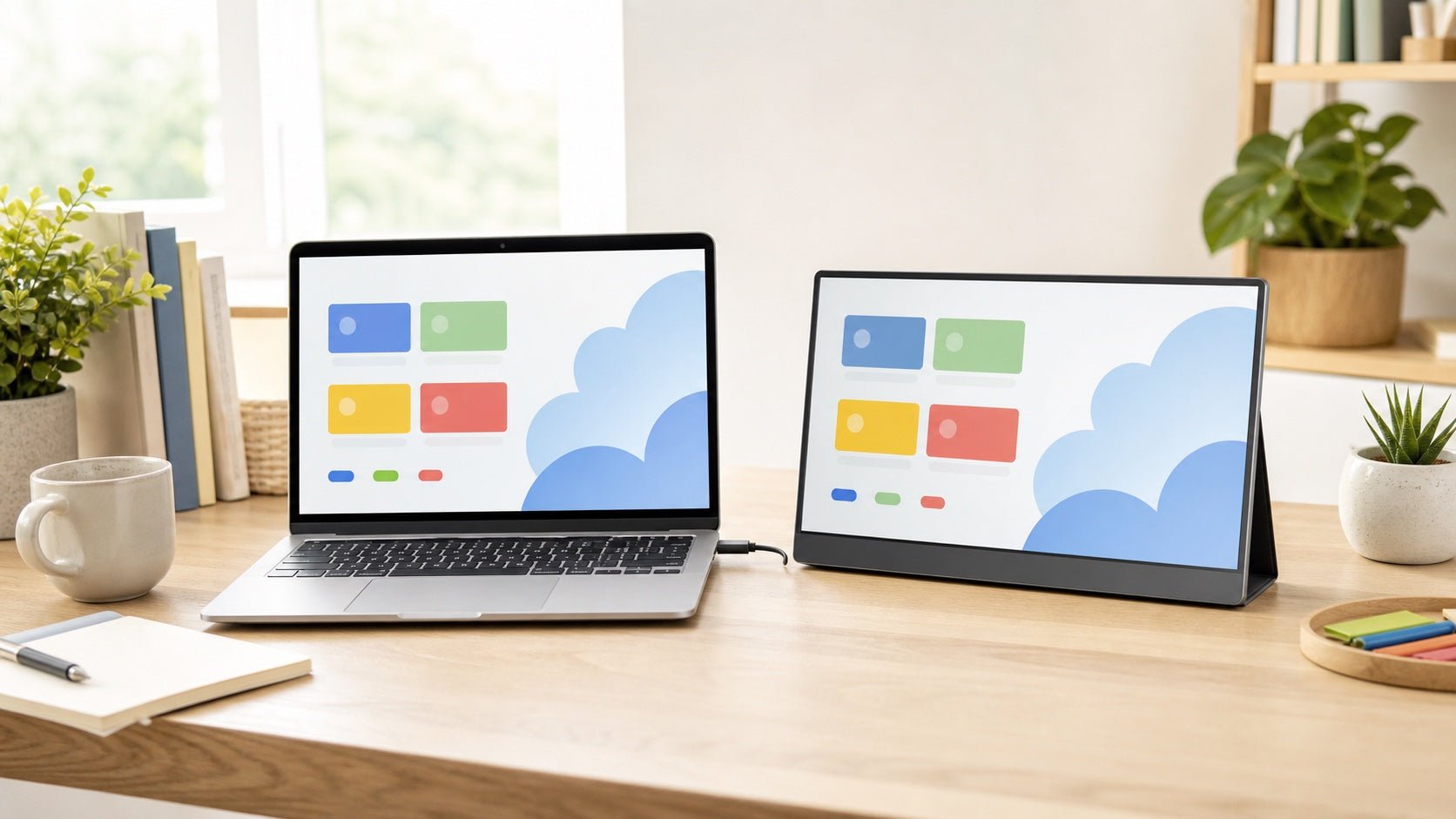
This is why native USB-C video often feels simple. In many cases, users do not need to install a separate display driver. They connect a USB-C monitor, USB-C to HDMI adapter, USB-C hub, or dock, and the laptop detects the external display.
Native USB-C video is usually a good fit for:
- One external monitor
- Plug-and-play desk setups
- Presentations
- Video playback
- Creative work
- Low-latency workflows
- Company laptops with restricted software installation
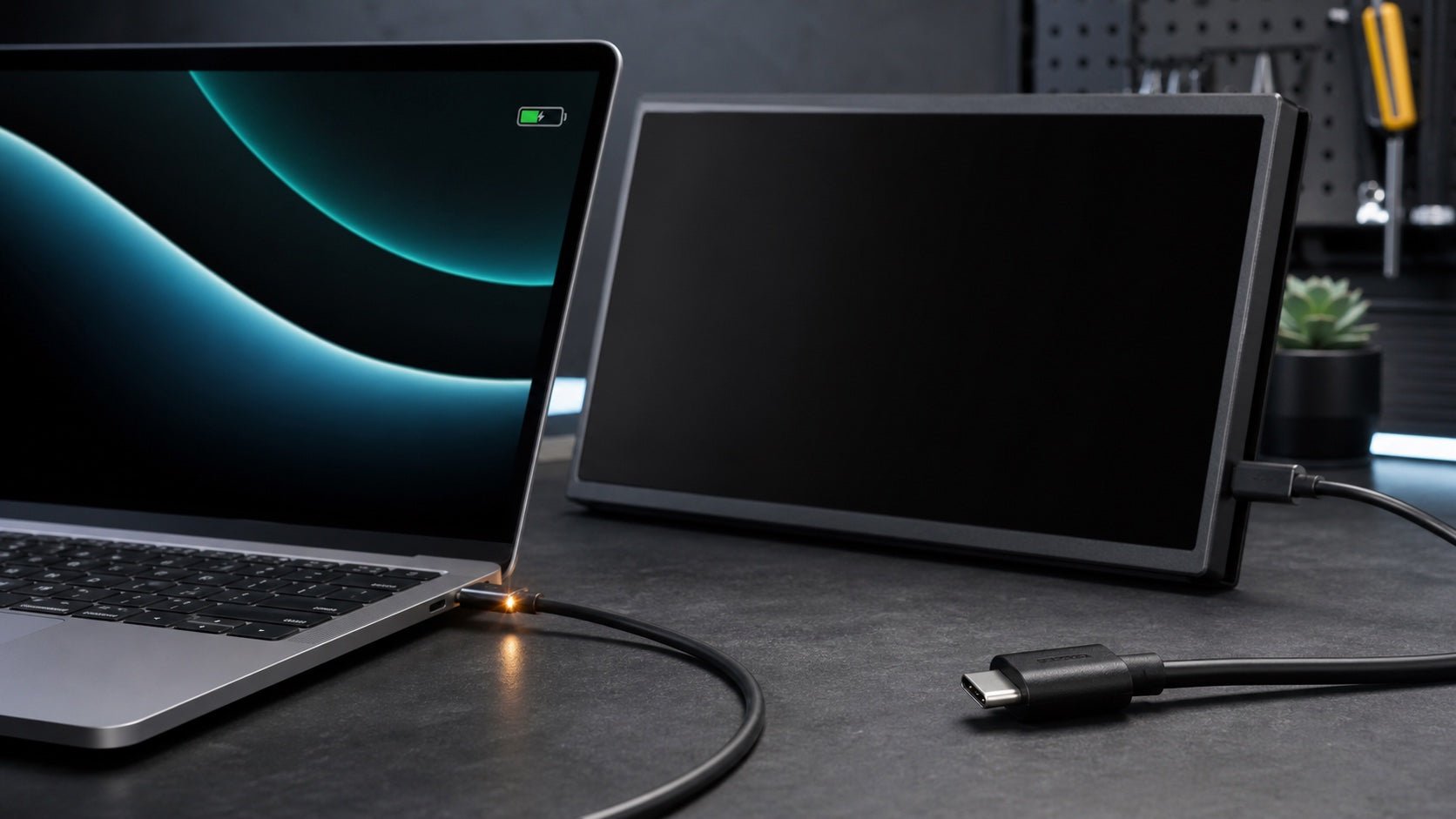
The main limitation is hardware support. A USB-C port does not automatically support display output. Some USB-C ports support only charging and data, while others support video output through DisplayPort Alt Mode, Thunderbolt, or USB4.
This is why the same USB-C hub may output video on one laptop but not on another. The issue may be the laptop port, cable, monitor, or dock specification.
For users who are unsure about port capability, INVZI’s guide to check whether your USB-C port supports display output can help confirm compatibility before choosing a display setup.
How DisplayLink Works
DisplayLink works differently from native USB-C video. Instead of sending a direct display signal through the laptop’s native graphics output, DisplayLink uses software to process display data and send it over USB.
The path looks like this:
Laptop CPU/GPU → DisplayLink software → USB data → DisplayLink chip → HDMI / DisplayPort monitor
The DisplayLink chip is usually built into a dock, adapter, or monitor. It receives display data over USB and converts it into a video signal for the external monitor.
This approach can be useful when a laptop has limited native external display support. For example, some laptops may support only one external monitor through their native display pipeline. A DisplayLink dock can create additional display outputs through USB, helping users build a dual-monitor or triple-monitor workstation.
DisplayLink is strongest for productivity workflows such as:
- Coding
- Spreadsheets
- Dashboards
- Documents
- Web apps
- Research
- Admin work
However, DisplayLink requires software or drivers. On managed company laptops, users may need IT approval. On macOS, users may also need to grant permissions for DisplayLink Manager.
DisplayLink is useful, but it should not be treated as identical to direct GPU output. Because display data is processed and sent over USB, it may not be ideal for gaming, color-critical editing, high-frame-rate video work, or latency-sensitive creative workflows.
Native USB-C Video vs DisplayLink: Feature Comparison
| Factor | Native USB-C Video | DisplayLink | What It Means for Users |
|---|---|---|---|
| Display method | Direct GPU-driven video output | Software-based USB graphics | They are different technologies, even if both may use USB-C connectors |
| Driver requirement | Usually no extra display driver | Requires DisplayLink software or driver | Native USB-C is simpler for locked-down laptops |
| Setup complexity | Lower when the port supports video | Higher because software and permissions may be required | DisplayLink needs more preparation |
| Latency | Usually lower | Can be higher due to software processing | Native USB-C is better for fast-motion work |
| CPU/GPU usage | Normal GPU display output | May use additional system resources | DisplayLink is better for productivity than heavy graphics workloads |
| Monitor count | Limited by laptop hardware and GPU support | Can help add displays beyond native limits | DisplayLink is useful for multi-screen expansion |
| MacBook compatibility | Depends on the exact MacBook model and chip | Can help when native external display support is limited | Mac users should check their model’s display limits |
| Windows laptop compatibility | Depends on USB-C, Thunderbolt, or USB4 video support | Works when drivers and hardware are supported | IT policy may matter as much as hardware |
| Company laptop restrictions | Often easier because no display driver is needed | May be blocked by software restrictions | Enterprise users should confirm with IT |
| Best use case | Direct, low-latency monitor output | Extra screens for productivity | Choose based on display count and workflow |
| Less ideal for | Laptops without video-capable USB-C ports | Gaming, color-critical editing, high-frame-rate motion | Neither method is ideal for every situation |
When to Use Native USB-C Video
Native USB-C video is usually the better choice when your laptop already supports the external display setup you need.
Use native USB-C video if you:
- Need only one external monitor
- Want the simplest plug-and-play setup
- Need low latency
- Use creative or visual applications
- Frequently connect to meeting-room displays
- Cannot install third-party display drivers
- Want the external monitor driven directly by the laptop GPU
A typical native USB-C video setup looks like this:
Laptop with USB-C display output → USB-C hub, dock, adapter, or monitor cable → External monitor
This is the cleaner route when display compatibility is confirmed and the laptop can already drive the number of monitors required.
When to Use DisplayLink
DisplayLink is usually the better choice when the main problem is screen count.
Some users do not need ultra-low latency or color-critical output. They simply need more usable desktop space for productivity. DisplayLink can help when the laptop’s native display support is limited.
Use DisplayLink if you:
- Need two or more external monitors
- Have a laptop that cannot natively support enough displays
- Use a MacBook model with limited native external display support
- Work mainly with static or moderate-motion content
- Need more room for apps, documents, dashboards, and browser windows
- Can install the required DisplayLink software
DisplayLink is commonly useful for:
| User type | Why DisplayLink may help |
| Developers | Keep code, terminal, documentation, and browser visible |
| Analysts | Use spreadsheets, dashboards, and reports across multiple screens |
| Remote workers | Separate meetings, notes, email, and web apps |
| Office users | Build a larger workstation from a compact laptop |
| IT teams | Support multi-monitor productivity across different laptop types, if drivers are approved |
DisplayLink is less suitable when the workflow depends on high frame rates, exact color accuracy, or the lowest possible latency.
Common Compatibility Mistakes Users Make
1. Assuming every USB-C port supports video
USB-C describes the connector shape, not the full capability of the port. A USB-C port may support charging, data, display output, Thunderbolt, USB4, or only some of these functions.
2. Confusing USB-C, Thunderbolt, USB4, and DisplayPort Alt Mode
These terms are related, but they are not the same. A laptop can have USB-C without Thunderbolt. Another laptop may support Thunderbolt but still have model-specific external display limits.
3. Buying a dock without checking display technology
Some docks rely on native USB-C video. Others use DisplayLink. Others use Thunderbolt. They may look similar, but their display behavior can be very different.
4. Expecting DisplayLink to behave exactly like native GPU output
DisplayLink is practical for productivity, but it is not the same as a direct GPU display path. Users may notice differences in motion handling, latency, or system resource usage depending on workload.
5. Ignoring company laptop restrictions
DisplayLink may require software installation and permissions. On managed laptops, users may not have admin rights, or IT may block third-party display drivers.
6. Using the wrong cable
A USB-C cable may charge a laptop without supporting the bandwidth, protocol, or display mode required for video output. For native USB-C video, the laptop, cable, and connected device must all support the required display path.
The INVZI Three-Question Rule
Before choosing between native USB-C video and DisplayLink, answer three questions:
- How many external displays do you need?
- How many external displays can your laptop natively support?
- Are you allowed to install display software or drivers?
If your laptop already supports the display count you need, native USB-C video is usually the cleaner path.
If your laptop cannot support enough displays natively and software installation is allowed, DisplayLink becomes the practical expansion path.
If your company laptop blocks drivers, native USB-C video is usually safer unless IT approves DisplayLink.
Decision Framework: Which One Should You Choose?
Use this simple logic:
Need only one external monitor?
→ Choose native USB-C video if your laptop supports USB-C display output.
Need two or more external monitors?
→ First check your laptop’s native external display limit.
Laptop cannot natively support enough displays?
→ Consider DisplayLink.
Using a company laptop with restricted software installation?
→ Prefer native USB-C video, or ask IT whether DisplayLink is approved.
Doing gaming, video editing, 3D work, or color-critical design?
→ Prefer native USB-C video or another direct GPU-driven display path.
Doing spreadsheets, coding, dashboards, email, documents, or browser-based work?
→ DisplayLink can be a practical option for extra screen space.
Scenario-Based Recommendations
| Scenario | Better fit | Reason |
| One external monitor for office work | Native USB-C video | Simple setup and usually no extra display driver |
| Two monitors on a laptop with native dual-display support | Native USB-C video | Direct GPU output is cleaner |
| Two or three monitors on a laptop with limited native support | DisplayLink | Can add displays through USB graphics |
| MacBook user unsure about display limits | Check model first | External display support varies by chip and model |
| Locked-down company laptop | Native USB-C video | Avoids driver and permission issues |
| Developer using code, docs, terminal, and browser | Depends on monitor count | DisplayLink works well for productivity screens |
| Designer or video editor | Native USB-C video | Better for visual accuracy and low-latency workflows |
| Frequent presenter | Native USB-C video | More reliable for quick plug-and-play use |
| Analyst using dashboards and spreadsheets | DisplayLink | Extra screen space may matter more than ultra-low latency |
Where INVZI Fits
INVZI designs connectivity tools for modern laptop workspaces, including solutions for users who rely on USB-C hubs, docking stations, and multi-screen setups. Before choosing any setup, users should first understand whether their laptop needs native USB-C video output or a DisplayLink-based display path.
After identifying the right display method, users can explore INVZI docking stations and USB-C hubs based on laptop compatibility, monitor count, resolution needs, and workspace style.
MacBook users who are comparing dock formats can also refer to the MacBook docking station selection guide, but this article’s main goal is to explain the display technology difference before product selection.
Final Takeaway
The difference between USB-C video vs DisplayLink is not just about the connector. It is about how the laptop creates external displays.
Native USB-C video is best when you want simple, direct, low-latency display output and your laptop already supports the number of monitors you need.
DisplayLink is best when you need more screens than your laptop can natively drive and you are able to install the required software.
Before choosing, answer these four questions:
- Does your USB-C port support video output?
- How many external monitors do you need?
- Can your laptop natively support that number of displays?
- Are DisplayLink drivers and permissions allowed on your system?
Once those answers are clear, choosing between native USB-C video and DisplayLink becomes much easier.
FAQ
Is DisplayLink the same as USB-C video?
No. Native USB-C video sends a direct display signal through USB-C, usually through DisplayPort Alt Mode, Thunderbolt, or USB4 display output. DisplayLink sends display data over USB using software and a DisplayLink-enabled chip.
Does every USB-C port support video?
No. USB-C is only the connector type. The port must support DisplayPort Alt Mode, Thunderbolt, USB4 display output, or another compatible video method.
Is DisplayLink good for dual monitors?
Yes. DisplayLink can be useful for dual-monitor setups, especially when a laptop cannot natively support two external displays. It is best for productivity workflows such as documents, spreadsheets, coding, dashboards, and web apps.
Is native USB-C video better than DisplayLink?
Native USB-C video is usually better for simplicity, latency, and direct GPU-driven display output. DisplayLink is better when the main goal is adding more external displays than the laptop can natively support.
Does DisplayLink require a driver?
Yes. DisplayLink requires DisplayLink software or drivers. On some systems, users may also need to grant additional permissions.
Which is better for MacBook users?
It depends on the exact MacBook model and chip. Some MacBooks support multiple external displays natively, while others have stricter limits. MacBook users should check their model’s display support before choosing between native USB-C video and DisplayLink.
Which is better for company laptops?
Native USB-C video is usually easier for company laptops because it often avoids third-party display drivers. DisplayLink can still work well, but only if IT allows the required software and permissions.
Can DisplayLink be used for gaming or video editing?
DisplayLink can show those applications, but it is not the preferred choice for gaming, high-frame-rate video, 3D work, or color-critical editing. Native USB-C video or another direct GPU-driven display path is usually better for those workflows.

Leave a comment
This site is protected by hCaptcha and the hCaptcha Privacy Policy and Terms of Service apply.