


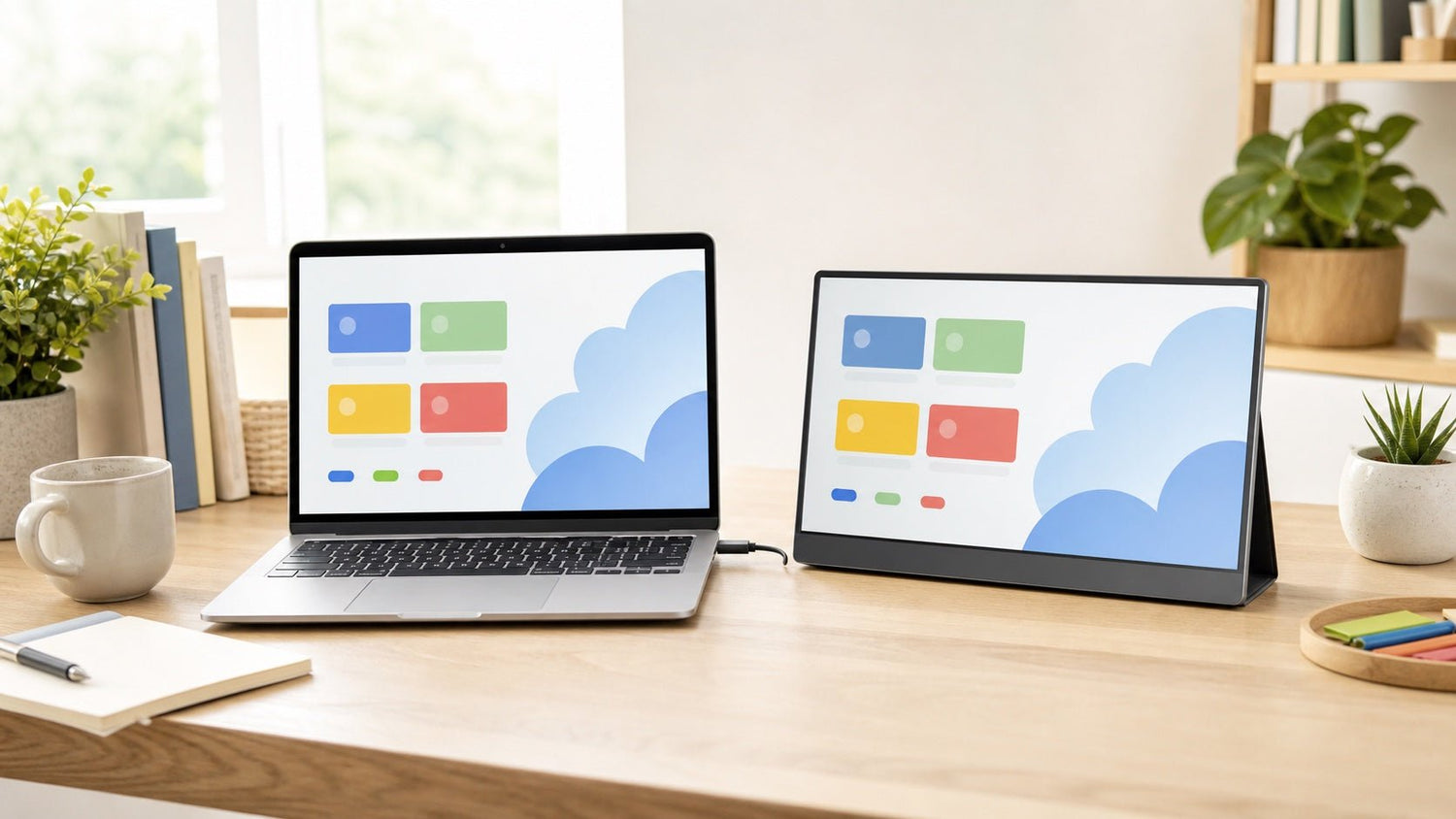
A common laptop screen extender Chromebook question is whether ChromeOS can actually support an extra display. The short answer is yes, many Chromebooks can work with a laptop screen extender, but compatibility depends on your Chromebook model, available ports, cable type, display output support, and device settings.
Quick answer: You can usually use a laptop screen extender with a Chromebook if the Chromebook supports external display output through USB-C, HDMI, or a compatible adapter. The most important thing to check is whether your USB-C port supports video output, not just charging or data transfer.
This guide explains what to check before connecting a screen extender, how to set it up in ChromeOS, and what to do if your Chromebook does not detect the display.

Can a Chromebook Work with a Laptop Screen Extender?
Yes, many Chromebooks can work with a laptop screen extender. ChromeOS supports external displays, so a Chromebook can often connect to an extra screen, portable monitor, TV, or desktop monitor.
However, not every Chromebook has the same display capabilities. A newer Chromebook may support USB-C video output, while an older or entry-level model may only support basic charging and data through USB-C. Some models include HDMI, while others require an adapter or hub.
A laptop screen extender works best when your Chromebook can send a video signal directly to the external display. Before buying or connecting one, check your Chromebook’s official specifications and the screen extender’s compatibility notes.
What to Check Before Connecting a Laptop Screen Extender
Before setting up a laptop screen extender with a Chromebook, confirm the following points.
| Before you connect | What to check |
|---|---|
| Chromebook model | Confirm that the device supports external display output |
| USB-C port | Check for video output, DisplayPort over USB-C, or DP Alt Mode |
| HDMI port | Use HDMI if your Chromebook and screen extender both support it |
| Cable type | Avoid charging-only USB-C cables |
| Adapter or hub | Make sure it supports video output |
| Power requirement | Check whether the screen extender needs external power |
| ChromeOS settings | Use Device > Displays to manage the extra screen |
| Managed device limits | School or work Chromebooks may restrict some settings |
Chromebook model
Start with your exact Chromebook model. Search the official specifications and look for terms such as:
- USB-C display output
- DisplayPort over USB-C
- DP Alt Mode
- HDMI output
- External monitor support
These terms indicate that the Chromebook is designed to send video to an external display.
USB-C video output
A USB-C port can look the same on the outside but behave differently. Some USB-C ports support charging and data only. Others also support video output.
If your laptop screen extender uses USB-C video, your Chromebook must support display output through that USB-C port. A charging-only USB-C port will not send a display signal, even if the cable fits.
HDMI availability
Some Chromebooks include a built-in HDMI port. If your Chromebook has HDMI and your screen extender supports HDMI input, setup may be more straightforward. Depending on the extender, you may still need a separate USB cable or power source.
Cable and adapter quality
A common issue is using the wrong cable. Some USB-C cables are designed mainly for charging and cannot carry video. Similarly, a USB-C to HDMI adapter must support display output. A basic charging hub will not solve a video connection problem.
Power requirements
Some screen extenders draw power from the Chromebook. Others need an external power source. If the display flickers, turns off, or is not detected, insufficient power may be the cause.
School or enterprise restrictions
If you use a Chromebook managed by a school, company, or organization, some device settings may be controlled by an administrator. This can affect USB accessories, display settings, or external device behavior.
USB-C vs HDMI: Which Connection Works Better for Chromebook?
There is no single best connection for every Chromebook. The right option depends on your Chromebook’s ports and how the screen extender is designed.
| Connection type | Best for | What to watch for |
|---|---|---|
| USB-C | Clean, portable setups with fewer cables | The port and cable must support video output |
| HDMI | Simple video connection when HDMI is available | The screen may still need separate power |
| USB-C to HDMI adapter | Chromebooks with USB-C but no HDMI | Adapter must support video output |
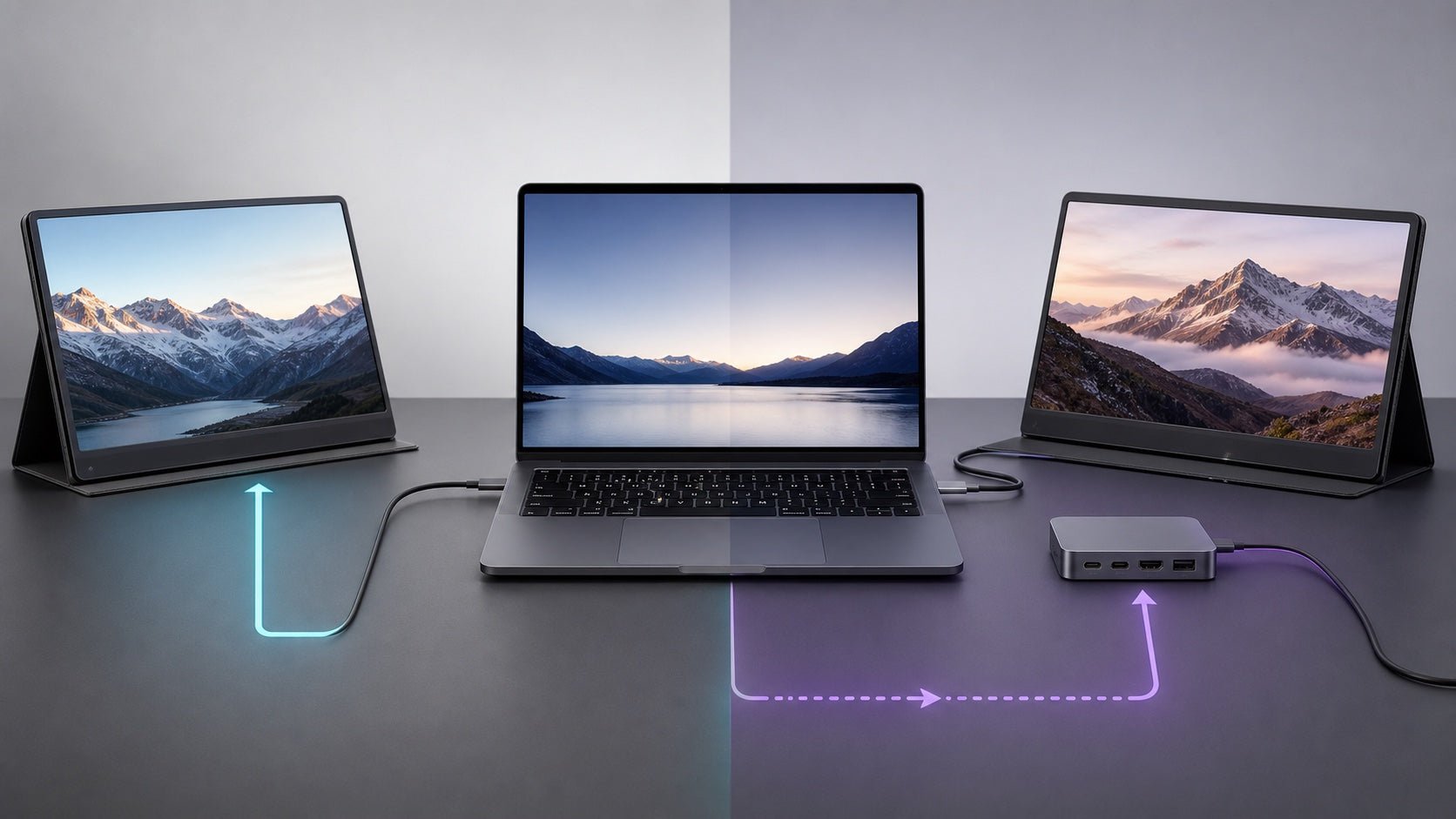
| Docking station | Desk setups with multiple accessories | Display support varies by dock and Chromebook |
| DisplayLink-based device | Some USB-based display setups | Check ChromeOS and product compatibility |
USB-C is often the cleanest option for travel because it can reduce cable clutter. HDMI is usually easier to understand because it is a dedicated video connector. Adapters and docks can work well, but they must support display output.
Some USB-based screen extenders or docks may use DisplayLink technology instead of native USB-C video output. Modern ChromeOS versions include DisplayLink support, but compatibility can still depend on the extender, Chromebook performance, number of displays, and firmware support. Always check the product’s Chromebook compatibility notes before buying.
For a broader walkthrough across laptop display types, read this second screen connection guide.
How to Set Up a Laptop Screen Extender on ChromeOS
Once you have confirmed that your Chromebook, cable, and screen extender are compatible, setup is usually simple.
Step 1: Connect the screen extender
Connect the screen extender to your Chromebook using USB-C, HDMI, or the correct adapter. If the extender requires external power, connect the power source first.
Step 2: Open ChromeOS Settings
Select the time at the bottom right of your Chromebook screen, then open Settings.
Step 3: Go to Device > Displays
In ChromeOS Settings, go to:
Device > Displays
If the screen extender is detected, it should appear in the display layout area.
Step 4: Choose Extend or Mirror
ChromeOS usually lets you choose between extending the display or mirroring the built-in screen.
- Extend display: Creates extra workspace across multiple screens.
- Mirror built-in display: Shows the same content on both screens.
Step 5: Arrange your screens
Drag the display boxes so they match your physical setup. For example, if the extender sits to the right of your Chromebook, place the external display on the right in the layout.
This makes the cursor move naturally between screens.
Step 6: Adjust resolution, scale, and orientation
If text looks too small, the image looks blurry, or the screen orientation feels wrong, adjust the display settings. ChromeOS may allow changes to:
- Resolution
- Display size
- Scale
- Orientation
- Refresh rate, depending on the screen
Original asset suggestion: Add an INVZI screenshot here showing ChromeOS display settings, screen arrangement, mirror mode, and resolution options.
Extend Mode vs Mirror Mode on Chromebook
A laptop screen extender can usually be used in two main ways on a Chromebook: extend mode or mirror mode.
Extend mode
Extend mode gives you more workspace. Your Chromebook screen and external display act like separate parts of one larger desktop.
Use extend mode for:
- Writing on one screen while researching on another
- Keeping a video call open while taking notes
- Comparing documents or spreadsheets
- Viewing a dashboard while working in another tab
- Coding with documentation beside the editor
- Managing email, calendar, and browser tools at the same time
For most productivity workflows, extend mode is the more useful option.
Mirror mode
Mirror mode shows the same content on both screens. It is useful when you want someone else to see exactly what is on your Chromebook.
Use mirror mode for:
- Classroom presentations
- Sales demos
- Training sessions
- Sharing documents
- Showing slides to another person nearby
Mirror mode is simple, but it does not increase workspace. It duplicates the same screen.
Common Reasons a Laptop Screen Extender May Not Work with Chromebook
If your Chromebook does not detect the screen extender, the issue is usually related to the port, cable, adapter, power, or settings.
1. The USB-C port does not support video
This is one of the most common issues. Your Chromebook may charge through USB-C but still not support video output from that port.
2. The USB-C cable is charging-only
A cable can fit physically but still fail to carry a video signal. Use a USB-C cable that supports display output.
3. The screen extender needs more power
If the display flickers, disconnects, or turns on briefly and then shuts off, try using external power if the extender supports it.
4. The adapter does not support video output
Not every USB-C hub or adapter can send video. If you are using USB-C to HDMI, confirm that the adapter supports external display output.
5. ChromeOS needs an update
Display behavior may improve after a ChromeOS update. If your Chromebook detects the extender inconsistently, check for system updates.
6. The Chromebook is managed
School or enterprise Chromebooks may have restrictions that limit device settings or external accessories. If display settings are unavailable, ask the administrator.
7. The display arrangement is incorrect
Sometimes the screen is working, but the cursor moves in the wrong direction because the layout is incorrect. Open Device > Displays and rearrange the screens.
Troubleshooting Checklist
Use this quick checklist if your laptop screen extender is not working with your Chromebook.
| Problem | What to try |
|---|---|
| Screen not detected | Reconnect the cable and check Device > Displays |
| USB-C connection fails | Confirm that the USB-C port supports video output |
| Display flickers | Connect external power to the screen extender |
| HDMI does not work | Test another HDMI cable or adapter |
| Image looks blurry | Adjust resolution or display scale |
| Cursor moves the wrong way | Rearrange screens in ChromeOS display settings |
| Settings are unavailable | Check whether the Chromebook is managed |
| Screen works on another device | Recheck Chromebook port and adapter compatibility |
Who Benefits Most from a Chromebook Screen Extender?
A Chromebook screen extender is useful for people who rely on browser-based work but feel limited by a single screen.
Students can keep lecture videos, notes, research, and assignments visible with less tab switching. For study-focused examples, see this guide on using a second screen for study and productivity.
Remote workers can keep video calls, documents, chats, and dashboards open at the same time. Teachers can view slides, student windows, and notes more comfortably. Digital nomads can build a temporary dual-screen setup without carrying a full desktop monitor.
The value is not simply having another screen. The main benefit is giving each task its own space.
FAQ
Can all Chromebooks use a laptop screen extender?
No. Many Chromebooks support external displays, but not all models support the same ports, resolutions, or multi-screen setups. Check your Chromebook’s official specifications before buying a screen extender.
How do I know if my Chromebook USB-C port supports video?
Check the Chromebook’s official specifications. Look for terms such as DisplayPort over USB-C, USB-C display output, or DP Alt Mode. If the specifications only mention charging and data transfer, the port may not support video.
Can I use HDMI with a Chromebook screen extender?
Yes, if your Chromebook has HDMI output or you use a compatible USB-C to HDMI adapter. The screen extender may still need separate power.
Why is my Chromebook not detecting the screen extender?
Common causes include a USB-C port that does not support video, a charging-only USB-C cable, insufficient screen power, an incompatible adapter, outdated ChromeOS, or restrictions on a managed Chromebook.
Should I use Extend or Mirror mode on Chromebook?
Use Extend mode for productivity and multitasking. Use Mirror mode for presentations, teaching, demos, or sharing the same screen with another person.
Can a Chromebook support more than one external screen?
Some Chromebooks can support more than one external display, but this depends on the model, processor, ports, dock, display resolution, and ChromeOS support. Check your Chromebook’s specifications and the screen extender’s compatibility information.
Final Thoughts
You can use a laptop screen extender with a Chromebook in many cases, but you should confirm compatibility before setting it up. The most important details are your Chromebook model, USB-C video output support, HDMI availability, cable type, adapter quality, power requirements, and ChromeOS display settings.
For most users, the setup process is straightforward: connect the extender, open Device > Displays, choose extend or mirror mode, and adjust the screen arrangement. If the display does not work, check the port, cable, adapter, power source, ChromeOS version, and device management restrictions first.
Once you confirm that your Chromebook supports external display output, you can explore INVZI’s laptop screen extender options for flexible second-screen setups at home, in class, or while traveling.

Leave a comment
This site is protected by hCaptcha and the hCaptcha Privacy Policy and Terms of Service apply.