


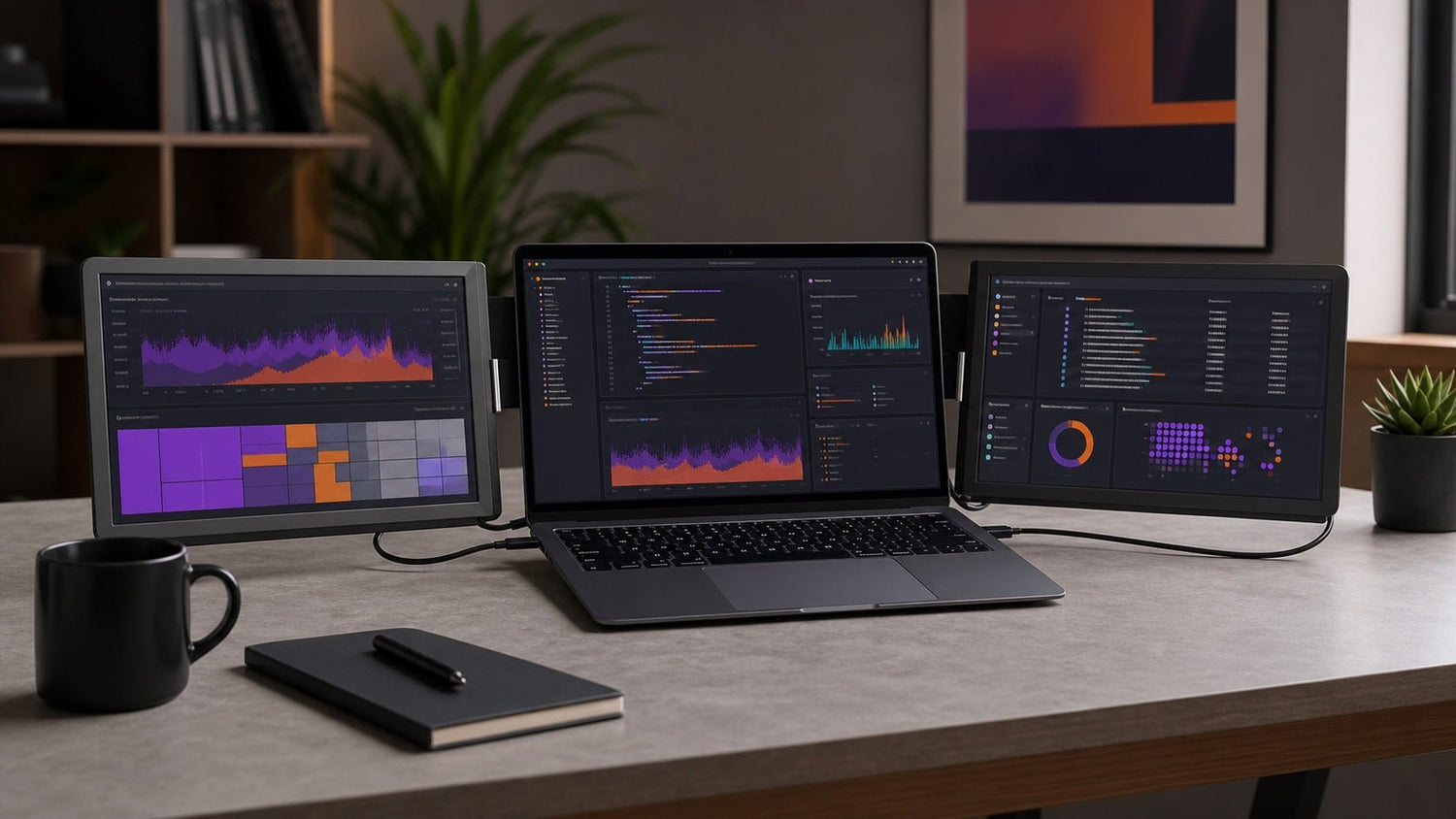
Linux users often want more screen space without giving up a portable setup. For developers, DevOps engineers, cybersecurity users, data analysts, and remote workers, a laptop screen extender can make daily work much easier.
But before connecting an external screen setup to a Linux laptop, there is one important question:
Will an INVZI screen extender work on Linux?
The practical answer is: yes, it can work, but compatibility depends on your laptop, connection method, cable, Linux distribution, and the specific INVZI model.
For Ubuntu users, the smoothest setup is usually through native USB-C video output or HDMI. DisplayLink-based setups may also work, but they require more attention to drivers, Secure Boot, kernel updates, and the difference between Wayland and X11.
This guide explains how a laptop screen extender Linux setup works on Ubuntu, what to check before setup, and which limitations Linux users should know.

Quick Answer: Does an INVZI Screen Extender Work on Linux?
An INVZI screen extender can work with Linux when the full display chain is compatible.
That means the following items all need to work together:
| Requirement | Why It Matters |
|---|---|
| Laptop video output | Not every USB-C port supports external display output |
| INVZI model connection type | Some models may use USB-C video, HDMI, DisplayLink, or a combination |
| Cable quality and capability | Charging-only USB-C cables may not carry video |
| Linux distribution | Ubuntu is usually more predictable than highly customized systems |
| Display server | Wayland and X11 may behave differently |
| Driver path | DisplayLink may require additional drivers and kernel module support |
For most Ubuntu users, the easiest path is:
- Native USB-C video, when the laptop supports DisplayPort Alt Mode, Thunderbolt, or USB4 display output
- HDMI, when the INVZI model supports HDMI input
- DisplayLink, when native video output is limited but the user is comfortable with driver setup
The key point: Linux compatibility is not only about the screen extender. It depends on the laptop port, cable, driver method, kernel version, and desktop environment.
Tested Environment
Use this section to show real INVZI test data before publishing. Replace the placeholder fields with confirmed internal testing details.
| Item | Test Configuration |
|---|---|
| Linux distribution | Ubuntu [INSERT VERSION] |
| Desktop environment | GNOME [INSERT VERSION] |
| Display server | Wayland / X11 / Both tested |
| Kernel version | [INSERT KERNEL VERSION] |
| Laptop model | [INSERT LAPTOP MODEL] |
| GPU | [INSERT GPU MODEL] |
| INVZI model tested | [INSERT INVZI MODEL NAME] |
| Connection tested | USB-C video / HDMI / DisplayLink |
| Secure Boot status | Enabled / Disabled |
| DisplayLink driver version, if used | [INSERT DRIVER VERSION] |
| Result summary | [INSERT FINAL TEST RESULT] |
Recommended original assets for this section:
- Ubuntu display settings screenshot
- INVZI screen extender connected to a Linux laptop
- USB-C / HDMI / DisplayLink connection photo
- Wayland and X11 test notes
- Known limitation table by Ubuntu version or kernel version
How to Set Up an INVZI Screen Extender on Ubuntu with USB-C
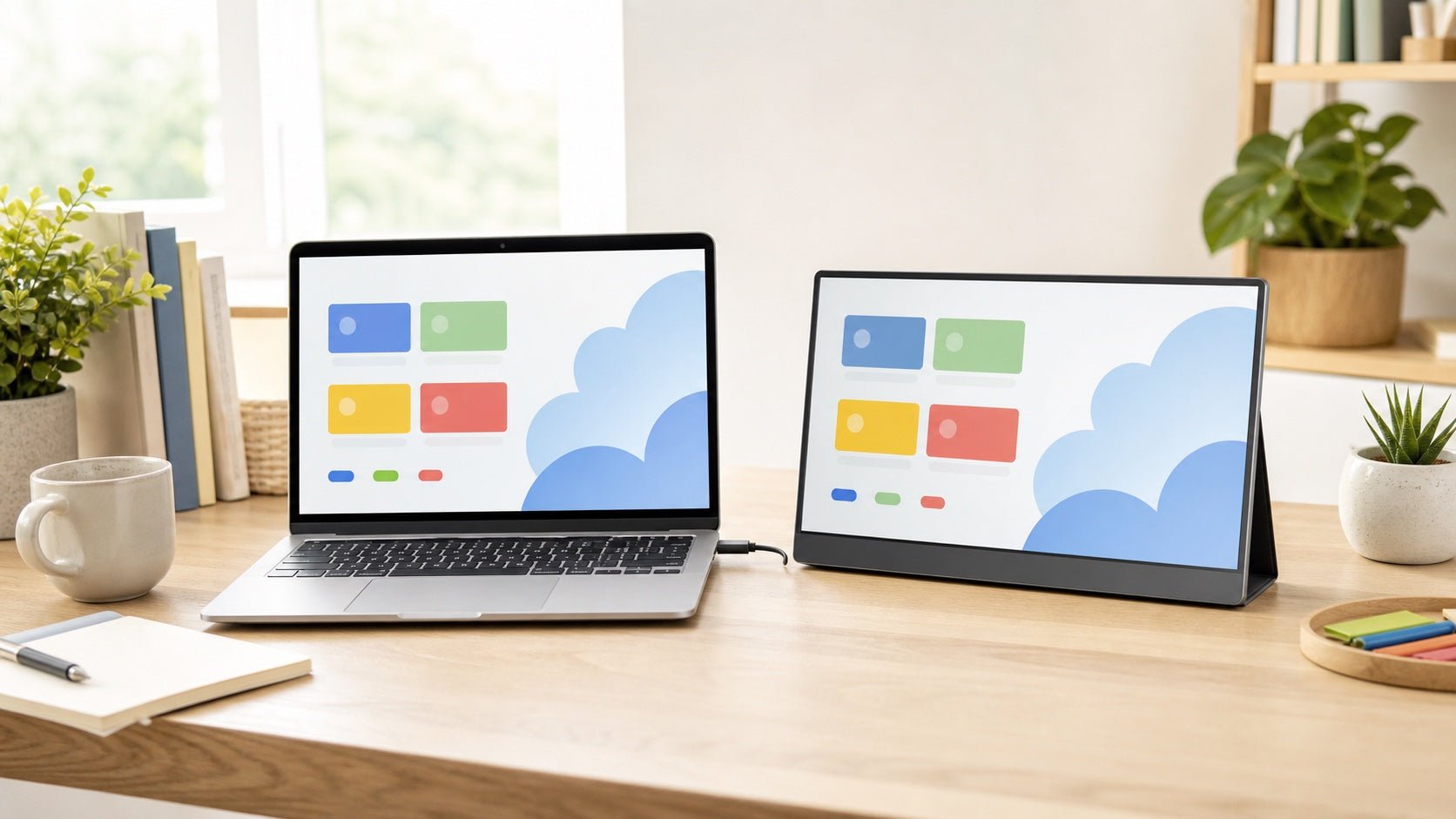
Native USB-C video is usually the simplest way to use a screen extender with Ubuntu.
In this setup, the laptop sends a direct display signal through a USB-C port. This is different from using USB only for data transfer.
Look for one of these terms in your laptop specifications:
- USB-C with DisplayPort Alt Mode
- Thunderbolt 3 or Thunderbolt 4
- USB4 with display output
- DisplayPort over USB-C
- USB-C video output
A USB-C port that only supports charging or data transfer may not work for external video. The cable may connect physically, but Ubuntu will not detect the display.
Ubuntu USB-C Setup Steps
- Connect the INVZI screen extender with a video-capable USB-C cable.
- Open Settings.
- Go to Displays.
- Check whether Ubuntu detects the additional screen.
- Arrange the screen position to match your physical setup.
- Choose the preferred resolution.
- Adjust scaling if text or icons look too small.
- Click Apply.
- Disconnect and reconnect once to confirm the setting remains stable.
Common USB-C Issues on Linux
| Issue | Possible Cause | What to Check |
|---|---|---|
| Screen not detected | USB-C port does not support video | Check laptop specs for DP Alt Mode, Thunderbolt, or USB4 display output |
| Screen flickers | Cable or power issue | Try another video-capable USB-C cable |
| Wrong display position | Ubuntu layout mismatch | Rearrange displays in Settings |
| Text too small | Scaling mismatch | Adjust display scale |
| Rotation incorrect | Orientation not set | Change display orientation manually |
| Screen not restored after sleep | Suspend/resume issue | Reconnect cable or restart the display session |
For Linux users, native USB-C video is usually preferred because it avoids extra display drivers.
How to Use HDMI with an INVZI Screen Extender on Linux
HDMI can be a stable alternative when your laptop does not support USB-C video output.
In many Ubuntu setups, HDMI behaves like a standard external monitor connection. Once connected, the screen should appear in Settings > Displays, where you can arrange, mirror, or extend the desktop.
HDMI may be useful when:
- Your laptop has an HDMI port
- Your USB-C port does not support video
- The INVZI model supports HDMI input
- You want to avoid DisplayLink drivers
- You need a more predictable Linux display path
HDMI Setup Notes
| Area | What to Know |
|---|---|
| Video signal | HDMI carries the display signal directly |
| Power | Some portable screens may still need USB-C power |
| Cable setup | HDMI may require more cables than USB-C |
| Resolution | Supported resolution depends on laptop, cable, and screen |
| Display arrangement | Ubuntu may need manual layout adjustment |
HDMI is not always as clean as one-cable USB-C, but it is often a dependable option for Linux users.
Does DisplayLink Work with Ubuntu for Screen Extenders?
DisplayLink is different from native USB-C video and HDMI.
Instead of using a direct GPU display signal, DisplayLink sends display data over USB through software and compatible hardware. This can help some laptops support extra screens, but it also adds driver dependency.
For users comparing direct USB-C video and software-based display output, see INVZI’s USB-C vs DisplayLink setup guide.
What Linux Users Should Know About DisplayLink
On Ubuntu, a DisplayLink setup may involve:
- DisplayLink driver installation
- EVDI kernel module support
- DKMS module rebuilding
- Secure Boot configuration
- Kernel compatibility
- Wayland and X11 differences
DisplayLink can be useful, but it is usually the most technical setup path on Linux.
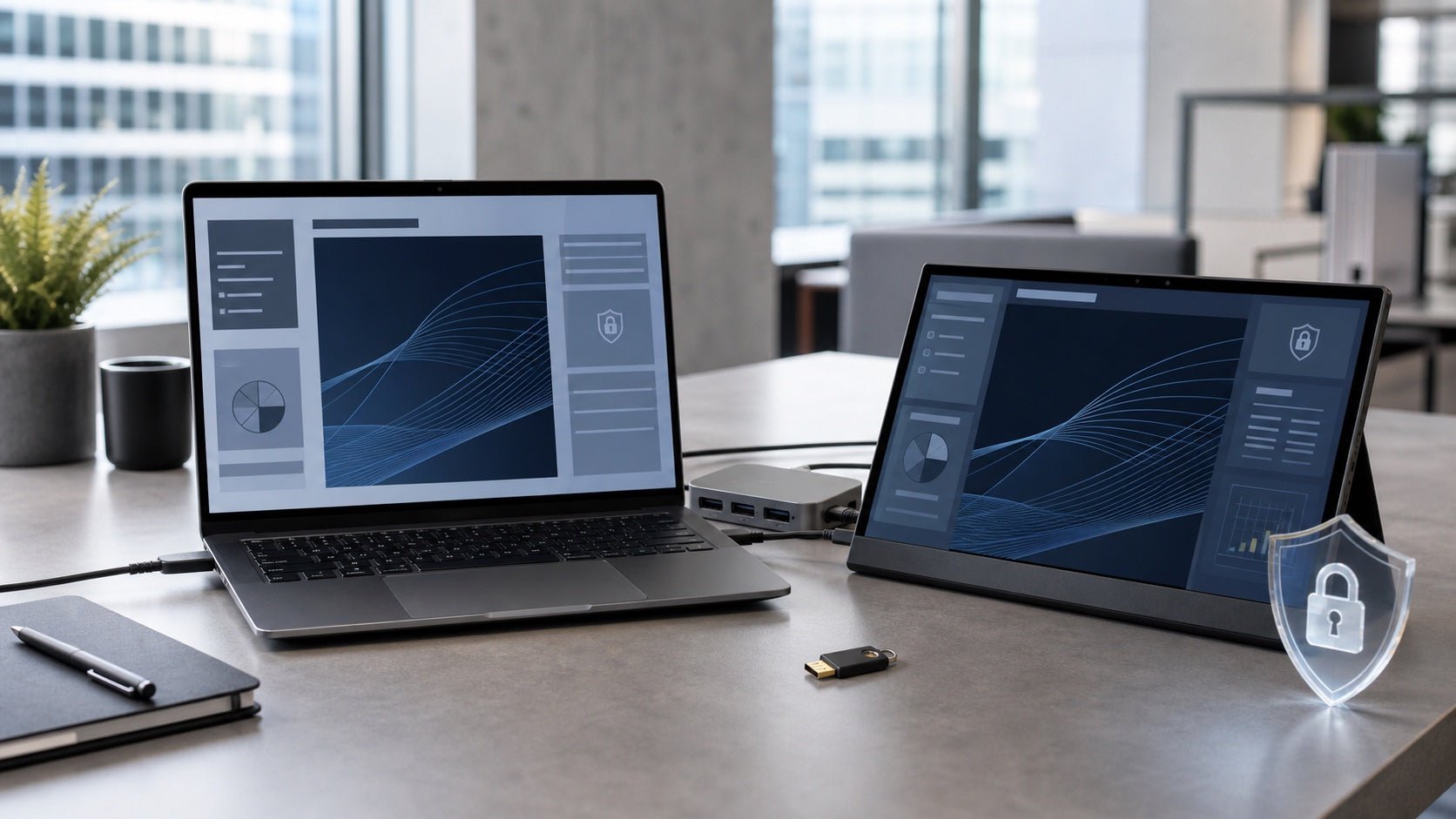
Secure Boot Considerations
Secure Boot can block unsigned third-party kernel modules. Because DisplayLink on Ubuntu may depend on kernel module support, Secure Boot can prevent the display driver from loading correctly.
Users who rely on DisplayLink should check the latest official DisplayLink instructions for Ubuntu before changing Secure Boot or kernel module settings.
Kernel Update Considerations
Linux kernel updates can sometimes affect DisplayLink behavior. After a major Ubuntu kernel update, the driver or EVDI module may need to be rebuilt, updated, or reinstalled.
This is one reason native USB-C video or HDMI is usually simpler for Linux users.
Wayland vs X11
Ubuntu GNOME may use Wayland by default, depending on the Ubuntu version and hardware.
Some DisplayLink setups may behave differently under Wayland than under X11. If a DisplayLink screen is detected but unstable, testing an X11 session can help identify whether the issue is related to the display server.
For Linux users who need the most predictable multi-screen behavior, X11 may still be worth testing.
Tested Linux Limitations and Compatibility Notes
Linux display behavior can vary by laptop, kernel, GPU, desktop environment, and connection method. The limitations below are the most important to verify during Ubuntu testing.
| Limitation | What It Means | Recommended Check |
|---|---|---|
| USB-C port may not support video | The screen may not be detected even if the cable fits | Confirm DP Alt Mode, Thunderbolt, or USB4 display output |
| Charging-only USB-C cable | Some USB-C cables do not carry video | Use a full-featured USB-C cable |
| DisplayLink driver dependency | Extra software may be required | Check official DisplayLink Ubuntu support |
| Secure Boot conflict | Kernel modules may be blocked | Verify module loading or Secure Boot status |
| Kernel update risk | Driver may need repair after updates | Retest after major kernel updates |
| Wayland differences | Some display behavior may vary | Compare Wayland and X11 sessions |
| Fractional scaling issues | Text size may differ across screens | Adjust Ubuntu display scaling |
| Rotation may need manual setup | Auto-rotation may not work consistently | Set orientation in Displays |
| Sleep/wake recovery | External screens may not always resume correctly | Test suspend and reconnect behavior |
| Battery drain | Extra screens use more power | Use external power for longer sessions |
| GPU display limits | Some laptops cannot drive multiple screens natively | Check laptop external monitor support |
A reliable laptop screen extender Linux setup starts with the connection method. USB-C video and HDMI are usually more direct. DisplayLink can be useful, but it adds driver and kernel complexity.
Troubleshooting Checklist for Ubuntu
If Ubuntu does not detect the INVZI screen extender, start with the hardware path before changing Linux settings.
Hardware Checks
- Confirm the INVZI model’s supported connection methods.
- Check whether your laptop USB-C port supports video output.
- Use a video-capable USB-C cable, not a charging-only cable.
- Try another USB-C port if your laptop has more than one.
- Test HDMI if the INVZI model supports it.
- Confirm whether the screen extender needs additional power.
- Test the screen with another laptop to isolate the issue.
Ubuntu Display Checks
- Open Settings > Displays.
- Check whether the screen appears but is disabled.
- Try extended mode instead of mirror mode.
- Adjust resolution.
- Adjust scaling.
- Rearrange the screen layout.
- Reconnect the display after applying settings.
- Restart the Ubuntu session if the layout does not refresh.
DisplayLink-Specific Checks
- Confirm whether your setup uses DisplayLink.
- Install only the latest compatible DisplayLink driver for Ubuntu.
- Check whether Secure Boot is enabled.
- Confirm whether EVDI loads correctly.
- Reboot after driver installation.
- Test both Wayland and X11.
- Recheck DisplayLink after major Ubuntu kernel updates.
If USB-C video or HDMI works but DisplayLink does not, the issue is likely related to the DisplayLink driver path rather than the display panel itself.
Who Should Use an INVZI Screen Extender with Linux?
An INVZI screen extender can be useful for Linux users who work across several applications at the same time.
| User Type | Multi-Screen Benefit |
|---|---|
| Developers | Keep code, terminal, browser preview, and documentation visible |
| DevOps engineers | Monitor logs, dashboards, SSH sessions, and incident notes |
| Cybersecurity users | View packet captures, terminals, reports, and research side by side |
| Data analysts | Compare notebooks, datasets, charts, and scripts |
| Remote workers | Build a larger workstation in cafés, hotels, coworking spaces, or home offices |
| Linux students | Follow tutorials while coding and reading documentation |
For broader productivity ideas, read INVZI’s portable multi-screen workflow tips.
This article focuses on Linux compatibility and Ubuntu setup rather than product comparison or general buying advice.
Who May Need Extra Setup?
Some Linux users should expect more configuration work, especially when the setup depends on DisplayLink.
You may need extra setup if:
- Your laptop does not support native USB-C video output.
- Your screen extender setup relies on DisplayLink.
- Secure Boot is enabled.
- You frequently update the Linux kernel.
- You use a rolling-release Linux distribution.
- You rely on Wayland and advanced display behavior.
- You need precise scaling or rotation.
- Your laptop has limited GPU display output.
- Your USB-C port supports charging or data only.
For the simplest Linux experience, start with native USB-C video output or HDMI when supported.
Final Verdict: Can You Use an INVZI Screen Extender with Linux?
Yes, an INVZI screen extender can work with Linux when your laptop, cable, connection method, and screen extender model are compatible.
For Ubuntu users, native USB-C video output is usually the simplest setup when the laptop supports DisplayPort Alt Mode, Thunderbolt, or USB4 display output. HDMI can also be a stable option if the INVZI model supports HDMI input.
DisplayLink-based setups may work, but they require more attention to drivers, EVDI, Secure Boot, kernel updates, Wayland, and X11 behavior.
Before setup, check your laptop’s USB-C video capability and the connection requirements of your INVZI model. To review model specifications and available connection options, visit the INVZI laptop screen extender collection.
For most Linux users, the key question is not only whether the screen extender supports Linux, but whether the full display chain is compatible:
Laptop port → cable → connection method → driver path → kernel version → desktop environment → INVZI model
FAQ
Does an INVZI screen extender work with Ubuntu?
Yes, it can work with Ubuntu when the laptop, cable, connection method, and INVZI model are compatible. Native USB-C video and HDMI are usually the simplest options. DisplayLink may require additional driver setup.
Do I need DisplayLink drivers on Linux?
You only need DisplayLink drivers if your setup uses DisplayLink. If the screen extender connects through native USB-C video or HDMI, DisplayLink drivers are usually not required.
Is USB-C better than DisplayLink for Linux?
Native USB-C video is usually simpler on Linux because it uses direct display output from the laptop. DisplayLink can add extra screen support, but it depends on drivers, kernel modules, and system compatibility.
Does Wayland work with laptop screen extenders?
Wayland can work with external displays, but behavior may vary by GPU, driver, Ubuntu version, and connection method. DisplayLink setups may behave differently on Wayland than on X11.
Why is my Linux laptop not detecting the screen extender?
Common causes include a USB-C port without video output, a charging-only cable, missing DisplayLink drivers, Secure Boot blocking a module, insufficient power, or incorrect Ubuntu display settings.
Can Secure Boot affect DisplayLink on Ubuntu?
Yes. Secure Boot can block third-party kernel modules used by DisplayLink. Users should check official DisplayLink Ubuntu instructions before changing Secure Boot or module-signing settings.
Is a laptop screen extender Linux setup good for developers?
Yes. A screen extender can help developers keep code, terminal windows, documentation, browser previews, and logs visible at the same time. The most reliable setup depends on using a compatible connection method.

Leave a comment
This site is protected by hCaptcha and the hCaptcha Privacy Policy and Terms of Service apply.