


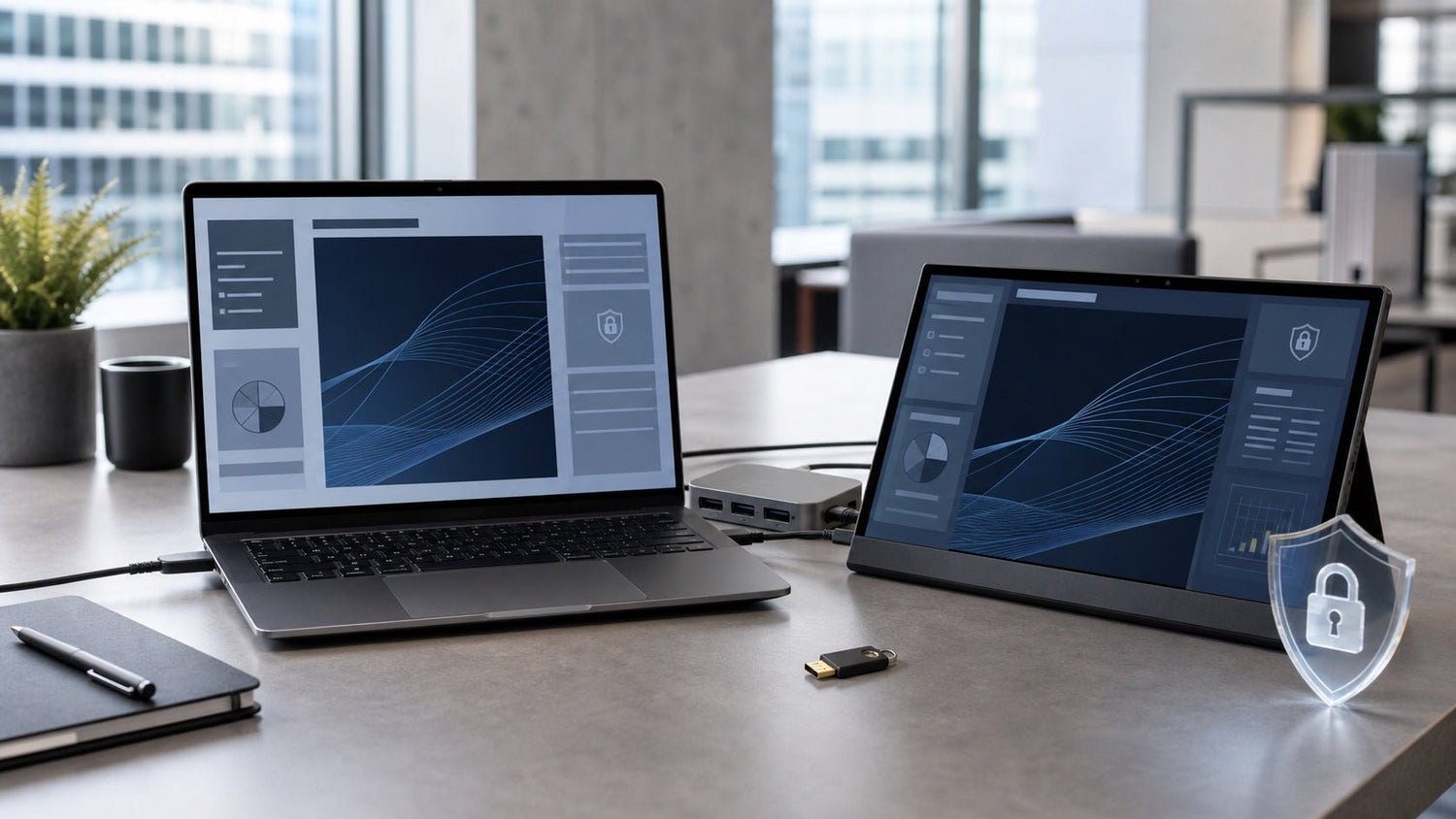
Yes, many screen extenders can be used with a company laptop, but compatibility depends on ports, permissions, drivers, and IT policy. A setup that works instantly on a personal laptop may still require approval on a managed Windows device or company MacBook.
Before buying or connecting a screen extender for a company laptop, check whether your device supports native display output, whether software is required, and whether your IT team restricts external devices or display drivers.
Key Takeaway
A screen extender can be a practical tool for company laptop users, especially for hybrid work, travel, analytics, coding, support, and documentation. The safest option is usually one that works through native USB-C, Thunderbolt, USB4, or HDMI display output without extra software.
If a setup requires DisplayLink or another display driver, it may still be suitable, but IT approval may be required. Always confirm your laptop model, operating system, port capability, company policy, and security permissions before deployment.
Quick Compatibility Guide
| Situation | Likely result |
|---|---|
| Your company laptop supports USB-C video output | A native screen extender may work without extra drivers. |
| Your laptop only has data-only USB-C | A native USB-C display setup may not work. |
| The screen extender requires DisplayLink | IT approval may be needed before installation. |
| You do not have admin rights | Choose a native USB-C, Thunderbolt, USB4, or HDMI setup where possible. |
| You use a managed MacBook | Check external display limits and macOS permission restrictions first. |

Why Company Laptops Are Different from Personal Laptops
A personal laptop usually gives the user full control. You can install drivers, approve system permissions, test accessories, and change display settings without asking anyone.
A company laptop is different.
Most business devices are managed by IT through security tools, endpoint management software, or mobile device management policies. These controls may limit what users can install, which USB devices are allowed, and which permissions can be approved.
Common company laptop restrictions include:
- No local administrator access
- Blocked driver installation
- Restricted third-party software
- Approved-accessory policies
- USB device control
- Screen recording or accessibility permission controls
- External display limits for secure environments
- Compliance requirements for regulated teams
These rules are not necessarily designed to block productivity accessories. They are usually in place to protect company data, reduce support issues, and keep devices compliant.
That means the real question is not only “Does this screen extender work?” but also “Can this screen extender work within our company laptop policy?”
Do You Need Admin Rights to Use a Screen Extender?
Sometimes yes, sometimes no. It depends on how the screen extender connects to the laptop.
| Connection type | Admin rights usually needed? | Notes for company laptops |
|---|---|---|
| Native USB-C DisplayPort Alt Mode | Usually no | The laptop sends video through USB-C using built-in display output. Compatibility depends on the laptop port and cable. |
| Thunderbolt / USB4 display output | Usually no | Often works like a native external monitor, but supported display count depends on the laptop hardware and OS. |
| HDMI connection | Usually no | Usually treated as a standard external display. Some setups may still need USB for power. |
| DisplayLink or software-based display | Often yes | May require driver or software installation. IT approval may be needed, especially on managed Windows or macOS devices. |
| Firmware or utility software | Sometimes | Optional utilities, updates, or configuration tools may require admin rights or IT packaging. |
For company laptops, native display output is usually the lowest-friction path. A USB-C, Thunderbolt, USB4, or HDMI setup that uses the laptop’s built-in graphics system is more likely to work without driver installation.
Software-based display solutions can still be useful, especially when a laptop has limited native display output. However, they introduce an extra approval step because they may require a display driver, background service, or operating system permission.
Native USB-C vs DisplayLink: What IT Teams Care About
There are two broad ways a screen extender may receive video from a laptop.
Native display output
Native display output uses the laptop’s built-in video capabilities. Examples include:
- USB-C with DisplayPort Alt Mode
- Thunderbolt display output
- USB4 display support
- HDMI output
This type of connection usually behaves like a standard external monitor. The laptop sends a video signal directly to the display. For many IT teams, this is easier to approve because it does not usually require a separate graphics driver.
Before choosing this route, confirm that the exact company laptop model supports video through the port you plan to use. A USB-C port can support charging or data without supporting video. For a detailed port-checking process, use this guide to check whether your USB-C port supports display output.
DisplayLink or software-based display
DisplayLink and similar software-based display technologies work differently. They can send display data through a compatible USB connection, but the laptop usually needs supporting software or a driver.
This can be useful when a laptop does not have enough native video outputs. It can also help with certain multi-screen setups. The tradeoff is that managed devices may block installation unless IT approves the software.
On macOS, some software-based display solutions may request Screen Recording permission. This does not automatically mean the accessory is recording private content. macOS uses this permission category for certain software that needs to access display data. Still, on a company MacBook, that permission may be controlled by IT or MDM policy.
For corporate buyers, the practical distinction is simple: native display output usually means lower setup friction, while software-based display output may require IT review.
Windows Company Laptop Checklist
Before using a screen extender with a managed Windows laptop, check the following items.
1. Confirm the exact laptop model
Do not rely only on the product family name. Two laptops in the same series may have different ports or display capabilities.
On Windows, check:
- Settings > System > About
- System Information
- Manufacturer support page
- Company asset management details, if available
Record the exact model, processor generation, and operating system version.
2. Check whether USB-C supports video
A USB-C connector does not automatically support external displays. Look for terms such as:
- DisplayPort Alt Mode
- DisplayPort over USB-C
- USB-C video output
- Thunderbolt
- USB4 external display support
A charging-only or data-only USB-C port may not work with a native USB-C screen extender.
3. Ask whether driver installation is allowed
If the screen extender requires a driver, ask IT before installing it. Many company laptops block standard users from installing system-level software.
Ask specifically:
- Are users allowed to install display drivers?
- Is the driver vendor approved?
- Is the software already packaged in the company software portal?
- Does installation require local admin rights?
- Does the driver need regular updates?
4. Check external display restrictions
Some managed laptops may restrict external displays in sensitive work environments. This is more common in regulated industries, secure facilities, or roles handling confidential information.
External displays may be limited due to:
- Data leakage concerns
- Physical workspace rules
- Compliance policies
- Remote-work security requirements
- Device control software
5. Test sleep, wake, and reconnect behavior
A display setup may work during first connection but behave poorly after sleep or restart. Test the screen extender across normal work conditions:
- Laptop startup
- Sleep and wake
- Lock screen
- Docked and undocked use
- Video calls
- VPN connection
- Battery mode
- Power adapter mode
6. Confirm power and cable requirements
Some screen extenders need more power than a laptop port can provide. Others may need separate USB power, HDMI for video, or a full-featured USB-C cable.
For company deployment, cable simplicity matters. The fewer cables and adapters required, the easier the setup is to support.
Company MacBook Checklist
A company MacBook has a different set of checks.
1. Confirm the MacBook model and chip
The number of supported external displays can vary by MacBook model, chip generation, and configuration. Check the exact device before choosing a dual, triple, or larger multi-screen setup.
Key details include:
- MacBook model
- Apple silicon or Intel chip
- macOS version
- Available Thunderbolt / USB-C ports
- Company MDM restrictions
2. Check native display limits
Some MacBooks support fewer external displays through native output than users expect. If the goal is a multi-screen mobile workstation, verify the supported external display count before purchasing.
3. Understand when software may be required
Some multi-screen setups may need display software, especially when the native display limit is not enough for the desired number of screens. This does not make the setup unsuitable, but it does mean IT should review it before deployment.
4. Review macOS privacy prompts
macOS may request permissions such as Screen Recording for certain display-related software. On a company-managed Mac, the user may not be able to approve this manually.
IT may need to configure permissions through MDM or provide an approved installation profile.
5. Test with the actual work environment
A MacBook may behave differently depending on whether it is used with:
- FileVault
- VPN
- MDM profiles
- Company security tools
- Restricted user permissions
- External keyboard and mouse setups
- Video conferencing apps
For business users, testing the full workflow is more useful than only checking whether the screen lights up.
Security Questions to Ask Before Connecting a Screen Extender
Use this checklist before connecting a screen extender to a company laptop:
- Does the setup require a driver?
- Who publishes the driver or software?
- Has IT approved the vendor?
- Does the software require admin rights?
- Does the software request Screen Recording permission on macOS?
- Is the accessory allowed under the company USB policy?
- Does the setup work without installing software?
- Is the accessory being used in a regulated environment?
- Are there restrictions on external displays for confidential work?
- Does the product documentation clearly explain connection requirements?
Avoid unsupported assumptions. A display accessory should not be treated as risky simply because it connects to a laptop. At the same time, a company device should not install unapproved drivers without review.
The right approach is documentation, testing, and approval.
What to Send to IT for Approval
When asking IT to approve a screen extender, send practical information instead of a vague product request.
Include:
- Product name and model
- Connection type: USB-C, Thunderbolt, USB4, HDMI, DisplayLink, or mixed
- Required laptop ports
- Whether drivers or software are required
- Driver publisher, if applicable
- Supported operating systems
- Number of external displays
- Power requirements
- Cable requirements
- macOS permissions requested, if any
- Whether local admin rights are needed
- Number of users or devices
- User group and business use case
- Whether this is for travel, hybrid work, support, finance, development, or general productivity
- Preferred testing period before wider rollout
This makes approval easier because IT can evaluate the setup like any other workplace accessory.
Choosing a Screen Extender for a Company Laptop
When choosing a screen extender for a company laptop, focus less on maximum screen count and more on deployment fit.
Important criteria include:
Native display support
If your laptop supports USB-C, Thunderbolt, USB4, or HDMI display output, a native display setup may reduce the need for driver approval.
Clear compatibility notes
The product should clearly state supported operating systems, connection requirements, cable needs, and whether software is required.
Minimal setup friction
For company users, a setup that works consistently is more valuable than one that requires repeated troubleshooting.
Stable physical design
A screen extender should be stable on hotel desks, meeting tables, coworking spaces, and home offices. This matters for business travelers and hybrid teams.
Cable simplicity
Fewer cables usually means fewer support tickets. Look for a setup that is realistic for daily use, not just a clean product photo.
OS support
Confirm compatibility with the actual Windows or macOS version used by your company.
Travel durability
For employees who move between locations, portability and protection matter. The setup should be practical to pack, carry, and reconnect.
IT documentation readiness
A product is easier to approve when connection requirements, software needs, and compatibility details are easy to explain.
For teams comparing options before IT review, you can compare INVZI portable screen extender options and match each setup against your company laptop policy.
When a Screen Extender Makes Business Sense
A screen extender is most useful when the user regularly needs to view multiple workstreams at once.
Common business use cases include:
- Hybrid workers managing email, documents, meetings, and chat
- Consultants working from hotels, client offices, and airports
- Sales teams presenting while referencing notes or CRM data
- Developers using code editors, terminals, previews, and documentation
- Financial analysts comparing spreadsheets, dashboards, and reports
- Customer support teams monitoring tickets, chat, documentation, and remote sessions
- Project managers tracking meetings, roadmaps, timelines, and task boards
- Researchers comparing sources, notes, PDFs, and drafts
The business case is strongest when extra screen space reduces context switching, improves review accuracy, or makes travel work closer to a desk setup. For a broader productivity discussion, use this guide to evaluate whether a screen extender fits your workflow.
FAQ
Can I use a screen extender on a company laptop?
Usually, yes, but it depends on your laptop ports, operating system, IT policy, and whether the screen extender requires software. Always check with IT before installing drivers or display utilities.
Do screen extenders need admin rights?
Not always. Native USB-C, Thunderbolt, USB4, or HDMI display connections usually do not require admin rights. Software-based display solutions may require admin approval.
Are driver-free screen extenders better for work laptops?
They are often easier to deploy because they reduce software installation and approval steps. However, compatibility still depends on the laptop’s native display output and supported external display count.
Does every USB-C port support a screen extender?
No. Some USB-C ports support charging or data transfer only. For a screen extender to work through native USB-C video, the laptop port usually needs to support DisplayPort Alt Mode, Thunderbolt, or USB4 display output.
Is DisplayLink allowed on company laptops?
It depends on company policy. DisplayLink-based setups may require software installation, so IT may need to approve the driver before use.
Conclusion
A screen extender can be useful for company laptop users, but the best choice depends on more than screen size. The main factors are IT policy, connection type, driver requirements, operating system permissions, and the exact laptop model.
For the lowest-friction setup, start by checking whether the company laptop supports native USB-C, Thunderbolt, USB4, or HDMI display output. If the setup requires DisplayLink or another display driver, involve IT before installation.
The right screen extender should fit both the user’s workflow and the company’s security requirements.

Leave a comment
This site is protected by hCaptcha and the hCaptcha Privacy Policy and Terms of Service apply.