


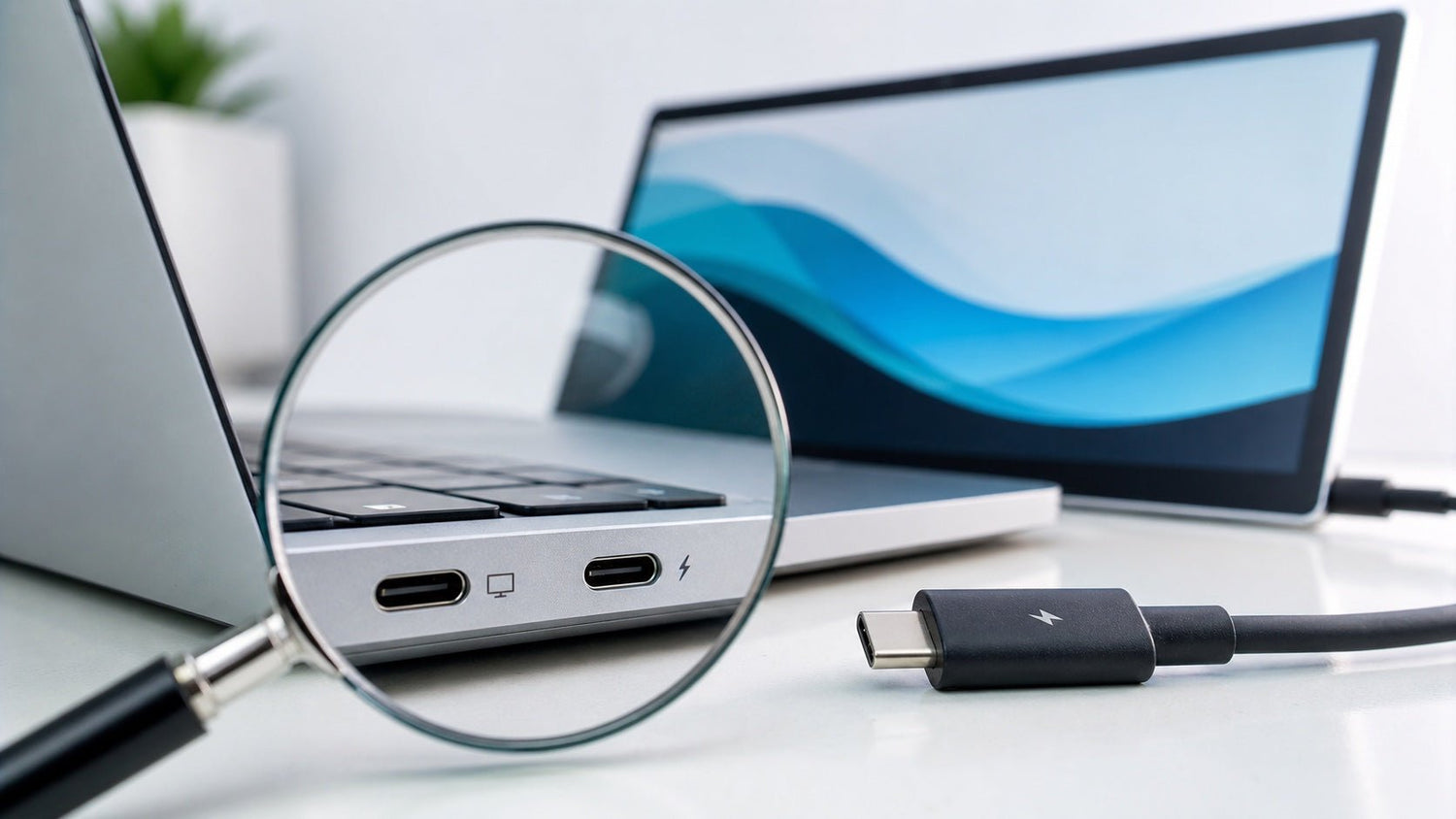
Not every USB-C port supports display output. A USB-C connector may provide charging, data transfer, video output, or a combination of these functions, even though all USB-C ports share the same physical shape.
Before connecting a screen extender, portable monitor, or external display, confirm that your laptop’s USB-C port can send a video signal. The most reliable approach is to check the port symbol, review the specifications for the exact laptop model, read the official manual, identify the installed hardware, and test the connection with a verified video-capable cable.

Does Every USB-C Port Support a Display?
No. USB-C describes the connector’s shape, not every function available through the port.
Depending on the laptop, a USB-C port may support:
- Charging only
- USB data transfer
- Video output
- Charging, data, and video through one connection
This is why a USB-C cable can fit correctly while the connected display still shows “No Signal.” The connector is physically compatible, but the laptop may not be sending video through that specific port.
For native USB-C display output, the laptop usually needs a display-capable connection such as:
- DisplayPort Alt Mode
- Thunderbolt
- USB4 with supported external-display functionality
The cable, monitor, screen extender, hub, and adapter must also support a compatible connection method. USB-C display compatibility depends on the complete connection chain, not only the laptop port.
What Does a Screen Extender Require?
A screen extender needs either a native video signal from the laptop or a supported USB graphics solution.
Many USB-C screen extenders require DisplayPort Alt Mode. This technology allows a laptop to send a DisplayPort video signal through its USB-C connector.
A laptop specification may describe this capability using terms such as:
- DisplayPort over USB-C
- DisplayPort Alt Mode
- DP Alt Mode
- USB-C with DisplayPort
- USB-C video output
- Thunderbolt
- USB4 external-display support
Other screen extenders use HDMI for video and USB only for power. Some products use DisplayLink, which transmits graphics through a data-capable USB connection using compatible hardware and software.
Before checking the laptop, review the screen extender’s connection requirements. Look for descriptions such as “DP Alt Mode required,” “full-featured USB-C,” “HDMI input,” or “DisplayLink software required.”
5 Ways to Check Whether Your USB-C Supports Display Output
No single method provides every answer. Use the following five checks together before buying or connecting a screen extender.
1. Check the Symbol Next to the USB-C Port
A DisplayPort, Thunderbolt, or USB4 marking can indicate that the port supports display output.
Look closely beside the USB-C connector for:
- A DisplayPort logo
- A Thunderbolt lightning-bolt logo
- A USB4 marking
- A monitor or display symbol
- A manufacturer-specific port label
A DisplayPort logo usually indicates that the port supports DisplayPort Alt Mode.
A Thunderbolt logo usually indicates display capability, although the number of supported monitors, maximum resolution, and refresh rate still depend on the laptop’s hardware.
A USB4 marking suggests that the connection may support external displays, but the laptop specifications should still confirm its actual display capabilities.
Do not assume that every lightning-style symbol means Thunderbolt. Some manufacturers use a similar symbol to identify charging.
An unmarked USB-C port may still support video because manufacturers do not always label ports consistently. Treat the symbol as an initial clue, not final confirmation.
2. Check the Exact Laptop Specifications
The laptop manufacturer’s specification page is usually the best place to confirm USB-C video support.
Search using the complete model number rather than only the product family. Two laptops sold under the same series name may use different processors, motherboards, USB controllers, and ports.
On the official specification page, check sections such as:
- Ports
- Input and output
- Interfaces
- Connectivity
- External displays
- Display support
Look for explicit wording such as:
- USB-C with DisplayPort
- DisplayPort 1.2 or 1.4 over USB-C
- DisplayPort Alt Mode
- Thunderbolt 3, 4, or 5
- USB4
- Supports external monitor output
A specification that only says “USB-C” does not confirm video output.
Retailer descriptions may omit important details or combine specifications from several configurations. Prioritize the laptop manufacturer’s official product page.
3. Read the Official Manual or Port Diagram
The official user manual can show which USB-C port supports video when a laptop has several similar-looking connectors.
Open the manual and search for terms such as:
- USB-C
- DisplayPort
- Thunderbolt
- USB4
- External monitor
- Video output
- Port description
- Connector
Pay particular attention to the laptop’s port diagram. One USB-C port may support charging and data, while another supports charging, data, and video.
The manual may also explain:
- Which USB-C port should be used for a monitor
- Whether the port supports Power Delivery
- Maximum supported display resolution
- Whether an adapter is required
- External-display limitations
Confirm that the manual applies to your exact model or machine type. Some manuals cover several laptop configurations with different hardware.
4. Identify the Laptop Model and Installed Hardware
The operating system can help you find the exact laptop model needed for an accurate compatibility search.
On Windows
Open Settings, select System, and then select About.
You can also search for System Information and record:
- System Manufacturer
- System Model
- System SKU
- Processor
- Windows version
Windows does not consistently display a simple field that says whether DisplayPort Alt Mode is supported. Use the system model to locate the official laptop specifications instead of relying only on Device Manager.
On macOS
Open the Apple menu and select About This Mac.
Record the Mac model, year, and processor or Apple chip. For more information, open System Information and review the Thunderbolt/USB4 and graphics sections.
The operating system can identify the device and installed controllers, but it may not confirm every display limitation. The number of supported external monitors can also depend on the specific Mac model and chip.
5. Test With a Verified Video-Capable Setup
A controlled connection test can confirm whether the specific port, cable, and display work together.
Use:
- A monitor or screen extender known to work
- A USB-C cable specifically rated for video
- The correct input selected on the display
- External power when the display requires it
- A direct connection to the laptop
Avoid beginning the test with several unverified components. Remove unnecessary hubs, extension cables, and converters during the first test.
If the display works through a direct connection, the tested USB-C port and cable can carry a compatible video signal.
If the screen shows no signal, do not immediately conclude that the laptop port is incompatible. Test one variable at a time:
- Try another video-capable USB-C cable.
- Try another USB-C port on the laptop.
- Confirm that the correct display input is selected.
- Connect external power to the monitor or screen extender.
- Test the display with another supported device.
- Review the laptop’s display settings.
A failed connection may be caused by the cable, display, power source, adapter, or software rather than the USB-C port itself.
What Common USB-C Symbols Mean
USB-C port markings can provide useful evidence, but they should always be checked against the laptop specifications.
DisplayPort Logo
A DisplayPort logo beside the USB-C connector usually indicates support for DisplayPort Alt Mode.
You should still verify:
- Maximum resolution
- Maximum refresh rate
- Number of supported displays
- Whether the port supports charging at the same time
Thunderbolt Logo
A Thunderbolt lightning-bolt logo usually indicates that the port supports external displays.
The exact capabilities depend on:
- Thunderbolt version
- Laptop graphics hardware
- Manufacturer configuration
- Connected dock or adapter
- Display resolution and refresh rate
USB4 Marking
A USB4 label suggests that the port may support external displays through USB4.
Check the laptop specifications for:
- External-display support
- Supported monitor count
- Maximum resolution
- Available bandwidth
- Charging support
Standard USB Symbol
A standard USB symbol may indicate data transfer without confirming video output.
Check whether the specifications also mention DisplayPort, Thunderbolt, USB4, or external-display support.
Charging or Battery Symbol
A charging symbol confirms that the port provides or accepts power. It does not prove that the same port supports video.
No Symbol
An unmarked port cannot be classified by appearance alone. Check the official specification page and manual for the exact laptop model.
Quick USB-C Display Compatibility Check
Use this sequence before purchasing or connecting a screen extender.
Step 1: Check the Display Requirements
Find out whether the screen extender or monitor requires:
- DisplayPort Alt Mode
- Thunderbolt
- USB4 display support
- HDMI
- DisplayLink software
Do not assume that every USB-C display uses the same connection method.
Step 2: Find the Complete Laptop Model Number
Use the full model number, generation, and configuration when available.
Laptops from the same product family may have different USB-C capabilities.
Step 3: Check the Official Specifications
Look for DisplayPort over USB-C, DisplayPort Alt Mode, Thunderbolt, USB4, or external-display support.
A specification that only lists “USB-C” is not enough.
Step 4: Review the Official Manual
Check the port diagram and confirm whether a specific USB-C connector supports video.
Step 5: Confirm the Cable and Power Requirements
Make sure the cable supports video, not only charging or data transfer. Check whether the display also requires a separate power connection.
Step 6: Run a Direct Connection Test
Connect the display directly to the laptop with a verified video-capable cable.
Remove unverified hubs, adapters, and extension cables during the first test.
How to Interpret the Result
The display works: The laptop port, cable, and display support a compatible video connection.
The specifications confirm video, but the display does not work: Check the cable, selected display input, power source, operating-system settings, and adapter limitations.
The specifications do not mention video support: Native USB-C display output may be unavailable. Check whether the laptop includes HDMI, DisplayPort, Thunderbolt, or a data-capable USB port that can work with a compatible DisplayLink solution.
The specifications are unclear: Review the official manual or contact the laptop manufacturer before purchasing a screen extender.
How to Search for Your Exact Laptop Model
Use the complete laptop model number when checking USB-C display compatibility.
Do not search only for a broad product family such as:
Lenovo IdeaPad USB-C display support
This search may return information for several IdeaPad models with different USB-C capabilities.
Instead, replace the bracketed text in one of the following searches with your complete laptop model number.
Search template 1:
[Full laptop model number] USB-C DisplayPort Alt Mode support
Search template 2:
[Full laptop model number] USB-C video output specifications
Search template 3:
[Full laptop model number] Thunderbolt external display support
Search template 4:
[Full laptop model number] USB4 external monitor support
For example, instead of searching:
HP Pavilion USB-C monitor support
Use a more specific search such as:
HP Pavilion 15-eg2000 USB-C DisplayPort Alt Mode support
The exact model matters because laptops sold under the same family name may use different ports, processors, graphics hardware, and USB-C controllers.
Check sources in this order:
- Laptop manufacturer’s official specification page
- Official user manual
- Manufacturer support documentation
- Confirmation from the manufacturer’s support team
Do not rely only on a retailer description that says “USB Type-C.” This confirms the connector type but does not confirm video output.
Why a Compatible USB-C Port May Still Show No Signal
A display-capable USB-C port does not guarantee that every cable, adapter, or monitor will work automatically.
The Wrong USB-C Port Is Being Used
A laptop may have several USB-C ports with different capabilities.
Connect the display to the port identified as DisplayPort, Thunderbolt, USB4, or external-display capable.
The Cable Supports Charging but Not Video
USB-C cables can look identical while supporting different functions.
A cable that charges a laptop or transfers files may not carry DisplayPort video. Use a cable that explicitly supports video output or a full-featured USB-C connection.
The Display Does Not Have Enough Power
Some portable displays receive video and power from one USB-C connection. Others require a second USB-C power cable or an external adapter.
Insufficient power may cause:
- No image
- Intermittent connection
- Screen flickering
- Frequent disconnection
- Reduced brightness
The Display Input Is Incorrect
A monitor with USB-C and HDMI inputs may not switch automatically.
Use the monitor’s controls to select the correct input source.
The Laptop Has Display Limitations
The laptop may support external displays while still limiting:
- Number of connected monitors
- Maximum resolution
- Refresh rate
- Extended display mode
- Mirrored display mode
These limitations are particularly important when connecting a multi-screen extender or several monitors through a dock.
What to Do if USB-C Does Not Support Native Video
A charging-only USB-C port cannot transmit native video or USB data.
A data-capable USB-C port without DisplayPort Alt Mode may transfer files but still fail with a standard USB-C monitor cable.
Possible alternatives include:
- Use the laptop’s HDMI output
- Use a built-in DisplayPort or Mini DisplayPort connection
- Try another USB-C or Thunderbolt port
- Use HDMI for video and USB for power
- Use a compatible DisplayLink-based adapter, dock, or display
A standard USB-C-to-HDMI adapter usually requires the laptop’s USB-C port to provide a video signal. It cannot add DisplayPort Alt Mode to a port that does not support it.
DisplayLink works differently. It can provide display output through a data-capable USB connection when the adapter, dock, or monitor contains compatible DisplayLink hardware and the required software is installed.
DisplayLink cannot work through a truly charging-only USB-C port because that type of port does not transmit USB data.
For a more detailed comparison of the available connection methods, review the differences between USB-C and HDMI.
What to Do After Confirming Compatibility
Once you have confirmed the laptop’s video-output method, compare it with the screen extender’s requirements.
Check:
- Required input type
- Supported operating system
- Cable requirements
- Power requirements
- Resolution support
- Refresh-rate support
- Driver or software requirements
- Number of required video outputs
After confirming these details, review INVZI’s compatible external-display options and compare the compatibility information for each model.
Do not assume that every USB-C screen extender uses the same connection method. One product may require a full-featured USB-C port, while another may use HDMI, multiple cables, or DisplayLink software.
After selecting a compatible display, follow the complete guide to setting up an additional screen for the relevant Windows or macOS configuration steps.
Final Answer
A USB-C port does not automatically support display output.
To determine whether your laptop’s USB-C port supports a screen extender or external monitor, check:
- The symbol beside the port
- The exact laptop specifications
- The official user manual
- The system model and installed hardware
- A direct test with a verified video-capable cable and display
Look for DisplayPort Alt Mode, DisplayPort over USB-C, Thunderbolt, or confirmed USB4 external-display support.
The manufacturer’s specifications for the exact laptop model are the most reliable starting point. A real-world test should then confirm whether the laptop, cable, power source, and display work together.
Frequently Asked Questions
How Do I Know Whether My USB-C Port Supports Video?
Check the official laptop specifications for DisplayPort Alt Mode, DisplayPort over USB-C, Thunderbolt, USB4 external-display support, or monitor output.
A DisplayPort or Thunderbolt symbol beside the port is useful evidence, but the specification for the exact laptop model provides a more reliable answer.
Does a Lightning Symbol Mean the USB-C Port Supports a Monitor?
A Thunderbolt lightning-bolt logo usually indicates display support.
However, a charging symbol may look similar. Confirm that the laptop manual or specifications identify the port as Thunderbolt rather than charging-only.
Can a Data-Only USB-C Port Work With DisplayLink?
Yes. A compatible DisplayLink adapter, dock, or display may work through a data-capable USB port that does not support DisplayPort Alt Mode.
The device must include DisplayLink hardware, and the laptop must support the required software.
Can a USB-C-to-HDMI Adapter Work Without DisplayPort Alt Mode?
A standard USB-C-to-HDMI adapter usually cannot work without a supported video signal from the USB-C port.
It generally depends on DisplayPort Alt Mode, Thunderbolt, or another compatible video method. The adapter cannot create native video output from a charging-only or basic data-only port.
Why Does USB-C Charge My Display but Show No Video?
Charging and video are separate USB-C capabilities.
The laptop port or cable may provide power without carrying a display signal. The display may also be connected to the wrong USB-C port, set to the wrong input, or using a cable that does not support video.


Leave a comment
This site is protected by hCaptcha and the hCaptcha Privacy Policy and Terms of Service apply.