


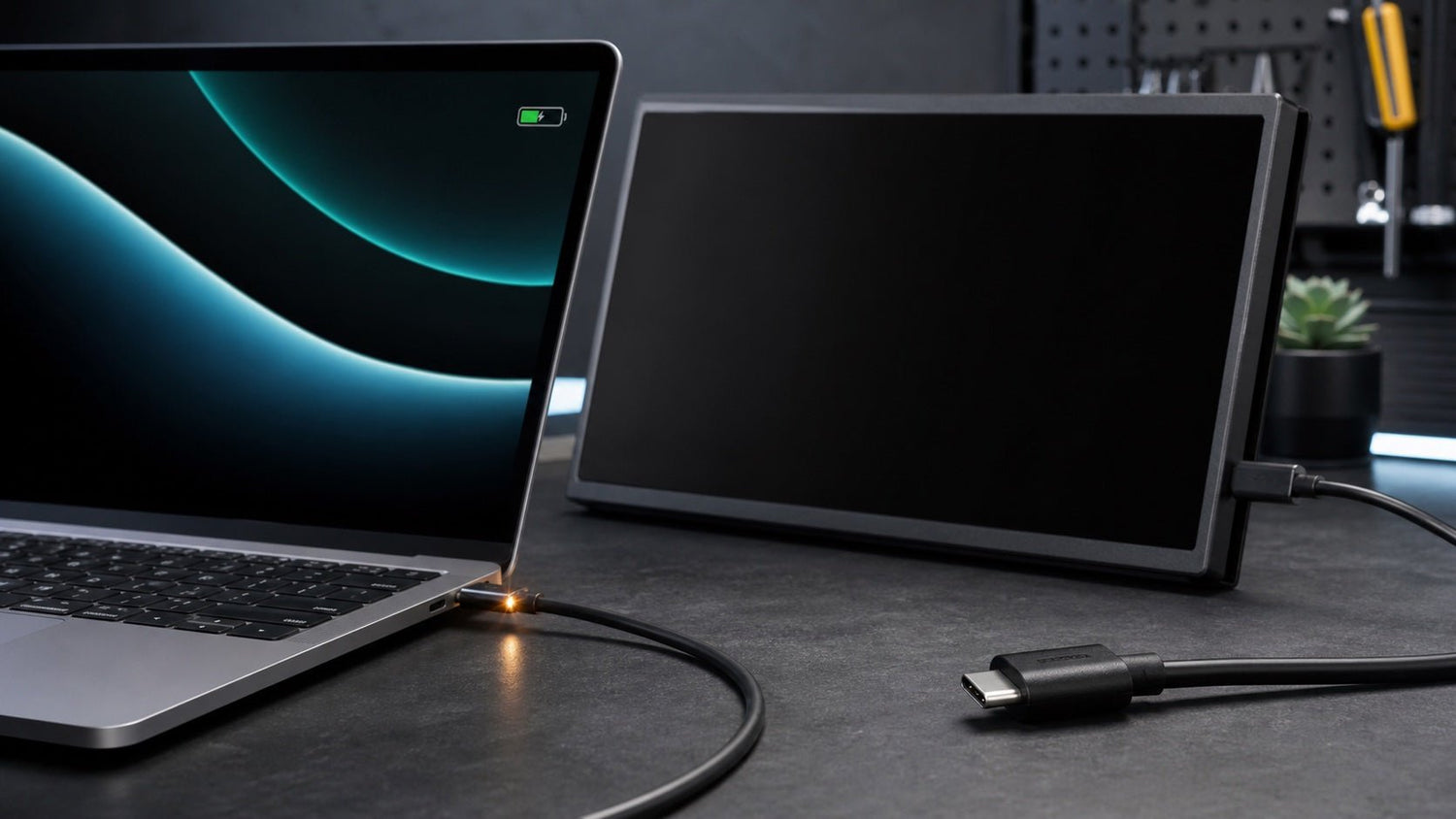
Your USB-C cable charges your laptop, but your monitor still says “No Signal.” This is a common issue, and it does not always mean the cable is broken.
The reason is simple: charging and video are not the same USB-C function.
A USB-C cable can deliver power without being able to carry a video signal. For video output, the cable, laptop USB-C port, monitor, dock, or adapter must all support the right display standard.
If your USB-C cable charges but no video appears on the screen, the problem is usually one of these:
- The cable is charge-only.
- The cable only supports USB 2.0 data.
- The USB-C port does not support display output.
- The monitor is using the wrong input.
- The dock, hub, or adapter does not support video.
- The display setting requires more bandwidth than the cable can handle.
This guide explains how to identify the real cause before replacing your cable.
Quick Diagnosis: Is It the Cable, Port, or Display?
| Symptom | Most likely cause | What to check first |
|---|---|---|
| USB-C cable charges laptop but monitor says “No Signal” | Cable may not support video | Try a verified video-capable USB-C cable |
| Another cable works with the same monitor | Original cable lacks video support | Check cable specs for video, USB4, Thunderbolt, or 4K output |
| No USB-C cable works with the monitor | Laptop USB-C port may not support video | Check whether the port supports DisplayPort Alt Mode, USB4, or Thunderbolt |
| HDMI works but USB-C does not | USB-C cable or USB-C port issue | Test another USB-C port or use a known video-capable cable |
| Display flickers or disconnects | Bandwidth or power limitation | Lower the resolution or refresh rate |

The Short Answer: USB-C Charging Does Not Guarantee Video
USB-C is a connector type, not a single fixed standard.
A USB-C cable may support:
- Charging only
- Charging and basic data
- High-speed data transfer
- Video output
- USB4
- Thunderbolt
This is why a cable can charge a laptop perfectly but still fail to connect to a USB-C monitor.
Charging uses power delivery. Video needs additional data lanes and compatible video protocols such as DisplayPort Alt Mode, USB4, or Thunderbolt.
In other words:
A USB-C cable can charge but fail to display video because it may not be a full-featured video-capable cable.
Common Reasons Your USB-C Cable Charges but Shows No Video
1. The Cable Is Charge-Only
Some USB-C cables are designed mainly for power. They may work well with chargers, power banks, phones, tablets, or laptops, but they are not built for video output.
A charge-only USB-C cable may:
- Charge your laptop
- Charge your phone or tablet
- Support little or no data transfer
- Fail to connect to a USB-C monitor
- Fail to work with a USB-C dock or screen extender
This is especially common with cables included with wall chargers. Their main purpose is charging, not external display support.
2. The Cable Only Supports USB 2.0 Data
Some USB-C cables support charging and basic USB 2.0 data transfer. That may be enough for syncing a phone or connecting a simple accessory, but it is usually not enough for video output.
A USB 2.0 USB-C cable can often:
- Charge devices
- Transfer small files
- Connect basic peripherals
But it usually cannot:
- Drive a USB-C monitor
- Support a portable display
- Handle high-resolution video
- Work reliably with a display dock
If your cable product page only mentions charging speed or basic data transfer, do not assume it supports video.
3. The Cable Wattage Looks High, but It Still Has No Video
A common mistake is assuming that a high-wattage USB-C cable must support display output.
For example, a cable may support:
- 60W charging
- 100W charging
- 140W charging
- 240W charging
But wattage only tells you about charging capability. It does not confirm video support.
To confirm video capability, look for terms such as:
- Video output
- Display support
- 4K@60Hz
- 8K
- USB4
- Thunderbolt
- Full-featured USB-C cable
- DisplayPort Alt Mode
If those terms are missing, the cable may be intended mainly for charging.
4. The Laptop USB-C Port Does Not Support Video
The cable is only one part of the setup. Your laptop USB-C port must also support display output.
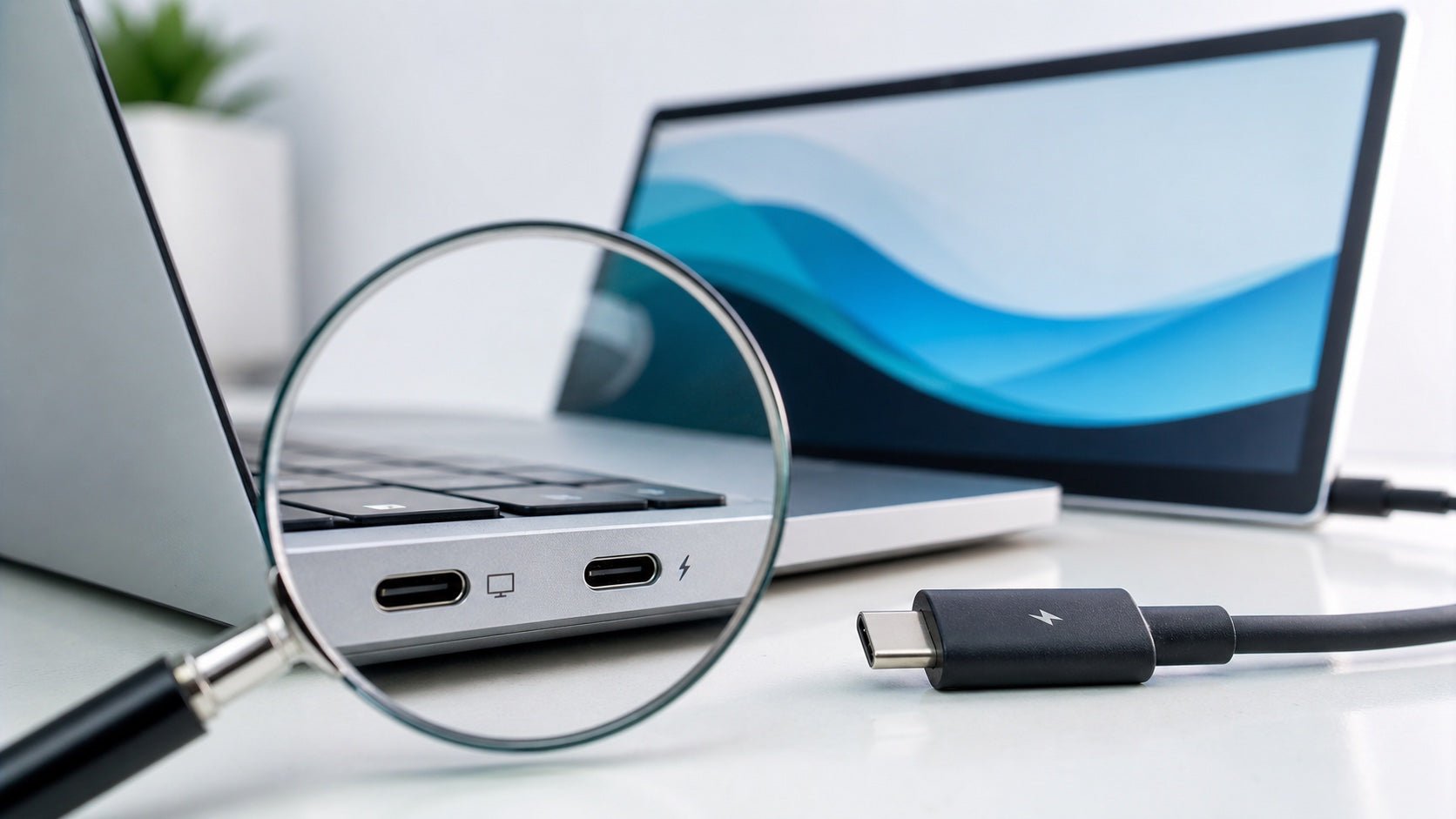
Some USB-C ports support charging and data only. Others support external displays through DisplayPort Alt Mode, USB4, or Thunderbolt.
A video-capable cable cannot add video output to a port that does not support it.
To check your laptop, look for:
- A Thunderbolt icon
- A USB4 mark
- DisplayPort Alt Mode in the official specs
- “USB-C video output” in the laptop manual
- External display support through USB-C
For a deeper walkthrough, see INVZI’s guide on how to check whether your USB-C port supports display output.
5. The Monitor Is Set to the Wrong Input
Sometimes the cable and laptop are fine, but the monitor is listening to the wrong input.
For example, your monitor may be set to HDMI while your laptop is connected through USB-C. In that case, the monitor may show “No Signal.”
Check the monitor menu and select the correct input:
- USB-C
- Type-C
- DisplayPort over USB-C
- HDMI
- DisplayPort
- Mini HDMI
For portable monitors, also check whether the display needs a separate power cable. Some displays can receive power and video from one USB-C cable, while others need additional power.
6. The Dock, Hub, or Adapter Does Not Support Video
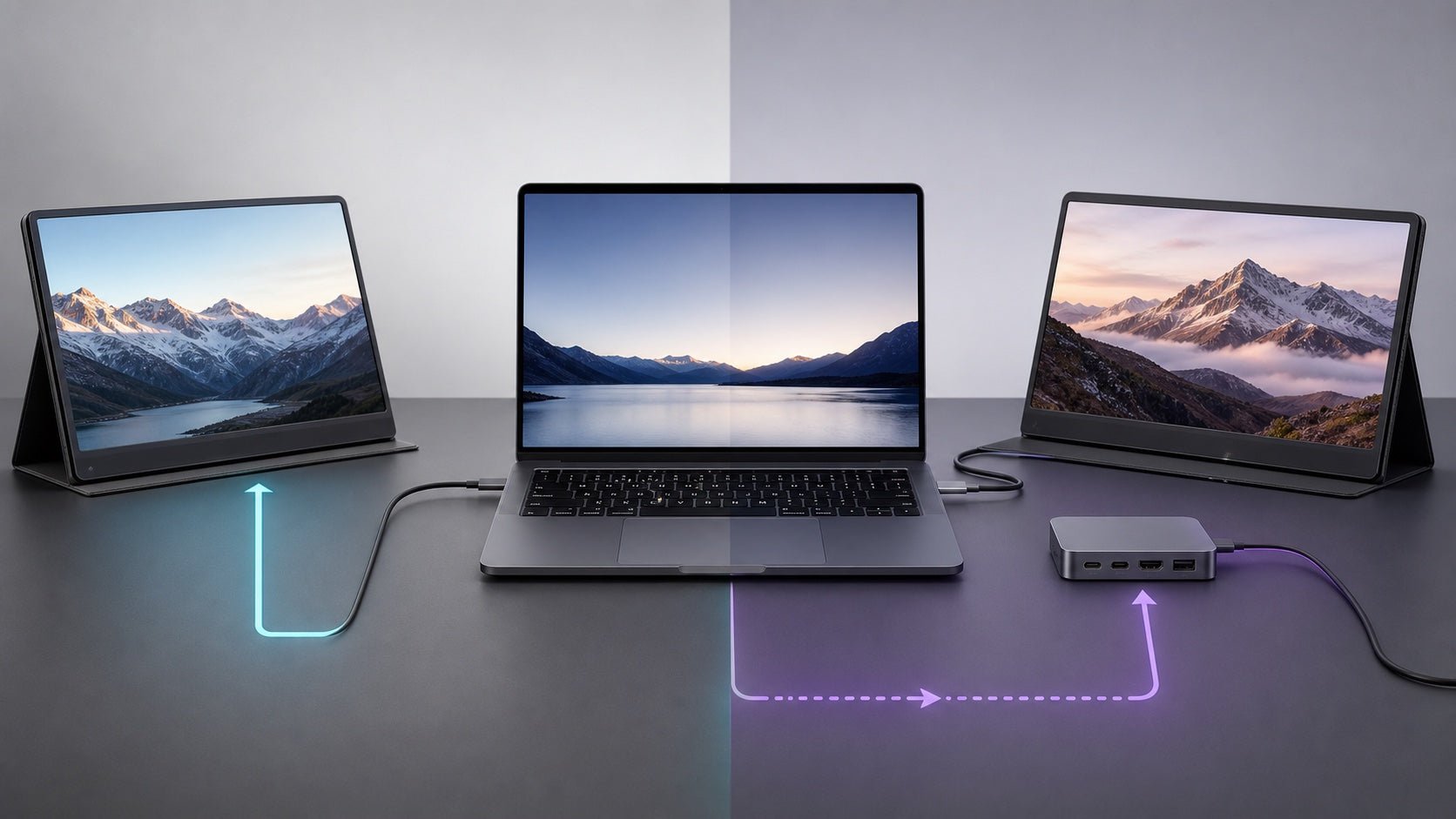
If you are using a USB-C hub, docking station, or adapter, make sure the correct port supports video output.
Not every USB-C port on a hub works the same way. One port may be for power input only, while another port may support data or video.
Common issues include:
- The dock’s USB-C port is for charging only.
- The HDMI port on the hub requires DisplayPort Alt Mode from the laptop.
- The hub supports one display but not multiple displays.
- The screen extender requires a specific cable or driver.
- The adapter does not support the monitor’s resolution.
Check the dock or adapter specifications before assuming the cable is the problem.
7. The Cable Cannot Handle the Required Resolution or Refresh Rate
Some USB-C cables can support video, but not every resolution or refresh rate.
For example, a cable may work at 1080p but fail at 4K 60Hz. A setup may also become unstable with high refresh rates, ultrawide monitors, HDR, or multiple external screens.
If the display flickers, disconnects, or stays black, try:
- Lowering the resolution
- Lowering the refresh rate
- Turning off HDR
- Disconnecting extra displays
- Using a shorter or higher-bandwidth cable
If the display works at a lower setting, the issue may be bandwidth, not basic compatibility.
How to Check Whether Your USB-C Cable Supports Video
Before replacing the cable, check these details.
Check the Product Page
Look for clear video-related language, such as:
- Supports video output
- Supports external display
- 4K@60Hz
- 8K
- USB4
- Thunderbolt
- DisplayPort Alt Mode
- Full-featured USB-C cable
If the product page only says “fast charging,” “100W,” or “240W,” that does not confirm video support.
Check the Packaging
Cable packaging may include useful information, such as:
- USB4 logo
- Thunderbolt logo
- 40Gbps
- 20Gbps
- 10Gbps
- 4K or 8K support
- Power rating only
If the packaging only highlights charging wattage, the cable may not be intended for display output.
Test with a Known Video-Capable Cable
The fastest test is comparison.
Use another USB-C cable that you know already works with a monitor. If that cable displays video but the original cable does not, the original cable likely does not support video or does not have enough bandwidth.
Avoid Judging by Connector Shape
Two cables can both have USB-C connectors and still support very different functions.
One may be charge-only. Another may support charging, data, and video. A third may support USB4 or Thunderbolt.
The connector shape alone does not tell the full story.
Step-by-Step Troubleshooting Checklist
Follow these steps in order:
-
Check the monitor power.
Make sure the monitor or portable display is powered on. -
Select the correct monitor input.
Choose USB-C, Type-C, HDMI, or DisplayPort based on your connection. -
Try another USB-C port on the laptop.
Some laptops have multiple USB-C ports with different capabilities. -
Try a known video-capable USB-C cable.
This helps confirm whether the original cable is the problem. -
Check the cable specifications.
Look for video output, 4K@60Hz, USB4, Thunderbolt, or full-featured USB-C support. -
Lower the display resolution or refresh rate.
Try 1080p or 4K 30Hz before using 4K 60Hz or higher. -
Restart the laptop and monitor.
This can force the system to detect the display again. -
Update graphics drivers or system software.
This is especially useful for Windows laptops and docking stations. -
Check the dock, hub, or adapter manual.
Make sure the port you are using supports video output. -
Test the monitor with another device.
If the monitor works with another laptop, the issue may be your original laptop port, cable, or settings.
What Type of USB-C Cable Do You Need for Video?
| Cable type | Charges devices | Supports video? | Notes |
|---|---|---|---|
| Charge-only USB-C cable | Yes | No | Built mainly for power |
| USB 2.0 USB-C cable | Yes | Usually no | Good for basic charging and simple data |
| Full-featured USB-C cable | Yes | Yes, if device supports it | Suitable for many USB-C monitor setups |
| USB4 cable | Yes | Yes, if device supports it | Better for high-bandwidth displays and modern laptops |
| Thunderbolt cable | Yes | Yes, if device supports it | Best for advanced docks and multi-display setups |
For most USB-C monitor setups, choose a cable that clearly supports video output. Then confirm that your laptop port and monitor also support USB-C video.
The safest rule is:
Cable + USB-C port + display must all support video.
When HDMI May Be the Easier Workaround
USB-C can create a clean one-cable setup, but HDMI may be easier in some cases.
HDMI can be useful when:
- Your laptop has an HDMI port.
- Your monitor has HDMI input.
- Your USB-C port does not support video.
- You are connecting to a TV, projector, or meeting room display.
- You want a simple external screen connection without checking USB-C video support.
If you are deciding which connection type makes more sense, read INVZI’s guide to USB-C vs HDMI for a laptop second screen.
Final Takeaway
If your USB-C cable charges but will not display video, the issue is usually not charging power. It is usually a video compatibility problem.
The most common causes are:
- The cable is charge-only.
- The cable supports only USB 2.0 data.
- The laptop USB-C port does not support video output.
- The monitor is set to the wrong input.
- The dock or hub does not support video from that port.
- The resolution or refresh rate requires more bandwidth.
- A driver or display software is required.
Do not assume that USB-C shape or high charging wattage means video will work. Always check the cable specs, laptop port specs, monitor input, and dock compatibility.
INVZI designs USB-C charging and display accessories for cleaner, more flexible work setups. For users building a more flexible external screen setup, explore INVZI’s portable monitors and screen extenders.
FAQ
Why does my USB-C cable charge but not display video?
A USB-C cable can charge but fail to display video because charging and video use different USB-C capabilities. The cable may be charge-only, the laptop port may not support video, or the monitor may be set to the wrong input.
Do all USB-C cables support video?
No. Not all USB-C cables support video. Some USB-C cables are designed only for charging or basic data transfer. For video, look for a full-featured USB-C cable, USB4 cable, or Thunderbolt cable.
Does a 100W or 240W USB-C cable support video?
Not always. A 100W or 240W rating only confirms charging capability. It does not automatically confirm video output. Check the cable specifications for video support, 4K@60Hz, USB4, Thunderbolt, or DisplayPort Alt Mode.
How do I know if my USB-C port supports video?
Check your laptop’s official specifications or manual. Look for terms such as DisplayPort Alt Mode, USB-C video output, USB4, or Thunderbolt. You can also check the symbols near the USB-C port.
Why does my USB-C monitor say “No Signal”?
A USB-C monitor may show “No Signal” if the cable does not support video, the laptop USB-C port lacks display output, the monitor is using the wrong input, or the dock or adapter is not compatible.
Can a charging cable connect a laptop to a monitor?
Only if the charging cable also supports video. Many USB-C charging cables do not support display output, even if they charge the laptop correctly.
Do I need USB4 or Thunderbolt for USB-C video?
Not always. Many USB-C monitors work with DisplayPort Alt Mode. USB4 or Thunderbolt is useful for higher bandwidth, advanced docks, and multi-display setups, but all devices in the setup must support the required standard.

Leave a comment
This site is protected by hCaptcha and the hCaptcha Privacy Policy and Terms of Service apply.