


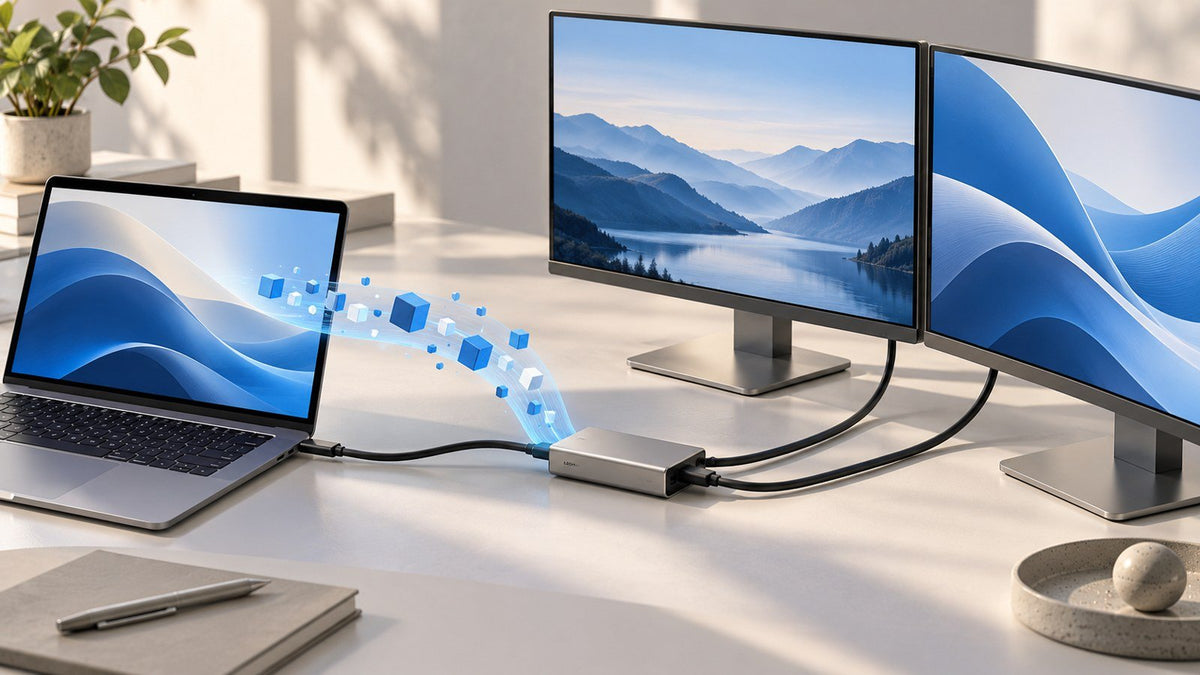
DisplayLink is a software-assisted graphics technology commonly used to send display data over USB to compatible hardware in a dock, adapter, or monitor. Instead of requiring every screen to use another conventional video output from the computer, DisplayLink processes display content in software and transports it as data to a DisplayLink-enabled device.
That makes it different from a normal HDMI, DisplayPort, or native USB-C video connection.
This difference is especially useful to understand when building a multi-monitor workspace. A laptop can have several USB-C ports while still supporting only a limited number of native external displays. DisplayLink provides another way to deliver desktop content to additional screens without turning those screens into additional native GPU outputs.

What Is DisplayLink?
DisplayLink is a software-assisted display technology developed by DisplayLink, now part of Synaptics.
In a typical DisplayLink setup, software on the computer works with the operating system to create the content for an external display. That content is encoded and sent as data through a USB connection. A DisplayLink chip inside the connected hardware receives the data, decodes it, and outputs the image to the monitor.
In simple terms:
DisplayLink software → USB data → DisplayLink hardware → external display
This is different from sending a conventional video signal directly from the computer's graphics system.
Synaptics describes the process as a host-software system in which the operating system creates the display content, the DisplayLink software encodes the relevant pixels, and the DisplayLink device decodes that information before presenting it through a standard display interface such as HDMI or DisplayPort.
The key point is that DisplayLink is a technology, not a connector.
Seeing USB-C, HDMI, or DisplayPort on a device does not tell you whether DisplayLink is being used. You need to check the hardware specifications.
Where Is DisplayLink Used?
DisplayLink technology can appear inside several types of external-display hardware.
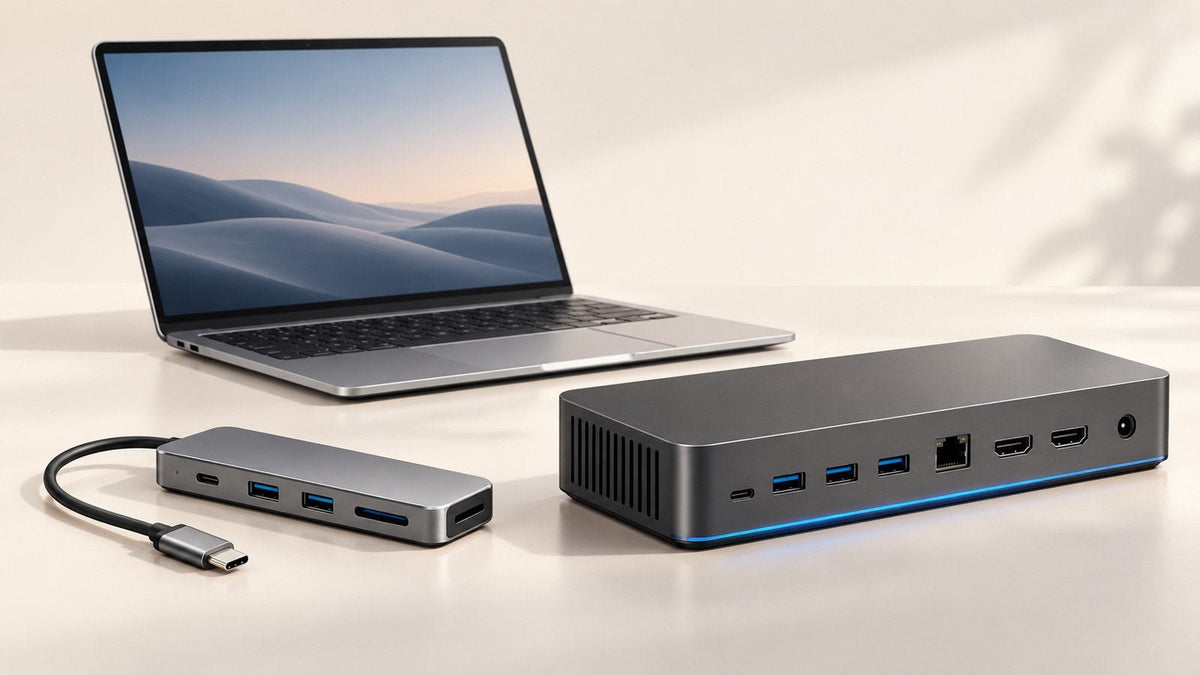
DisplayLink Docking Stations
A DisplayLink docking station contains compatible DisplayLink hardware and can provide one or more display outputs alongside other connections such as USB peripherals, networking, or audio.
However, not every USB-C docking station uses DisplayLink. Some docks rely entirely on native DisplayPort, Thunderbolt, or USB4 display capabilities.
DisplayLink Adapters
A USB graphics adapter can use DisplayLink to convert USB data into an output such as HDMI or DisplayPort.
These adapters are particularly useful for understanding what DisplayLink actually does: the host USB connection carries display data to the DisplayLink hardware rather than simply acting as another native HDMI or DisplayPort output.
DisplayLink Monitors
DisplayLink technology can also be integrated into a monitor or another display device.
In every case, the principle is the same:
The presence of compatible DisplayLink hardware matters more than the physical product category.
A device is not a DisplayLink device merely because it connects through USB-C.
How Does DisplayLink Work?
The clearest way to understand DisplayLink is to follow the path from the computer to the monitor.
A simplified native display connection looks like this:
GPU → native display signal → monitor
A simplified DisplayLink connection looks like this:
Computer → DisplayLink software → USB data → DisplayLink hardware → monitor
With DisplayLink, the operating system creates the desktop content that should appear on the connected display. DisplayLink software obtains that content, encodes the necessary display data, and sends it through the USB connection.
The DisplayLink hardware at the other end then decodes the information and provides an output that the monitor can display.
Synaptics explains that its DisplayLink driver monitors the framebuffer created for each display, encodes the required pixels, and sends them to the DisplayLink device. The device then decodes the display information and presents it through a conventional display interface.
This is why DisplayLink should not be described as simply “unlocking another video port.”
DisplayLink does not create another physical GPU video output. It creates a software-assisted display path and transports the display content as data.
That distinction explains much of what makes DisplayLink useful.
Native Video Output vs DisplayLink
Native video and DisplayLink can both put an image on an external monitor, but the signal path is different.
With native video, the computer's graphics hardware sends a display signal through a supported interface:
GPU → HDMI / DisplayPort / supported USB-C display path → monitor
For example, VESA's DisplayPort Alt Mode standard allows a compatible USB-C connector and cable to carry a native DisplayPort audio/video signal.
DisplayLink follows a different path:
Computer → DisplayLink software → USB data → DisplayLink hardware → monitor
This means two docks connected to identical-looking USB-C ports can handle monitors differently. One may depend on native DisplayPort output from the laptop, while another may use DisplayLink hardware to transport display content through USB data.
The distinction is architectural rather than simply physical.
For a deeper look at performance, setup requirements, use cases, and practical trade-offs between the two approaches, see INVZI's guide to native USB-C video and DisplayLink.
Why Can DisplayLink Enable Additional Displays?
A laptop's number of USB-C ports does not necessarily equal the number of external monitors it can drive natively.
Native external-display support depends on the computer's underlying graphics and display architecture. The processor, GPU, display engine, operating system, resolution, refresh rate, and device design can all affect the supported configuration.
That is why plugging another conventional USB-C-to-HDMI adapter into another port does not automatically create another independent native display.
DisplayLink approaches the problem differently.
Instead of requiring another conventional native display output, the computer creates the additional desktop content in software and DisplayLink transports that content as data to compatible hardware.
In other words:
DisplayLink does not increase the number of native video outputs built into the laptop. It provides another method of getting display content from the computer to a screen.
That distinction is especially important on computers whose native external-display configuration is more limited than the workspace the user wants to build.
For example, someone may want separate spaces for:
- a primary document or application
- reference material
- a spreadsheet or dashboard
- communication tools
The additional displays provide separate information spaces without needing every screen to follow another conventional native GPU output path.
DisplayLink still does not make display capacity unlimited. The supported configuration depends on the computer, operating system, DisplayLink hardware, software, resolutions, and other product-specific requirements.
Does DisplayLink Require DisplayPort Alt Mode?
No. DisplayLink does not require DisplayPort Alt Mode in the same way a native USB-C video connection does.
DisplayPort Alt Mode allows a compatible USB-C connection to carry a native DisplayPort video signal. DisplayLink instead uses USB data to send processed display information to compatible DisplayLink hardware.
This creates three important distinctions:
USB-C does not automatically mean native video.
USB-C describes the connector. The features behind it can vary.
USB data is not the same as DisplayPort Alt Mode.
Both may use the same USB-C connector, but they are different functions.
DisplayLink is not DisplayPort Alt Mode.
DisplayLink uses software-assisted USB graphics, while DisplayPort Alt Mode carries a native DisplayPort signal through USB-C. VESA documents DisplayPort over USB-C as the DisplayPort Alt Mode for USB Type-C standard.
This is also why DisplayLink technology is not inherently limited to USB-C connectors. What matters is a supported data connection between the computer and compatible DisplayLink hardware.
A power-only connection, however, is not enough. DisplayLink still requires the appropriate USB data functionality.
DisplayLink on macOS
DisplayLink can be useful on Macs when a workflow requires additional external screens, but it requires compatible DisplayLink hardware and software.
Current macOS DisplayLink setups use the DisplayLink Manager application. Synaptics describes DisplayLink Manager as the software used to enable compatible DisplayLink docks, adapters, and monitors on macOS.
macOS also requires certain system permissions for DisplayLink Manager to operate.
Why Does DisplayLink Need Screen Recording Permission on Mac?
One requirement is Screen Recording permission.
The name can be confusing because the purpose here is external display rendering rather than conventional screen recording.
DisplayLink explains that this permission allows DisplayLink Manager to access the screen pixels needed to render an extended or mirrored display and transmit those pixels over USB to the DisplayLink device. DisplayLink also states that DisplayLink Manager does not send those screen pixels to Synaptics or a third party.
Current setup guidance also includes permission for DisplayLink Manager to run in the background where required.
Because macOS and DisplayLink software continue to evolve, users should check the current DisplayLink documentation before installation rather than relying on instructions written for an older macOS version.
It is also important to separate two different questions:
Can DisplayLink provide software-assisted additional displays on a Mac?
and
How many external displays does a particular MacBook support natively?
The second question depends on the exact MacBook model, Apple Silicon chip, resolution, refresh rate, and display configuration. INVZI's dedicated guide to MacBook external display support covers those native compatibility differences in detail.
A DisplayLink-assisted screen should therefore not be confused with another native GPU display output from the Mac.
DisplayLink on Windows
DisplayLink also supports Windows through compatible DisplayLink hardware and software.
Synaptics currently provides DisplayLink USB Graphics Software for Windows 11 and Windows 10, while noting that an original equipment manufacturer may provide software specifically for its own dock, adapter, or monitor.
The exact installation process can therefore depend on the device and Windows configuration.
Once the appropriate hardware and software are working, the connected monitors can be arranged through the normal Windows display settings for an extended or mirrored desktop.
For managed company computers, software policy is another consideration. An employer may restrict driver installation or background applications, so users should confirm that the required DisplayLink software is allowed before building the setup.
When Does DisplayLink Make Sense?
DisplayLink is particularly useful when the main goal is additional working space for productivity and the computer's native display configuration does not provide enough screens.
Common examples include office work involving documents, browser windows, spreadsheets, email, dashboards, coding tools, and reference material.
The benefit is not simply having more pixels.
It is the ability to keep different kinds of information visible at the same time. A spreadsheet can stay open while source material remains visible on another screen, or an IDE can stay focused while documentation occupies a separate display.
For users considering the physical layout of a larger laptop workspace, INVZI's laptop screen extenders show several ways to add portable screen space for dual-, triple-, and quad-screen workflows. Individual product connection methods and software requirements should always be checked separately.
DisplayLink makes the most sense when its software-assisted display path solves a real screen-count or workspace requirement.
When Is Native Video Output a Better Fit?
Native video remains the more appropriate starting point when a computer already supports the required display configuration and direct GPU-driven output is a priority.
That can include workloads where users care particularly about very low latency, high-refresh-rate display behavior, demanding gaming, certain professional video or creative workflows, or maximum plug-and-play simplicity.
Native output can also be preferable on company computers where additional display software cannot be installed.
This does not mean DisplayLink is inherently unsuitable for visual content. It means the two approaches use different display paths, and the workload should determine which path makes more sense.
For everyday documents, dashboards, research, communication, and similar productivity tasks, additional usable screen space may matter more than having every monitor connected through a native output.
DisplayLink Setup Checklist
Before setting up a DisplayLink monitor, adapter, or docking station:
-
Verify that the device actually uses DisplayLink.
Do not assume based on USB-C or the number of HDMI or DisplayPort connectors. -
Check operating-system support.
Verify the current requirements for your computer, OS, and specific DisplayLink device. -
Confirm the host provides the required USB data connection.
Power alone is not enough. -
Install or update the appropriate software.
Follow the hardware manufacturer's instructions or current official DisplayLink guidance. -
On macOS, grant the required permissions.
These may include Screen Recording and Background Activity permissions for DisplayLink Manager. -
Connect the device and arrange the displays.
Use the operating system's display settings to configure position, orientation, resolution, scaling, and extended or mirrored mode. -
Check IT restrictions on managed computers.
Company security policies may limit software installation or system permissions.
Exact requirements can change with hardware and operating-system updates, so current documentation should take priority over older setup guides.
Common DisplayLink Misconceptions
Myth: Every USB-C Dock Uses DisplayLink
Reality: USB-C docks can use several different display architectures. Some rely on native DisplayPort video, Thunderbolt, or USB4, while others use DisplayLink. The connector alone does not identify the technology.
Myth: DisplayLink and DisplayPort Alt Mode Are the Same
Reality: DisplayPort Alt Mode carries a native DisplayPort signal through a compatible USB-C connection. DisplayLink uses software and compatible hardware to transport display content as data.
Myth: DisplayLink Can Turn Any USB-C Port Into a Display Output
Reality: DisplayLink still needs compatible DisplayLink hardware, supported software, and a suitable USB data connection. A charging-only connection cannot provide the required data path.
Myth: More USB-C Ports Mean More Native Monitors
Reality: Port count and native external-display count are different things. The computer's graphics and display architecture determines how many native external displays it can support under a given configuration.
DisplayLink FAQ
What Is DisplayLink in Simple Terms?
DisplayLink is a software-assisted graphics technology that can send display content over USB to compatible hardware in a dock, adapter, or monitor. It provides another way to connect external displays without requiring every screen to use another conventional native video output from the computer.
Is DisplayLink the Same as USB-C Video?
No. Native USB-C video generally carries a direct display signal through technologies such as DisplayPort Alt Mode, Thunderbolt, or compatible USB4 display paths. DisplayLink processes display content in software and sends it as data to compatible DisplayLink hardware.
Does DisplayLink Need DisplayPort Alt Mode?
No. DisplayLink does not depend on DisplayPort Alt Mode in the same way native USB-C video does. It uses USB data to communicate with compatible DisplayLink hardware. The computer still needs to provide the USB data connection required by the device.
Can DisplayLink Support Multiple Monitors?
Yes. Compatible DisplayLink solutions can support multiple external displays and can be useful when the desired workspace exceeds the computer's native display configuration. The exact number of screens, resolutions, and supported combinations depend on the DisplayLink hardware, computer, operating system, software, and product specifications.
Does DisplayLink Work on Mac?
Yes, DisplayLink supports macOS with compatible DisplayLink hardware and DisplayLink Manager. macOS requires system permissions such as Screen Recording for the software-assisted display process. Users should verify current support for their specific macOS version before installation.
Does DisplayLink Require Software?
Yes. DisplayLink is software-assisted and requires appropriate driver or application support. On macOS, current setups use DisplayLink Manager. On Windows, software may come from Synaptics, Windows mechanisms, or the manufacturer of the specific DisplayLink device.
Is DisplayLink Good for Gaming?
DisplayLink can display games, but native GPU-driven video is generally a better fit when very low latency, high-refresh-rate behavior, or demanding gaming performance is a priority. DisplayLink is particularly useful when the main goal is flexible additional screen space for productivity.
How Do I Know if a Dock Uses DisplayLink?
Check the manufacturer's official specifications. Look for an explicit reference to DisplayLink technology or DisplayLink software requirements. Do not assume a dock uses DisplayLink simply because it connects through USB-C or includes multiple monitor outputs.
Final Takeaway
DisplayLink and native video can both put a desktop on an external monitor, but they use fundamentally different paths to get there.
Native video sends a display signal through the computer's conventional graphics and display-output architecture.
DisplayLink uses software to process display content, transports that information as data, and relies on compatible DisplayLink hardware to output it to the monitor.
That distinction explains why DisplayLink can be useful when a productivity workspace needs additional screens beyond a laptop's practical native display configuration. It also explains why DisplayLink should not be treated as another name for USB-C video, DisplayPort Alt Mode, or an extra native GPU output.
The right multi-monitor setup starts with three questions: How many screens does the workflow actually need? What can the computer support natively? And which display path best fits the work being done?

Leave a comment
This site is protected by hCaptcha and the hCaptcha Privacy Policy and Terms of Service apply.