


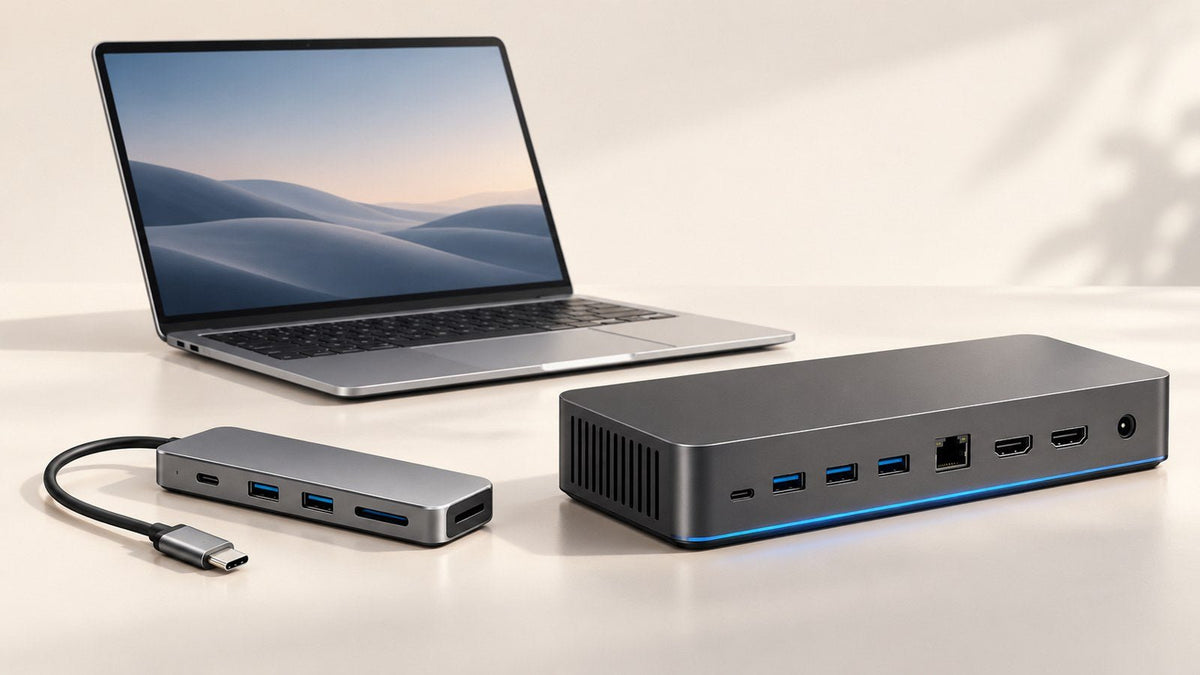
When comparing a docking station vs USB-C hub, the most useful question is not “Which one has more ports?” It is what happens to your connections when the laptop moves.
If you regularly carry your laptop between classrooms, meeting rooms, hotels, or coworking spaces, a compact USB-C hub may provide all the expansion you need. If your laptop returns to the same desk every day and reconnects to displays, Ethernet, storage, power, and other peripherals, a docking station often makes more sense.
There is some overlap between the categories. Products sold as “USB-C hubs” can include video output, Ethernet, card readers, and Power Delivery, while compact docks can be portable enough to travel.
That is why the product name alone should not decide the purchase. Start with your workflow, then compare the actual display, data, charging, and host-compatibility specifications.

The Difference Is More About Workflow Than Port Count
A hub and a docking station can look remarkably similar on a product page.
Both might offer:
- USB-A and USB-C
- HDMI or DisplayPort
- Ethernet
- SD or microSD
- laptop charging
- connections for storage and other accessories
The more useful distinction is how those connections fit into your day.
A USB-C hub is generally a compact way to expand the connections available from a laptop when you need them.
A docking station is generally designed to connect a laptop to a broader workstation where several devices may remain attached.
A simple way to think about it is:
Hub: the connections usually travel with the laptop.
Dock: the connections usually stay with the workspace.
Consider two people who both need HDMI, Ethernet, an external SSD, and laptop charging.
The first works from hotels and client offices. When the laptop goes into the bag, the connectivity setup goes with it. Portability becomes a major part of the decision.
The second works at the same home-office desk most days. When the laptop leaves, the monitor, Ethernet cable, SSD, keyboard, and power connection remain behind. The priority is making that fixed environment easy to reconnect.
They may need almost the same ports, yet the best connection architecture can be very different.
| Consideration | USB-C Hub | Docking Station |
|---|---|---|
| Typical role | Add laptop connections when needed | Connect a laptop to a broader workstation |
| Portability | Often a higher priority | Often secondary to desk integration |
| Permanent peripherals | Usually fewer | Commonly several |
| External displays | Often suited to simpler setups | Common in larger workstation setups |
| Ethernet | Useful when needed | Often left connected at the desk |
| Laptop charging | May support USB-C PD passthrough | Often part of the workstation connection |
| Storage and accessories | Good for selected devices | Useful when several devices remain connected |
| Cable organization | Replaces individual adapters | Centralizes persistent desk connections |
These are tendencies, not universal rules. A feature-rich hub can support a substantial desk setup, and a compact dock can still be travel-friendly.
Why the terminology can be confusing
There is also a difference between technical standards terminology and retail terminology.
VESA notes that, in formal USB terminology, a USB hub is a USB-only device and does not provide Alternate Modes such as DisplayPort Alt Mode. A device that combines USB functionality with DisplayPort Alt Mode fits the technical concept of a dock more closely. In consumer retail, however, “USB-C hub” is commonly used much more broadly for products that include video, charging, card readers, and other functions. VESA's DisplayPort FAQ
For buyers, that makes the specification sheet more useful than the category name.
What a USB-C Hub Is Best For
A USB-C hub is often the simpler starting point when your laptop already handles most of your work and you mainly need extra connections at particular times.
Travel and business presentations
A consultant may normally work directly from a laptop but need HDMI for a client presentation, Ethernet at a hotel, or USB-A for an older peripheral.
In that workflow, keeping several useful connections in one compact accessory can be more practical than carrying separate adapters.
Students and flexible workers
A student might connect an external monitor at home, use USB storage on campus, and occasionally transfer files from an SD card.
If those connections change throughout the week, portability can matter more than keeping a complete desktop setup permanently assembled.
Coworking and hot-desking
Shared workspaces often introduce temporary connectivity needs.
You may arrive with a laptop and need:
- one external display
- a keyboard or mouse
- Ethernet
- USB storage
- power
When the entire setup is packed away again at the end of the day, a compact hub can fit naturally into that workflow.
Light home-office setups
A permanent desk does not automatically mean you need a docking station.
If your workspace consists of one monitor, a wireless keyboard and mouse, and an occasional external drive, a compatible hub may already provide everything required.
The decision changes when more devices begin staying connected to the desk.
What a Docking Station Is Best For
A docking station becomes more useful when your laptop regularly joins the same group of peripherals.
Imagine a remote-work desk with:
- external displays
- keyboard and mouse
- webcam
- wired Ethernet
- external storage
- speakers or audio equipment
- laptop charging
The value of the dock is not simply that it has many ports. It is that those connections can remain part of the workstation while the laptop comes and goes.
For a developer, that might mean leaving displays, Ethernet, keyboard, mouse, webcam, and storage connected between work sessions.
For a designer or content creator, the persistent setup might include a display, storage devices, card access, input hardware, and power.
For a business professional, it may simply mean returning to a desk and reconnecting the laptop without rebuilding the workspace cable by cable.
This is the practical advantage of a docking setup: the workstation remains assembled even when the laptop is not there.
Dock vs Hub: Compare the Connections You Actually Use
Before comparing products, list the devices you actually connect during a normal working day.
This is more useful than choosing the option with the longest port list.
USB Devices
Count active peripherals rather than unused connectors.
Your list might include:
- keyboard
- mouse
- webcam
- external SSD
- microphone
- audio interface
- security key
- phone or other accessories
A user connecting a mouse receiver and an occasional flash drive has very different requirements from someone regularly transferring large files to external storage while using several other USB devices.
Also consider bandwidth. Multiple downstream ports can share the same upstream connection, so having more physical connectors does not mean every device can simultaneously operate at its maximum theoretical speed.
Ethernet
Wired networking can be useful for office networks, large network transfers, or locations where Wi-Fi is inconsistent.
A traveler who needs Ethernet only at certain locations may prefer it as one function of a portable hub.
At a fixed desk, leaving Ethernet permanently connected to a docking station can make the wired network part of the workstation itself.
The better question is therefore not simply “Does it have Ethernet?” but “How often do I use it, and does that cable need to stay at my desk?”
SD and microSD
Card readers are especially relevant to photographers, videographers, and other camera-based workflows.
A traveling photographer may value an integrated card reader because it eliminates another adapter. At a permanent editing desk, card access might instead be one element in a larger setup that also includes displays and external drives.
Check the supported card format and performance of the specific device rather than assuming every integrated reader behaves the same way.
Display Connections
Display outputs require more careful comparison.
Two HDMI ports on a hub or dock do not automatically mean that every laptop can run two independent external displays through them.
The result can depend on:
- laptop model
- processor or GPU
- operating system
- host-port capabilities
- DisplayPort Alt Mode, Thunderbolt, USB4, MST, or DisplayLink implementation
- resolution and refresh rate
- cable capability
- hub or dock design
Physical connector count is only one part of the display path.
Compare by Display Needs: One Screen or Multiple Screens?
External displays are one of the strongest reasons users begin comparing a USB-C hub vs docking station.
One external display
For one monitor and a small number of accessories, a hub may already provide enough connectivity.
A setup might be as simple as:
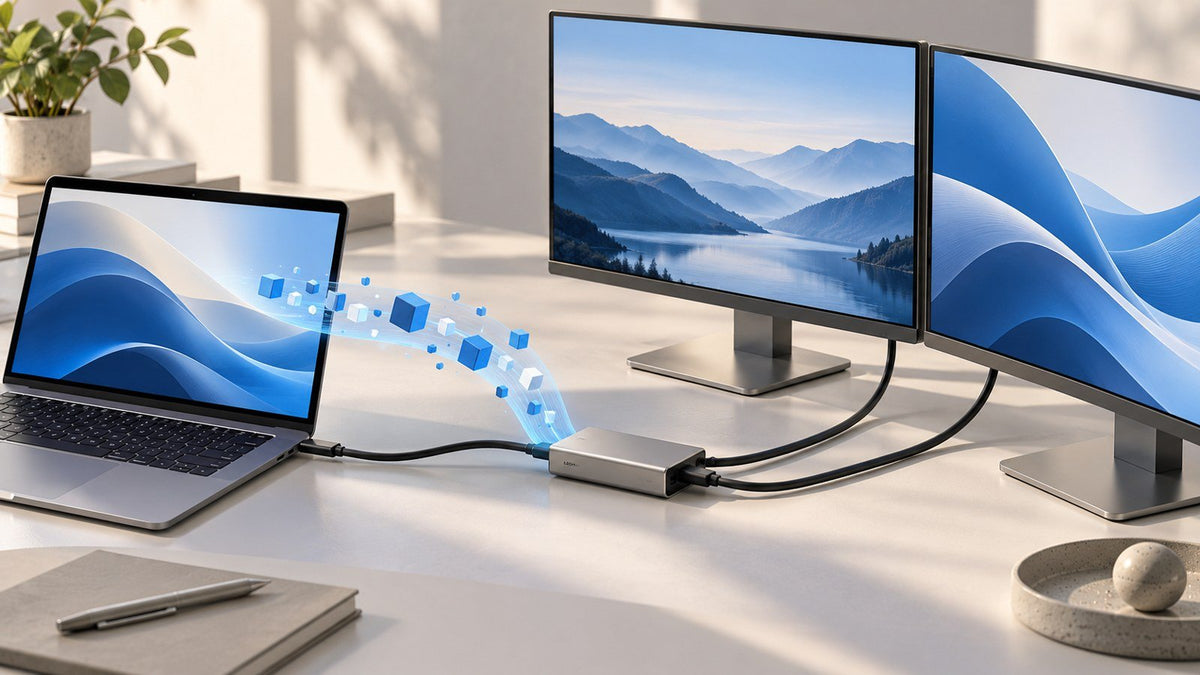
Laptop → USB-C hub → monitor + storage + peripherals
There is little reason to build a more complex workstation solely because a product is labeled as a docking station.
Multiple external displays
Once two or more external displays become part of the daily workflow, compatibility deserves much closer attention.
Developers may separate an IDE, browser, terminal, and documentation. Analysts may keep spreadsheets and dashboards visible simultaneously. Remote professionals may want meetings on one display while documents remain open elsewhere.
A workstation-oriented dock can provide convenient physical display connections, but those connectors do not automatically create additional native display capability.
Before choosing hardware around a two-, three-, or four-screen setup, verify how many external monitors your laptop can support.
The distinction matters because external displays can reach the monitor through different technologies.
Native USB-C video typically carries a GPU-driven display signal through a compatible DisplayPort Alt Mode, Thunderbolt, or USB4 connection.
MST can distribute compatible DisplayPort streams in supported configurations.
DisplayLink takes a different approach, using compatible hardware and software to send display data over USB.
If monitor count is a major part of your decision, understanding the difference between native USB-C video and DisplayLink can prevent you from choosing a dock based only on its HDMI or DisplayPort count.
The important rule is simple:
Choose the display configuration your laptop and connection technology actually support, not the number of video connectors you can see.
Compare by Power Delivery
Charging is another area where product labels tell only part of the story.
Ask:
Do I only need more connections, or do I want the same setup to power my laptop as well?
Many compact hubs draw operating power from the host computer. Some also include a USB-C Power Delivery input, allowing a compatible external charger to supply power through the hub toward the laptop.
Many docking setups use an external power source and can provide host charging while powering connected devices.
USB Power Delivery allows compatible devices to negotiate power over the USB ecosystem, with the current USB PD specification supporting substantially higher power levels than early USB charging implementations. USB-IF's USB Power Delivery guidance
For a buying decision, however, the largest advertised wattage is not automatically the best choice.
Check:
- how much power your laptop expects
- how much power the accessory can actually deliver to the host
- whether the hub or dock consumes part of the available input
- whether an external charger is required
- whether that charger is included
- whether the cable supports the required charging mode
For example, a product may accept a particular input wattage but deliver less than that to the laptop because some power is reserved for the accessory and connected peripherals.
Match charging capability to the computer you actually use rather than treating wattage as a ranking system.
Compare by Portability
Portability is not simply a question of which device is smaller.
For a traveler, the complete kit matters.
Consider:
- device size and weight
- whether an external power supply is needed
- cable count
- charger requirements
- number of separate adapters replaced
- how quickly the setup can be connected
- whether the same accessory works at different locations
Someone who needs HDMI, Ethernet, an SD reader, USB storage, and charging on the road may prefer one capable connectivity device over several individual adapters—even if it is not the smallest accessory available.
A permanent workstation creates a different priority.
If the displays, Ethernet, keyboard, mouse, storage, and power supply all stay at the desk, there is less value in minimizing the size of the connection device. Reducing reconnection work may matter more.
A useful rule is:
For mobile workflows, optimize what you have to carry. For fixed workflows, optimize what you have to reconnect.
What About USB-C, Thunderbolt, and USB4?
USB Type-C defines the connector form factor, but the functions available through a USB-C port can vary.
Depending on the laptop and implementation, a USB-C connection may support different combinations of:
- USB data
- USB Power Delivery
- DisplayPort Alt Mode
- USB4
- Thunderbolt
- external display output
This is why two ports that look identical can support different workflows.
Do not buy a hub or dock simply because your laptop has a matching USB-C connector. Confirm what that particular host port supports.
For display setups in particular, check whether the laptop documentation explicitly supports external video through that connection and what display configurations are documented.
The same principle applies to cables. A cable that works for charging does not automatically guarantee the data rate or display functionality required by every setup.
What to Check on the Spec Sheet Before Buying Either One
Once you know whether your workflow leans toward a hub or dock, the next step is comparing specifications.
Five areas matter more than a long list of ports.
1. Host Connection
Identify what connects the accessory to your laptop.
Look for requirements involving:
- USB-C
- USB4
- Thunderbolt
- supported USB data rates
- DisplayPort Alt Mode where applicable
Then confirm that your laptop provides the required host capability.
2. Documented Display Configuration
Do not stop at:
“2 × HDMI.”
Look for actual supported configurations, including:
- number of independent displays
- supported resolutions
- refresh rates
- mirrored versus extended behavior where relevant
- operating-system limitations
- required display technology
A connector list tells you what can physically be plugged in. A display specification tells you what the system is designed to do.
3. Host Charging
Look for the power delivered to the laptop, not only the power accepted by the accessory.
If the device uses Power Delivery passthrough, check the external charger requirement as well.
4. Data Bandwidth
This becomes more important if your workflow includes:
- external SSDs
- high-speed storage
- cameras
- capture devices
- several active USB peripherals
The presence of multiple high-speed ports does not mean unlimited simultaneous bandwidth.
5. Power Source and What Is Included
Check whether the device:
- operates from the laptop
- requires an external charger
- includes a power adapter
- expects you to reuse your existing USB-C charger
This can materially change both a travel kit and a desk setup.
Decision Matrix: Do You Need a USB-C Hub or Docking Station?
Use this as a starting point rather than an absolute rule.
| Workflow | Likely Starting Point | Decision Trigger |
|---|---|---|
| Student | USB-C hub | Connections change between class, home, and study spaces |
| Frequent traveler | USB-C hub | The connection setup usually travels with the laptop |
| Hybrid worker with a simple desk | Depends | Consider how many devices remain attached at the desk |
| Remote worker with a permanent workstation | Docking station | Displays and peripherals remain connected when the laptop leaves |
| Developer | Depends / docking station | Number of displays, storage devices, networking, and peripherals used simultaneously |
| Creative professional | Depends | Balance mobile card/storage access against permanent display and storage needs |
| Single-monitor user | Often USB-C hub | One display plus basic peripherals may not require a larger workstation setup |
| Multi-monitor professional | Often docking station | Display topology and laptop compatibility become more important than simple port expansion |
The pattern is more useful than the labels:
If most of the connections move with you, start by looking at hubs.
If most of the connections stay behind, start by looking at docks.
Then verify the exact specifications.
A Five-Question Test Before You Choose
Still deciding whether you need a docking station or USB-C hub? Answer these questions.
1. Does the accessory need to travel with me regularly?
If yes, size, power requirements, and the number of adapters it replaces deserve more weight.
2. What stays connected when my laptop leaves the desk?
If the answer is “almost everything,” a docking station becomes more useful.
3. How many external displays do I actually use?
Plan around your real setup rather than theoretical future expansion, then verify the laptop's supported display configuration.
4. Do I want the same connection to charge the laptop?
If yes, check actual host power delivery rather than assuming every USB-C hub or dock provides it.
5. What does my laptop's host port support?
This can override every other decision.
A laptop port that lacks the required display, data, or charging capability cannot gain that native capability simply because the accessory has the matching connector.
When Your Workflow Falls Somewhere in Between
Modern hubs and docks increasingly overlap.
A compact device sold as a USB-C hub might include:
- video output
- Ethernet
- USB Power Delivery passthrough
- multiple USB ports
- card readers
That may be enough for a modest permanent workspace.
Likewise, a compact docking station may be practical enough to move between home and office.
So avoid turning the decision into:
“Which category name is better?”
Instead ask:
Does this exact device provide the connection architecture my workflow needs?
That means checking:
- what stays connected
- what travels
- which devices operate simultaneously
- how displays are generated
- how much host power is available
- how data bandwidth is shared
- whether the host laptop supports the required functions
The category gets you to the right part of the market. The specifications determine whether the product actually fits.
Choosing Around Your Laptop Workflow
The most useful way to approach docking station vs USB-C hub is to work backward from your everyday laptop setup.
Choose a USB-C hub when you mainly need flexible, portable expansion for a changing group of connections.
Consider a docking station when the laptop regularly becomes part of a larger workstation and the displays, network, storage, power, and peripherals are meant to stay connected.
Most importantly, do not choose by port count alone.
Use this order instead:
workflow → connection architecture → laptop compatibility → display needs → power and data requirements → portability → exact specifications
Once those requirements are clear, you can explore INVZI docking stations and USB-C hubs to compare connection layouts, charging options, and form factors against the setup you actually need.
Frequently Asked Questions
What is the main difference between a USB-C hub and a docking station?
A USB-C hub generally focuses on adding convenient connections to a laptop, often in a portable format. A docking station is generally designed to connect a laptop to a broader workstation where several peripherals may remain attached. Because retail terminology overlaps, always compare actual display, data, charging, and compatibility specifications.
Do I need a docking station if I only use one external monitor?
Not necessarily. One external monitor plus a small number of peripherals can often be handled by a compatible USB-C hub. A docking station becomes more useful when your desk also includes persistent networking, storage, charging, multiple peripherals, or more complex display requirements.
Can a USB-C hub charge a laptop?
Some can. Many hubs include USB-C Power Delivery passthrough, which allows a compatible external charger to provide power toward the laptop through the hub. Check the required charger, the hub's supported input, actual host power output, and your laptop's charging requirements before assuming the setup will replace your normal charger connection.
Can a USB-C hub support two monitors?
Some can, but two video connectors do not guarantee two independent extended displays on every laptop. Support depends on the computer, operating system, host port, GPU or processor, display technology, hub design, resolution, refresh rate, and cables. Verify a documented dual-display configuration for the complete setup.
Does a docking station increase the number of monitors my laptop supports?
Not automatically. A native-video dock can expose or distribute display connections supported by the laptop, but it does not simply remove the computer's native GPU or display-path limits. Technologies such as DisplayLink can add software-assisted displays through compatible hardware and software and should be evaluated separately.
Is a USB-C hub better for travel?
Often, but not simply because hubs tend to be smaller. The better travel device is the one that provides the connections you need while minimizing the total equipment you carry. A slightly more capable device can be more portable in practice if it replaces several separate adapters.
Can I use a docking station with any USB-C laptop?
No. A matching USB-C connector does not guarantee matching capabilities. The laptop's port must support the functions required by the dock, which may include particular USB data capabilities, DisplayPort Alt Mode, USB4, Thunderbolt, or USB Power Delivery. Always check the requirements of both the laptop and the docking device.

Leave a comment
This site is protected by hCaptcha and the hCaptcha Privacy Policy and Terms of Service apply.