


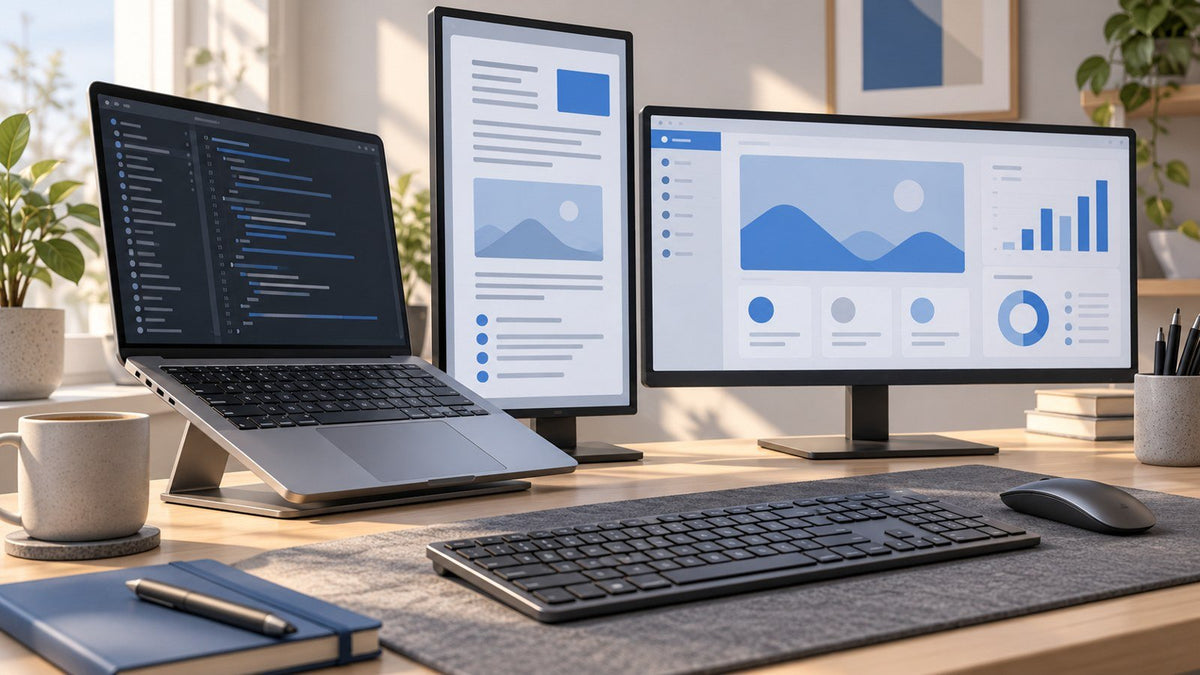
A good developer workspace setup is not about filling a desk with as many monitors as possible. It is about deciding which parts of the development process deserve their own visible space.
Software development rarely happens inside one application. A typical session may involve an IDE, terminal, documentation, browser, local application, DevTools, test results, logs, issue tracker, and team communication. When all of that competes for the same screen, developers spend more time hiding, finding, resizing, and reopening windows.
A better multi-screen approach gives frequently used information predictable places. Code might stay on the primary display, application output on another, and documentation or operational information on a third.
The goal is not maximum screen space. It is useful visibility: keeping the information required by the current development loop easy to see without turning the workspace into another source of distraction.
If your main question is whether you actually need one, two, three, or four displays, INVZI's guide to choosing how many screens you need for work covers that decision separately. Here, the focus is what developers should do with multiple displays once those screens are part of the workspace. The linked INVZI guide currently focuses specifically on persistent visibility and screen-count decisions, including coding workflows, so keeping that question there gives this article a cleaner developer-workflow intent.

Why Developer Workflows Benefit From Separate Information Spaces
Development is more complicated than “code on one screen and Google on the other.”
Even a focused coding task can involve several different types of information:
- an IDE or code editor for implementation
- documentation or API references
- a terminal
- a browser or running application
- DevTools
- an emulator or simulator
- test output
- logs
- a database or API client
- tickets and specifications
- CI/CD or monitoring systems
- team communication
The mistake is treating every open application as equally important.
A developer usually has one activity receiving most of their direct attention and several supporting information sources that need different levels of visibility. Documentation may need to stay visible during implementation. Application output may become more important during debugging. Logs may require continuous observation during deployment but almost none during routine coding.
That suggests a more useful principle for a programming setup:
Organize screens around development activities, not around a permanent list of applications.
A browser, for example, can play several roles. It may hold documentation while implementing a feature, the local application while debugging, or an operational dashboard during an incident.
The physical screen has not changed. Its role in the development loop has.
Map the Development Loop Before You Map the Screens
Before deciding what belongs on each display, identify the information relationships in the work itself.
A developer workflow often moves through a pattern such as:
Code → Test → Reference → Observe
Not every task uses all four stages, and the stages often overlap. But thinking in these terms makes a multi-screen workspace more specific to software development than simply labeling displays “primary” and “secondary.”
| Developer activity | Main visible space | Supporting visible space |
|---|---|---|
| Implementing a feature | IDE or editor | Documentation, ticket, specification |
| Debugging a UI | IDE or editor | Running application and DevTools |
| Testing an API | Code | API response, logs, API documentation |
| Mobile development | IDE | Simulator/emulator, logs, platform docs |
| Code review | Diff or repository | Ticket, specification, relevant source |
| Deployment | Terminal or pipeline | Logs, status, monitoring |
| Incident response | Code/configuration | Logs, metrics, documentation, communication |
The most useful screen arrangement therefore changes with the task.
During implementation, the IDE may dominate the workspace. During debugging, code and execution output become equally important. During an operational issue, logs and metrics may deserve persistent visibility even if they normally remain in the background.
This is the foundation for designing a multi-screen coding workspace that reflects actual development work.
A Two-Screen Developer Workflow: Code + Supporting Context
In an existing two-display developer setup, the simplest useful division is:
Screen 1 — Code
Keep the IDE, editor, or other primary development environment here.
Screen 2 — Supporting context
Use this display for the information most directly connected to the current task.
For frontend implementation, that might mean:
IDE → documentation
When it is time to inspect the result:
IDE → application + DevTools
For backend work, the second screen might move between API documentation, terminal output, database tools, test results, and application logs.
The important point is that Screen 2 does not need one permanent application. Its job is to provide the current supporting context.
A developer implementing an unfamiliar API may keep its documentation visible. Once the integration is running, that same screen can switch to responses or logs. During review, it might display the ticket or specification that defines the expected behavior.
This makes two screens useful without turning the second display into a collection of unrelated windows.
A practical two-screen rule is:
Keep the implementation environment stable and let the supporting screen change with the development phase.
A Three-Screen Developer Workflow: Code + Execution + Reference
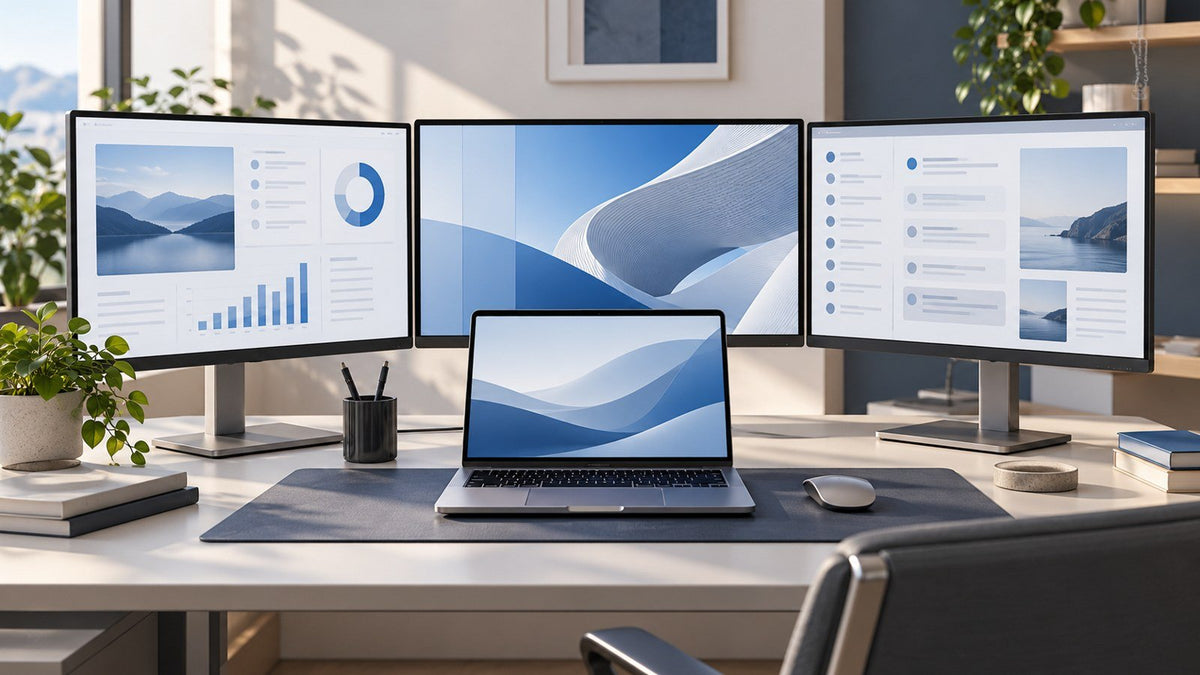
If your workstation already uses three displays, a strong developer-specific structure is:
Screen 1 — Code
IDE, editor, repository, or active implementation.
Screen 2 — Execution
Running application, browser, DevTools, emulator, API output, test results, or another representation of what the code is doing.
Screen 3 — Reference
Documentation, ticket, specification, schema, design reference, or communication relevant to the current work.
This separation is particularly useful when execution output and reference information would otherwise keep replacing each other.
Consider a frontend developer debugging a component.
Screen 1 can hold the code. Screen 2 can keep the running interface and DevTools visible. Screen 3 can show the design specification, issue, or framework documentation.
A full-stack developer might use the same structure differently:
Code → application/API output → database or documentation
For mobile development:
IDE → simulator/emulator → logs or platform documentation
The important difference from a generic three-monitor setup is that every display maps to a stage of development.
You are not simply spreading applications across more space. You are making the relationship between implementation, execution, and reference visible.
A Four-Screen Developer Workflow for Monitoring-Heavy Work
A four-display development workflow is most useful when programming happens alongside persistent operational visibility.
Instead of asking whether developers in general “need” four screens, focus on what the fourth information space does when it is already part of the workflow.
One developer-oriented structure is:
Screen 1 — Code
IDE, editor, configuration, or repository.
Screen 2 — Test or execution
Running application, test environment, emulator, browser, or DevTools.
Screen 3 — Observe
Logs, metrics, terminal sessions, deployment status, CI/CD, or system monitoring.
Screen 4 — Coordinate and reference
Documentation, incident notes, tickets, architecture information, or relevant communication.
This arrangement is particularly relevant to monitoring-heavy development work such as DevOps, site reliability engineering, cloud operations, production support, and complex distributed systems.
Imagine troubleshooting a deployment issue.
The developer may change configuration or code while simultaneously watching deployment output and system metrics. Documentation may be needed to verify expected behavior, while an incident channel contains information from other engineers.
In that situation, the four screens represent different parts of one problem:
Change → Validate → Observe → Coordinate
That is very different from putting four unrelated applications on four displays simply because the space is available.
Horizontal vs Vertical Displays for Coding
Display orientation should follow the shape of the information assigned to the screen.
When Horizontal Works Well
Horizontal displays are suited to interfaces that use width, including:
- IDEs with project trees and terminal panels
- split code editors
- side-by-side diffs
- browsers with DevTools
- dashboards
- database tables
- wide debugging interfaces
A developer working across several editor panes may gain more from horizontal space than from seeing additional lines vertically.
When Vertical Works Well
Portrait orientation can fit information that grows downward, such as:
- long source files
- documentation
- terminal output
- logs
- pull-request discussions
- issue lists
- reference material
For example, a horizontal primary screen might contain the IDE while a vertical secondary display holds a long API reference or streaming logs.
That does not mean vertical displays are inherently better for programming.
Modern IDEs often combine several horizontal regions—file navigation, editor panes, debugging panels, terminals, and inspectors. A narrow portrait layout can make those interfaces more cramped.
A better rule is:
Choose orientation based on the information that normally lives on that screen.
If the content is primarily long-form reference or sequential output, vertical orientation may fit naturally. If it depends on multiple columns or side-by-side comparison, horizontal space is usually more useful.
Monitor Placement Should Follow Attention
A multi-screen software engineer desk setup should reflect how frequently each display is used.
The screen receiving most of your attention should occupy the most natural viewing position. Frequently referenced information can sit nearby, while dashboards or communication used only occasionally can take less central positions.
The OSHA computer workstation evaluation guidance recommends placing the primary monitor directly in front of the user. When multiple monitors are used, OSHA says the other displays should sit beside it; if time is divided roughly evenly between screens, they should be positioned within a comfortable viewing angle with minimal head movement.
For developers, that translates into a simple priority:
active work → frequent reference → occasional observation
If most of the day is spent editing code, the IDE should not require a constant turn to one side while messaging sits directly ahead.
The cleanest-looking arrangement is not necessarily the most practical. Let attention frequency determine placement.
Remote Developer Setup: Preserve the Workflow, Not the Desk
A remote developer does not need to reproduce the same physical workstation everywhere.
The more useful goal is to preserve the information separation that matters most.
At a permanent desk, a workflow might look like:
Code → Test → Reference → Observe
At a temporary desk, it could become:
Code → Test
or:
Code → Reference
The hardware becomes simpler, but the most important relationship between information remains intact.
For example, a developer working from a coworking space may keep the IDE on the laptop and use an additional display for the running application. Someone working with an unfamiliar API might instead use the extra screen for documentation.
Laptop-first developers who regularly need additional visual workspace away from a permanent desk can explore INVZI's portable multi-screen workspace options. The current collection specifically positions its dual-, triple-, and quad-screen configurations around workflows including coding, software development, dashboards, research, and other multi-application work.
The purpose here is not to recreate every monitor from the home office. It is to restore the screen roles that matter for the current development task.
For broader advice about adapting a workspace between home, hotels, coworking spaces, and travel, see INVZI's guide to building a portable office across different work environments. That existing article is already organized around how power, connectivity, display space, input, and organization change by location, so those broader remote-work decisions do not need to be duplicated here.
Screen layout is only one part of remote development. Access to repositories, internal services, development infrastructure, and cloud systems may also depend on organizational authentication, device security, networking, and remote-access policies.
NIST SP 800-46 Rev. 2 provides guidance on security considerations for enterprise telework, remote-access solutions, and client devices. As of September 2026, Rev. 2 remains the current final version listed by NIST, while Rev. 3 is still shown as a pre-draft effort.
Those infrastructure requirements should follow the policies of the organization. They are constraints around the workspace, not reasons to change the fundamental screen-allocation strategy.
Reduce Navigation Friction, Not Every Kind of Context Switching
Multiple screens cannot remove the cognitive work involved in switching from implementation to testing, interpreting an error, reviewing documentation, or responding to another person.
What a well-organized workspace can reduce is something narrower:
interface navigation friction.
Consider debugging on one display.
You edit the code, bring the application forward, return to the IDE, search for documentation, uncover the terminal, inspect the output, return to the browser, and then locate the editor again.
None of those actions is difficult by itself. The friction comes from repeating them.
With related information already visible, the same debugging loop might become:
Code → inspect application → check reference → return to code
The developer still has to understand the problem. The screens simply reduce the mechanical work of finding the information required to think about it.
Research by Gloria Mark, Daniela Gudith, and Ulrich Klocke, published in the ACM CHI proceedings as The Cost of Interrupted Work: More Speed and Stress, found that participants in its interruption experiment completed interrupted tasks faster but reported higher stress, frustration, time pressure, and effort. The study examined interruptions rather than monitor configurations, so it should not be treated as evidence that adding displays automatically makes developers more productive.
The more defensible takeaway for workspace design is narrower:
avoid creating unnecessary interruptions in the way task-related information is accessed.
At the same time, persistent visibility can become its own distraction.
Keeping email, chat, dashboards, notifications, calendars, monitoring tools, and unrelated browser tabs visible simply because there is available screen space can fragment attention rather than support the task.
The best multi-screen workspace therefore does not show everything.
It keeps task-relevant information visible.
During implementation:
Code + reference
During UI debugging:
Code + application + DevTools
During deployment troubleshooting:
Code/configuration + output + monitoring
During an incident:
Change + validate + observe + coordinate
Screen roles should change when the work changes.
Build Screen Roles Around Your Actual Development Loop
Instead of copying someone else's programmer monitor setup, observe a representative development session and answer five questions.
1. Where Does Implementation Happen?
Usually the IDE, editor, notebook, repository, or another development environment.
This should receive the most stable position.
2. What Do You Repeatedly Reference While Implementing?
Examples include documentation, tickets, specifications, designs, schemas, and API references.
If you consult it constantly, giving it predictable visible space may remove unnecessary navigation.
3. What Output Do You Need to Inspect?
This could be a browser, application, emulator, API response, test suite, or DevTools.
During debugging, execution output may deserve as much attention as the code itself.
4. What Must Remain Observable?
Logs, terminals, infrastructure metrics, deployment progress, CI/CD status, or system dashboards may need persistent visibility in operational workflows.
5. What Can Remain Hidden?
Email, messaging, calendars, unrelated browser tabs, and tools that are not supporting the current task do not need permanent screen space simply because another monitor is available.
From those answers, create your own version of:
Code → Test → Reference → Observe
Not every developer needs every role visible simultaneously.
A developer focused on implementation may need only code and reference material. A frontend debugging session may need code, application output, and DevTools. An operational problem may require code, logs, monitoring, and communication at the same time.
The useful workspace is the one that reflects those differences.
A Better Developer Workspace Is Built Around Information Flow
The best developer workspace setup is not defined by monitor count.
It is defined by how clearly the workspace supports the path between writing code and understanding what that code is doing.
Two displays can separate implementation from supporting context. Three can keep code, execution output, and reference information visible at the same time. In monitoring-heavy workflows, a fourth information space can separate operational observation or coordination from active development.
Orientation and placement should follow the information being displayed and the amount of attention it requires.
Remote developers can use the same principles without rebuilding a permanent office wherever they go. Preserve the information relationships that matter and simplify the physical hardware when the environment demands it.
Most importantly, resist the urge to fill every screen.
More visible information is useful only when it supports the task in front of you.
A well-designed developer workspace makes the current development loop easier to follow:
code what you need to change, see what it does, keep the right reference available, and observe what matters.
Frequently Asked Questions
What Should Go on Each Screen in a Developer Setup?
Start with the development loop rather than application names. Keep active code or implementation on the primary display, then assign supporting screens to execution output, documentation, testing, logs, or monitoring according to the current task.
Is a Two-Screen Setup Enough for Programming?
Yes. A practical two-screen workflow keeps the IDE or editor on one display and uses the second for the most relevant supporting information, such as documentation, a browser, DevTools, test results, or terminal output.
What Should a Developer Put on a Third Monitor?
A third display works best when it gives a separate home to information that repeatedly competes with testing or reference material. Common roles include application output, documentation, an emulator, logs, tickets, or communication connected to the current task.
What Belongs on a Fourth Screen in a Developer Workflow?
In monitoring-heavy workflows, a fourth display can hold logs, system metrics, deployment status, incident communication, or other operational information that needs to remain visible alongside code, testing, and reference material.
Is a Vertical Monitor Useful for Coding?
It can be useful for long files, documentation, terminal output, logs, and other vertically structured information. Horizontal displays are often better for split editors, DevTools, dashboards, and side-by-side comparisons. Match orientation to the screen's main role.
How Should Remote Developers Organize Multiple Screens?
Preserve the most important information relationship rather than copying a permanent desk. For example, keep the IDE on the laptop and use an additional display for application output or documentation. Expand the setup only when the location and task justify it.
Can Multiple Monitors Reduce Context Switching for Developers?
Multiple displays can reduce window-management and navigation friction by keeping related information visible, but they do not eliminate cognitive context switching. Poorly organized screens can also introduce additional distractions, so persistent visibility should be reserved for information supporting the current task.

Leave a comment
This site is protected by hCaptcha and the hCaptcha Privacy Policy and Terms of Service apply.