


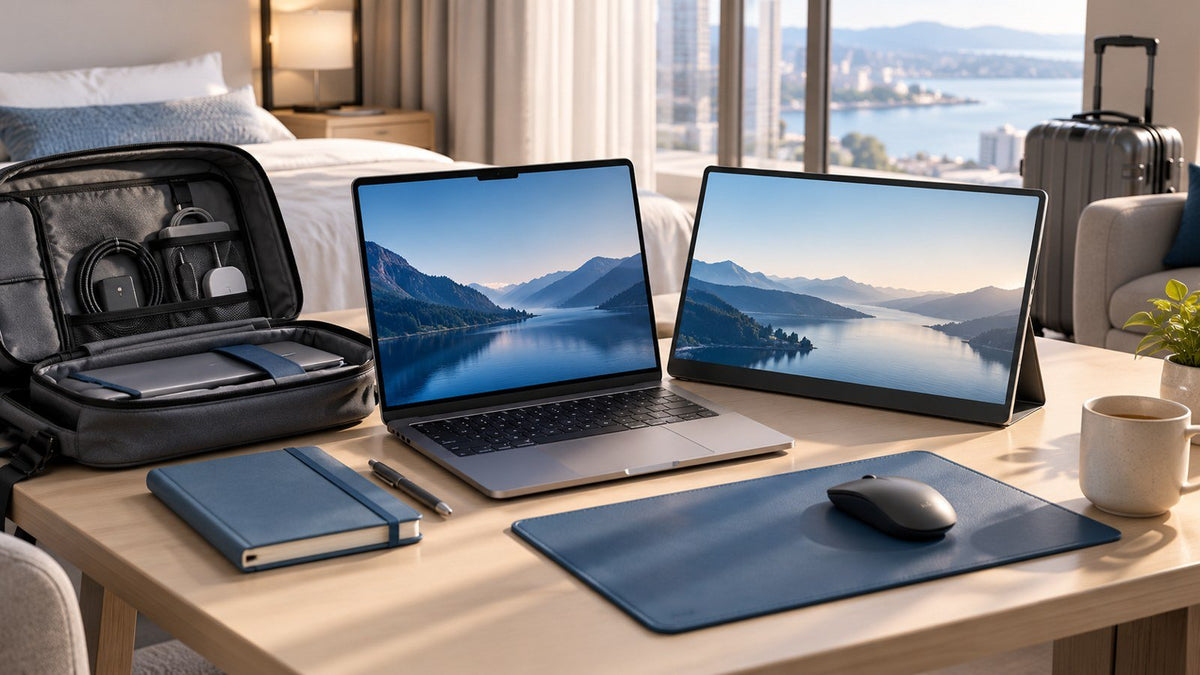
A good portable office setup should change with the place you are working. Home gives you room for a more permanent workstation. Coworking spaces reward quick setup and fewer cables. Hotel rooms bring unpredictable desks and outlets. Airports and other short-session environments make battery life, privacy, and speed more important.
Instead of carrying a complete office everywhere, build around a consistent set of capabilities—power, connectivity, display space, input, and organization—and adjust how you provide them in each location.
If you are looking specifically for what equipment to carry on a business trip, rather than how your workspace should adapt by location, see INVZI's mobile workstation setup for business travel guide.
Why a Portable Office Setup Should Change by Location
A portable office is not one fixed arrangement. It is a workspace system that becomes simpler or more complete depending on where you are, how long you will work, and what the environment allows.
Trying to reproduce a full home desk in every location usually creates more cables, more equipment to manage, and more setup time than the session requires.
A better approach is to start with the environment.
| Location | Typical Work Session | Main Constraint | Workspace Priority | Default Approach |
|---|---|---|---|---|
| Home | Several hours or a full workday | Less need for portability | Comfort, screen space, persistent connections | Keep frequently used equipment connected |
| Coworking space | Several hours to a full day | Temporary, shared desk | Fast deployment, fewer cables, security | Use a repeatable setup that packs down quickly |
| Hotel room | A few hours to several days | Unpredictable desk space and outlets | Compact footprint, adaptable power and display | Evaluate the room before unpacking |
| Airport / short session | Minutes to around an hour | Time, space, battery, privacy | Immediate usability | Deploy only what the task requires |
The important distinction is simple: the capabilities you rely on can remain consistent even when the physical workspace changes.

Home Setup: Prioritize Comfort and Persistent Connections
At home, equipment does not need to disappear into a bag after every session. That makes the home version of your workspace the right place to prioritize comfort, screen positioning, and connections that can remain in place.
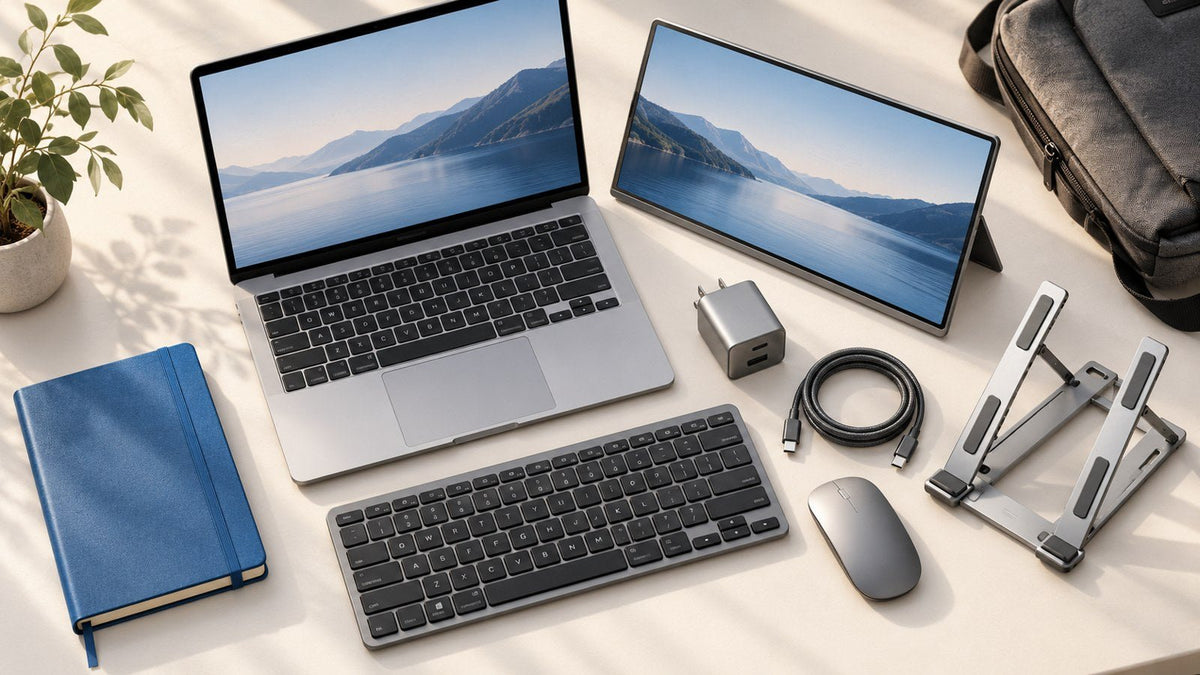
A larger monitor, external keyboard and mouse, laptop stand, dock, or other desk equipment may make sense here even when you would never carry all of it to a coworking space.
The benefit is not having more accessories. It is reducing repeated setup while creating a workspace suited to longer sessions.
Make long-session equipment worth the space
If you use the same display, storage, Ethernet connection, keyboard, or other peripherals every day, keeping them connected can make the desk easier to return to.
This is also where more deliberate monitor and input positioning becomes practical. OSHA's Computer Workstations guidance recommends considering monitors, keyboards, desks, chairs, and other workstation components together rather than treating them as isolated pieces. Its guidance emphasizes arranging frequently used equipment so it can be used without unnecessary awkward positioning.
For a portable-office strategy, the broader lesson is more important than any single desk measurement: equipment that earns permanent space at home does not automatically earn space in your travel bag.
A large display may be worthwhile during an entire workday. The same display strategy needs a different implementation when your desk is temporary.
Coworking Space Setup: Optimize for Fast Deployment
A coworking desk may provide plenty of space, power, and internet access, but it is still temporary.
That shifts the priority from permanence to reversibility.
A practical coworking setup should be easy to unpack, connect, use, disconnect, and pack again without rebuilding your workflow each time.
Reduce unnecessary connection points
Every separate charger, adapter, cable, and peripheral adds another step when you arrive and another step when you leave.
If several devices can share a suitable charging arrangement, or several recurring connections can be organized around a predictable setup, you reduce the number of decisions required at the desk.
This is different from cable management at home.
At home, cables can be routed once and largely forgotten. In a coworking space, good cable management means knowing what connects where and being able to remove everything quickly.
Include security in the workspace routine
Shared environments also require more awareness of physical and information security.
Practical habits include:
- locking the computer whenever you leave the desk,
- keeping portable devices under your control,
- considering what nearby people can see on your screen,
- following your organization's approved authentication and remote-access practices,
- being deliberate about how sensitive work is handled on shared or less-trusted networks.
NIST's telework and remote access security guidance covers security considerations for remote access, client devices, authentication, and communications outside traditional enterprise environments.
The goal is not to assume that every shared workspace is unsafe. It is to make security part of the setup routine instead of treating it as an afterthought.
Hotel Room Setup: Adapt to the Space You Actually Have
Hotel rooms create a different challenge.
You may have privacy and several hours available for focused work, but the desk, chair, outlet placement, and usable surface area can vary significantly from one room to another.
Before unpacking your full portable work setup, evaluate the room.
Ask:
- How much usable desk space is available?
- Where are the accessible power outlets?
- How many devices actually need power during this session?
- How long will I work here?
- Would additional screen space materially help with today's tasks?
- Which accessories can stay packed?
This quick assessment keeps the equipment from defining the workspace before you understand the environment.
Treat desk space as a limited resource
A hotel desk may need to accommodate your laptop, phone, charging equipment, documents, and perhaps an additional display.
Keep the primary work surface for equipment you actively use. Items needed only occasionally can stay nearby or remain in your bag.
There is no advantage in unpacking an accessory simply because you brought it.
Plan charging around outlet availability
A hotel may offer several accessible outlets—or very few in useful positions.
Instead of starting with the number of chargers in your bag, ask which devices need power simultaneously.
A laptop used for several hours may need continuous power, while a phone, earbuds, tablet, or other accessory may only need occasional charging. Prioritizing those needs makes limited outlet capacity easier to manage.
Add another display when the work justifies it
Additional screen space can be useful during longer hotel sessions involving spreadsheets, research, document comparison, dashboards, editing, or communication across several applications.
But a portable display is not automatically necessary every time you travel.
For some users, a larger monitor at home and a portable display for longer temporary sessions is a useful combination. Others may prefer to work from the laptop alone whenever they leave their main desk.
If you are deciding between the two approaches, INVZI's comparison of a portable second screen versus a desktop monitor looks at how each option fits fixed and flexible work environments.
Airport or Short Work Session: Use the Minimum Viable Workspace
A short work session changes the value of every accessory.
If you only have 30 minutes before boarding or between appointments, spending several minutes assembling and repacking a larger workstation can erase much of the benefit.
Use one question to decide what leaves the bag:
Will this item save more time or effort during the session than it takes to deploy and pack away?
If not, leave it packed.
Start with the laptop and the task
For brief sessions, a charged laptop may already provide the workspace you need.
Battery level can influence what is practical. Reviewing a document, drafting an email, organizing notes, or completing offline work may require little setup. A workflow that depends on several peripherals, high power consumption, or multiple network connections may be better suited to a longer stop.
Consider screen privacy before opening sensitive work
Public seating can place your display within easy view of people nearby.
Before working with confidential information, consider the seating position, what is visible on screen, and whether the task is appropriate for the environment.
Sometimes the most effective short-session setup is also the simplest: laptop, required connectivity, headphones if needed, and power when it is conveniently available.
A portable office works better when you distinguish between what you carry and what you actually deploy.
Which Workspace Capabilities Should Stay Consistent Across Locations?
The equipment can change from place to place. The capabilities should remain predictable.
For most laptop-centered work, those capabilities fall into five categories:
- charging,
- connectivity,
- display,
- input,
- organization and carrying.
Thinking this way prevents a portable office from becoming a fixed shopping list.
Charging: Make Power Predictable
The charging strategy should answer a few basic questions wherever you work:
- Which device has the highest power requirement?
- Which devices need to charge at the same time?
- Which devices can wait?
- How many usable outlets are available?
- Can several charging roles be consolidated safely?
Consolidation is particularly useful in temporary spaces, where reducing the number of separate adapters can reduce both outlet demand and setup friction.
For users who want to simplify multi-device USB-C charging, INVZI's compact GaN chargers and power adapters cover different power levels and multi-port configurations for laptops and other modern devices.
Always match the charger, cable, and device requirements rather than assuming that one power configuration suits every laptop or accessory.
Connectivity: Know Your Essential Connections
A portable workspace becomes difficult when a required connection is discovered only after you arrive.
Know how your laptop normally connects to the equipment your work depends on, which may include:
- an external display,
- wired networking,
- storage,
- keyboards and mice,
- audio equipment,
- charging.
USB-C can simplify a mobile workspace, but ports and cables that look the same do not always offer identical charging, data, or display capabilities.
The goal is not to carry every possible adapter. It is to know which connections are essential to your normal workflow.
Display: Keep the Strategy, Change the Screen
Display strategy is a good example of a capability remaining constant while the equipment changes.
At home, a larger desktop monitor may support long sessions.
At a coworking space or hotel, portable screen space may be useful when the session and workload justify it.
At an airport, the laptop screen may be the better option because the extra setup provides little return.
You do not need the same physical display everywhere to maintain a workable visual environment.
Input: Match It to the Session
An external keyboard and mouse may be valuable for several hours of work, particularly when the laptop is raised or positioned farther away.
For a short session, the built-in keyboard and trackpad may be more practical.
Consider:
- session length,
- available surface area,
- laptop position,
- the type of input your work requires.
The point is not to define one ideal remote work setup. It is to deploy the input method that fits the location.
Organization: Give Essential Items Predictable Roles
A carrying system is useful when it removes small decisions from every setup.
Know where to find the items you use repeatedly, such as your main charging cable, display cable, essential adapter, mouse, or storage device.
It also helps to give similar-looking cables specific roles. If one cable is reserved for laptop power and another for display or data, you spend less time swapping connections when something does not behave as expected.
Organization does not have to be elaborate. It just needs to be repeatable.
How to Reduce Setup and Pack-Down Time
A portable office becomes faster when the setup process is predictable.
The objective is not to remove equipment for the sake of minimalism. It is to remove unnecessary decisions, duplicate functions, and connection steps.
1. Decide What You Need Before You Unpack
Start with the task and expected session length.
If you are answering messages for 20 minutes, do not automatically deploy the same equipment you would use for a full day of analysis or design work.
Only take out an item when it solves a problem in the current environment.
2. Connect in a Consistent Order
A repeatable sequence reduces setup friction.
For example:
- position the laptop,
- connect power,
- add the display if needed,
- connect essential peripherals,
- confirm network access.
The specific sequence can vary. What matters is that you do not invent a new setup process every time you sit down.
3. Give Cables Defined Jobs
USB-C cables may differ in charging power, data capability, and display support.
Keeping a smaller number of cables with defined roles can make setup more predictable than treating every cable as interchangeable.
This is particularly useful when troubleshooting away from home, where you may not have spare equipment nearby.
4. Consolidate Functions Where It Makes Sense
If one appropriate charging solution can replace several individual adapters, that can reduce both outlet demand and the number of items crossing the desk.
The same principle applies elsewhere: fewer well-understood components are often easier to deploy than several overlapping ones.
Consolidation is useful only when the remaining equipment still supports the functions your workflow requires.
5. Leave Unnecessary Equipment Packed
Packing an item does not obligate you to use it.
Keeping nonessential equipment in the bag preserves desk space and shortens both setup and pack-down time.
This distinction is especially valuable for people who move between longer hotel sessions, coworking days, meetings, and quick airport stops during the same trip.
6. Pack Down by Reversing the Setup
A predictable exit routine helps reduce forgotten accessories.
Disconnect and pack equipment in roughly the reverse order in which you deployed it, returning each item to a consistent location.
Before leaving, a quick check of the desk, outlet area, and cable pouch is more reliable than trying to remember which individual accessories you brought.
The broader principle is simple:
fewer unnecessary devices, fewer connection points, and a repeatable process make a portable workspace easier to use.
Build the Workspace Around the Environment
A strong portable office does not reproduce the same desk everywhere.
It preserves the capabilities you depend on while changing the physical setup to match the location.
At home, prioritize comfort and connections that can stay in place. At a coworking desk, optimize for fast deployment and easy pack-down. In a hotel room, assess space and power before deciding what to unpack. During an airport or other short session, use only what helps you complete the immediate task.
Charging, connectivity, display strategy, input, and organization can remain predictable even when the workspace itself changes completely.
That is what makes a portable office setup genuinely portable: not carrying every possible accessory, but being able to create the workspace you need without unnecessary equipment or setup friction.
Frequently Asked Questions
What is a portable office setup?
A portable office setup is a laptop-centered workspace designed to preserve essential work capabilities across different locations. Instead of reproducing the same desk everywhere, it adapts charging, connectivity, display space, input devices, and other equipment to the available space, power, privacy, and expected length of the work session.
How should a portable office change between home and coworking spaces?
At home, you can prioritize comfort, larger displays, and equipment that remains connected because portability matters less. At a coworking space, quick deployment, fewer connection points, security, and easy pack-down become more important. The workflow can stay familiar even when the physical setup becomes simpler.
What is a practical portable office setup for a hotel room?
Start by checking the available desk surface, accessible outlets, chair, and expected session length. Then unpack only the equipment that improves the work you plan to do. Longer sessions may justify additional screen space or external input devices, while a small hotel desk may work better with a simpler laptop-centered arrangement.
Do I need a portable monitor for remote work?
Not necessarily. A portable display is most useful when your work benefits from viewing several applications or documents at once and you spend enough time at one desk to justify the extra setup. For shorter sessions, limited surfaces, or lighter tasks, the laptop display may be more practical.
How can I reduce cables in a portable office?
Start by identifying duplicate adapters and connections. Where device requirements allow, consolidate charging, keep a smaller number of suitable cables, and give each cable a defined role. The objective is to simplify deployment without removing connections that your work actually depends on.
What should stay consistent when I work from different locations?
Keep five capabilities predictable: charging, connectivity, display strategy, input, and organization. The equipment providing them can change. You might use a desktop monitor at home, a portable display in a hotel, and the laptop screen alone during a short airport session while maintaining the same overall workflow.
How can I work more securely from a coworking space or airport?
Lock your computer whenever you step away, keep portable devices under your control, consider what people nearby can see on your display, and follow your organization's approved authentication, network, and remote-access practices. For sensitive work, choose tasks and environments with the level of privacy and security they require.

Leave a comment
This site is protected by hCaptcha and the hCaptcha Privacy Policy and Terms of Service apply.