


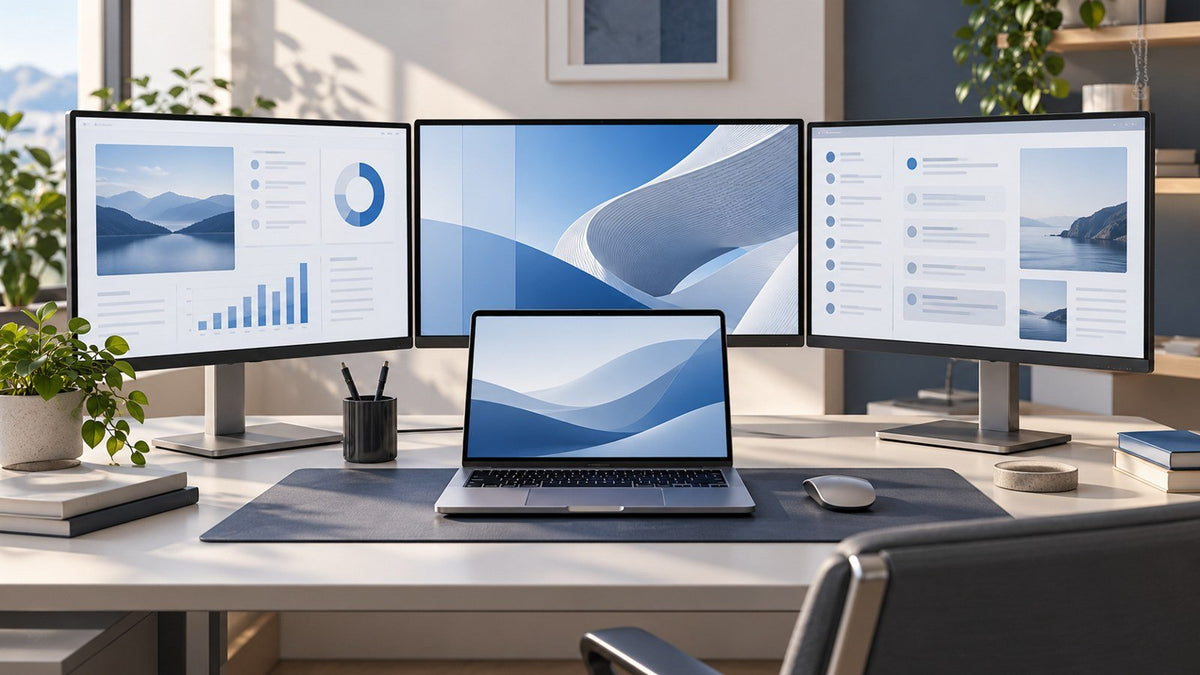
A four monitor setup makes sense when four different types of information genuinely need to stay visible at the same time. For many people, that is not the case.
The strongest four-screen workflows usually contain four persistent roles: primary work, live context, monitoring or validation, and communication or control. Traders, developers, analysts, operations teams, and some creative professionals may work this way because hiding one source of information can interrupt the task they are performing.
The key distinction is simple: using four applications does not mean you need four screens. The real question is whether four separate information streams deserve continuous visibility.

Four Screens Should Represent Four Different Information Roles
The value of four displays is not simply having more desktop space. It is being able to give different parts of a workflow permanent visual roles.
A well-defined four-screen workspace often looks something like this:
Primary work is where the user actively performs the main task.
Live context provides information needed to understand or support that task.
Monitoring or validation shows results, changing conditions, system status, or information that needs to be checked while work continues.
Communication or control keeps messages, alerts, coordination tools, or secondary controls accessible without covering the main workspace.
That is different from opening four windows on one large display.
Someone writing a report may have a document, browser, spreadsheet, and email open during the same afternoon. But if only one or two of those tools need attention at any given moment, four dedicated displays probably add little value.
By contrast, someone investigating a live operational issue may need to work inside one application while watching system status, comparing source data, and communicating with colleagues. In that situation, persistent visibility has a clearer purpose.
Research supports taking a balanced view. A systematic review of 18 studies published in Human Factors found moderate evidence that multiple-monitor environments may improve task efficiency and reduce some desktop interaction, while also identifying ergonomic considerations such as non-neutral neck posture. The research does not establish that four monitors automatically make people more productive. See the systematic review on PubMed.
If your main question is still whether your workflow calls for one, two, three, or four displays, start by deciding how many monitors you actually need. This article focuses on a narrower question: what does a legitimate four-screen professional workflow actually look like?
Traders: Execution, Market Context, Research, and Communication
Trading is one of the clearest examples of a workflow that can involve several information streams at once.
A professional trader might keep the execution platform as the primary working area while another display shows broader market context or charts. A third screen may hold research, news, or supporting data, while a fourth remains available for alerts, communication, or additional analysis.
The benefit is not that four displays look more professional. It is that each screen can preserve a different type of context.
For example, covering market information every time an order needs attention may create unnecessary switching. Likewise, forcing research or alerts to share space with an execution interface can make the workspace harder to manage.
Even within trading, however, four screens are not automatically necessary. Someone following a small number of instruments, trading occasionally, or performing most analysis sequentially may be comfortable with fewer displays.
The use case becomes stronger when several information sources must remain visible while decisions are being made.
Developers and Engineers: Build, Output, Reference, and Monitoring
Development and engineering workflows often combine creation with continuous reference and validation.
A software developer might keep the IDE or primary development environment on the main screen. A second display can show the running application, test environment, browser preview, or simulation. Documentation, specifications, tickets, or technical references may remain visible elsewhere, while logs, terminals, monitoring tools, or team communication occupy another area.
The same principle can apply to engineering work involving CAD, simulation, testing, or complex technical systems.
What matters is whether these roles are active together.
A developer who spends most of the day writing code and only occasionally looks at documentation may gain little from a fourth display. Someone responsible for code, live output, system behavior, and supporting documentation at the same time has a much stronger case for a four monitor workspace.
The screens are useful because each one represents part of the working process, not because the user happens to have many tools installed.
Analysts and Operations Teams: Analysis, Source Data, Validation, and Status
Analytical work often depends on comparing one set of information with another.
Consider a data analyst investigating an unexpected result in a dashboard. The primary working area may contain the analytical model or visualization tool. Source data or a spreadsheet may need to remain visible for comparison. A separate dashboard or report may provide validation, while communication, alerts, tickets, or operational status remain accessible elsewhere.
Operations teams can face a similar challenge.
An IT operations specialist, logistics coordinator, business intelligence professional, or financial analyst may need to act inside one system while monitoring changing information in another.
In these workflows, a multi display workstation can be useful because closing one information source may remove context that is still relevant to the task.
But not every dashboard deserves its own screen.
If a report is checked twice a day or source data is needed only occasionally, keeping it permanently visible may provide little benefit. Four displays make more sense when comparison, validation, or monitoring happens repeatedly throughout the working session.
Video and Creative Professionals: Creation, Preview, Assets, and Control
Creative work is another area where multiple visual roles can emerge naturally.
Video editing is a useful example. The editing timeline may occupy the primary workspace while a separate display shows the program preview. Assets, media bins, scopes, references, or supporting tools can remain available elsewhere, leaving another area for scripts, feedback, communication, or production controls.
This separation can help prevent supporting information from constantly covering the creative workspace.
However, the label “creative professional” does not automatically justify a four screen setup.
A photographer concentrating on individual images may prefer one well-positioned primary display. A writer, illustrator, or designer working mainly inside a single canvas may only need one additional reference screen.
A stronger four-screen use case appears when creation, preview, reference, and production control genuinely need to happen in parallel.
The Pattern Behind Effective Four-Screen Workflows
The professions above use different software and solve different problems, but their strongest four-screen workflows follow a similar pattern.
| Professional | Primary Work | Live Context | Monitoring / Validation | Coordination / Control |
|---|---|---|---|---|
| Trader | Execution | Market information | Research / additional data | Alerts / communication |
| Developer | Code | Application output | Logs / system status | Documentation / team tools |
| Analyst | Analysis | Source data | Dashboard / validation | Communication / tickets |
| Operations specialist | Operational system | Live status | Alerts / exceptions | Team coordination |
| Video professional | Timeline / editing | Assets / references | Preview / scopes | Feedback / controls |
This is a more useful way to evaluate a professional multi monitor setup than counting applications.
The question is not:
“How many programs do I have open?”
It is:
“How many different information roles need to remain visible while I perform the same task?”
That difference helps explain why a four-screen workstation may be valuable for one professional and unnecessary for another person using many of the same applications.
Who Does Not Need Four Screens?
Four displays can create unnecessary complexity when there is no clear role for the extra visual space.
Basic Office Users
People who primarily work with email, documents, meetings, browser applications, and occasional spreadsheets often move between tasks rather than performing all of them simultaneously.
They may use many applications during the day without needing them visible at the same time.
Focused Writers and Knowledge Workers
Some work benefits from reducing visible information.
A writer may need a primary document and one reference source. Filling additional screens with email, dashboards, messages, or unrelated browser windows can introduce more competing information rather than making the task easier.
Frequent Travelers With Simple Workflows
A mobile professional may work from hotels, coworking spaces, client offices, and home without having a particularly complex information workflow.
If most tasks are sequential, additional screens may add setup complexity without solving a recurring visibility problem.
People Who Are Easily Distracted
Persistent visibility is useful only when the information deserves attention.
A screen filled with notifications, chat windows, news feeds, or low-priority dashboards can become a permanent source of distraction. The fourth display should not exist simply because there is space for one.
Users Without Enough Physical Workspace
Four screens also need to fit within a comfortable working area.
A configuration that forces screens too far to the side or requires repeated large head movements may be less practical than a simpler layout.
OSHA's computer workstation guidance recommends keeping the primary monitor directly in front of the user and arranging additional displays to minimize awkward viewing positions and unnecessary head movement. See OSHA's computer workstation evaluation guidance.
More visible information is useful only when that information deserves to remain visible.
Does Your Workflow Really Have a Fourth Screen Role?
Instead of asking whether four screens would be nice to have, test whether the fourth screen has a recurring job.
Can You Name Four Persistent Roles?
Describe what each screen would do without naming specific applications.
For example:
Primary work → live context → validation → coordination
If the fourth answer is simply “extra browser windows” or “whatever does not fit elsewhere,” the workflow may not need four dedicated displays.
What Happens When One Information Source Is Hidden?
Pay attention to the real friction in your work.
Do you repeatedly minimize windows, move applications out of the way, switch back to check status, or lose important context while comparing information?
If hiding a particular source repeatedly interrupts the task, persistent visibility may be useful.
If it can stay in the background for long periods without affecting the work, it probably does not need its own screen.
Is the Fourth Screen Persistent or Just Overflow?
A useful dedicated display has a stable purpose.
Overflow space is different.
If applications continually move onto the fourth screen simply because the other screens are full, better window organization or a different layout may solve the problem without adding another permanent information zone.
Can Your Hardware and Workspace Support the Configuration?
Workflow need comes first, but technical feasibility still matters.
Display support depends on the exact computer, chip or GPU, connection method, operating system, resolution, refresh rate, and other hardware factors. Before planning a four-display configuration, check how many external monitors your laptop can support.
Physical space matters too. A fourth display should fit within a usable viewing area rather than forcing uncomfortable positioning simply to maximize screen count.
Four Screens Should Solve a Specific Workflow Problem
A four-screen workstation is not inherently more advanced than a two- or three-screen setup.
It becomes useful when every display supports a distinct part of the work.
Traders may need execution, market context, research, and communication. Developers and engineers may combine primary work, output, reference material, and monitoring. Analysts and operations teams may work across analysis, source data, validation, and live status. Video professionals may separate creation, preview, assets, and production controls.
Those are strong use cases because the fourth display has a defined role.
For many office users, writers, managers, and mobile professionals, fewer screens may provide a cleaner and more focused environment.
For laptop-based professionals who have already established a genuine need for additional display space, INVZI's portable multi-screen workspace options provide one way to explore different laptop-based configurations.
But the decision should come before the hardware.
Before adding a fourth screen, ask one final question:
What information needs to stay visible badly enough to earn its own display?
If you can answer that clearly, the fourth screen may have a real job to do.
If you cannot, fewer well-organized screens are likely the better workspace.
Frequently Asked Questions
Is a four monitor setup overkill?
For many users, yes. Four monitors make the most sense when four different information roles need to remain visible during the same workflow. If most of your work is sequential, fewer displays may be more practical.
Who actually needs four monitors?
Some traders, developers, engineers, analysts, operations specialists, and video production professionals have strong four-screen use cases. The deciding factor is not profession alone, but whether the workflow contains several persistent information streams.
Are four monitors better than three?
Not automatically. A fourth screen is worthwhile when it solves a specific visibility problem that remains after three displays are organized effectively. If the fourth screen has no recurring role, three may be enough.
Can a laptop run four screens?
Some laptops can support four-screen configurations, while others cannot. Compatibility depends on the exact laptop, chip or GPU, display architecture, connection method, operating system, resolution, and refresh rate.
Is an ultrawide monitor better than four monitors?
They solve different problems. An ultrawide provides one large continuous workspace, while separate monitors create distinct physical information zones. The better choice depends on how your applications and information need to be organized.
Can four monitors reduce productivity?
They can create unnecessary distraction or complexity when screens contain information that does not require continuous attention. Poor positioning can also make a large multi-screen workspace less comfortable. The goal should be to keep necessary information visible, not to maximize screen count.

Leave a comment
This site is protected by hCaptcha and the hCaptcha Privacy Policy and Terms of Service apply.