


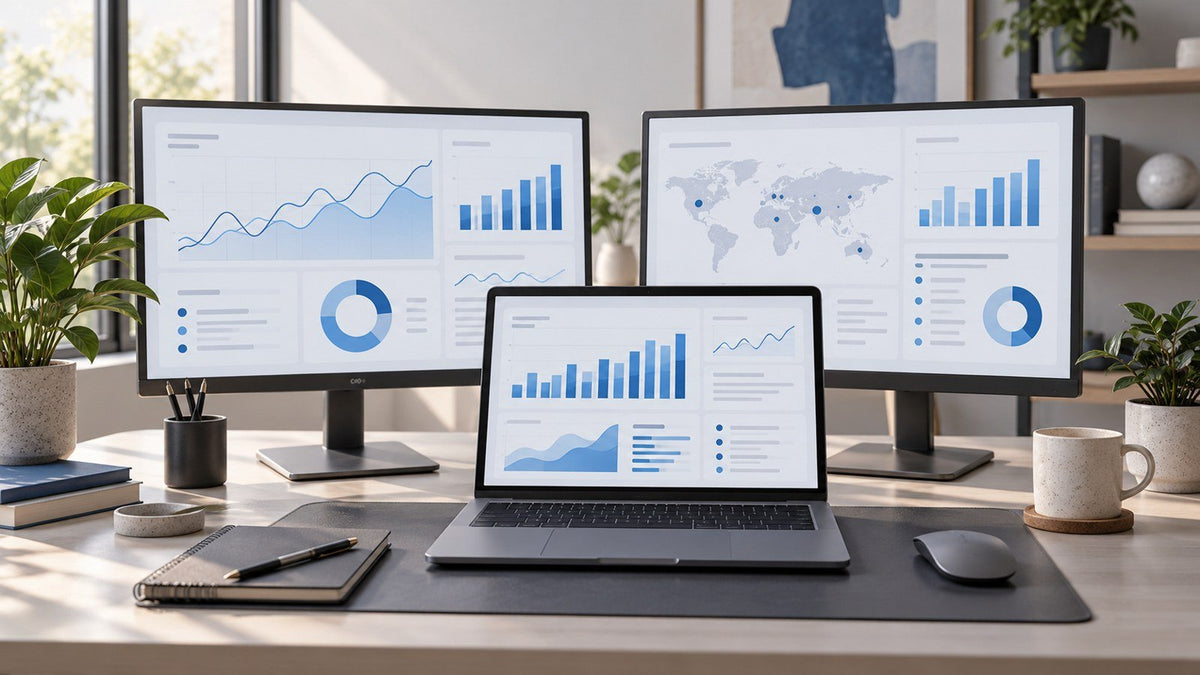
A trading workspace is the physical and digital arrangement used to keep market information, active tools, and supporting context organized across one or more displays.
An efficient setup is not simply the one with the most screens. It is the one that gives the right information the right level of visibility.
Trading-related work may involve market data, charts, execution interfaces, watchlists, research, news, alerts, and notes at the same time. Some of that information needs active attention. Some only needs to remain visible in the background. Other information can stay hidden until it is needed.
That distinction matters more than screen count.
A useful way to build a multi-screen workflow is to ask three questions about every information source:
- How often do I interact with it?
- How quickly does the information change?
- Does it need to remain visible?
Answer those first, and deciding what belongs on each screen becomes much easier.

Why Trading Is a Multi-Information Workflow
Many computer tasks are sequential. You write a document, review a page, answer an email, and move to the next task.
Trading-related work can be different because several information streams may remain relevant at the same time.
A trader workspace might include:
- Market data that changes continuously
- Charts used for analysis or monitoring
- Execution interfaces that require active interaction
- Watchlists that provide ongoing status information
- Research used for deeper investigation
- News that provides broader context
- Alerts that indicate a change requiring attention
- Notes or journals used for reference
- Communication tools when collaboration is part of the workflow
The challenge is not simply fitting these applications onto a desktop. It is deciding which ones deserve permanent visibility.
Microsoft Research's field study of multi-monitor users found that secondary displays were often used for peripheral awareness and supporting activities rather than simply serving as more space for the user's main task. Microsoft Research's field study on multiple-monitor use
That distinction is useful when organizing a trading screen setup.
One information source may require sustained interaction. Another may need only a quick glance. A third may be useful several times an hour but does not need to occupy a screen continuously.
Treating all three the same creates unnecessary visual competition.
Decide What Deserves Permanent Screen Space
Before assigning applications to two, three, or four screens, classify the information itself.
Three characteristics are especially useful.
1. Interaction Frequency
How often do you actively use the information?
An interface that requires frequent keyboard or mouse interaction belongs closer to the primary work area than something checked occasionally.
2. Information Change Rate
How quickly does the information change?
A continuously updating information source may benefit from remaining visible even when you are not interacting with it. A relatively static reference document usually does not need the same treatment.
3. Persistent Visibility
Would hiding this information repeatedly interrupt the workflow?
This is often the most useful test.
If you constantly reopen, uncover, or rearrange the same window because you need to see it alongside another task, that information may deserve dedicated screen space.
If you open something only occasionally, permanent visibility may add clutter without solving a recurring problem.
A practical framework looks like this:
| Information Role | Interaction Frequency | Change Rate | Persistent Visibility | Typical Position |
|---|---|---|---|---|
| Active workspace | High | Variable | High | Central |
| Live monitoring | Low–Medium | High | High | Adjacent |
| Supporting analysis | Medium | Variable | Medium–High | Adjacent |
| Research / context | Low–Medium | Low–Variable | Conditional | Secondary or on-demand |
| News / alerts | Usually low until relevant | High | Conditional | Peripheral |
| Notes / historical reference | Low | Low | Usually low | On-demand |
This model is more useful than starting with a rule such as "charts always go on the left."
Screen roles should follow the work.
Two-Screen Trading Workflow: Separate Active Work From Context
A two-screen workflow works best when the information can be divided into two broad categories:
ACTIVE WORK + PERSISTENT CONTEXT
The first display becomes the main interaction area. The second keeps information visible that supports the current task.
For example:
Screen 1 — Active Workspace
This is where the current task takes place. Depending on the workflow, it could contain an analysis interface, an execution window, research, or another application receiving sustained attention.
Screen 2 — Persistent Context
This display can hold information that is useful to keep visible without requiring continuous interaction, such as a watchlist, secondary chart, market overview, or supporting research.
The second screen should not become a dumping ground.
If it contains several unrelated charts, messaging, news, email, alerts, and miscellaneous browser tabs at the same time, it no longer provides clear context. It becomes another source of visual competition.
A useful two-screen workflow therefore depends less on choosing the "correct" applications and more on maintaining a clear distinction between what you are doing and what you need to see alongside it.
Screen roles can also change during the day.
A research-heavy session might put analysis in the central position. Another task might shift a different interface into the primary role. The layout should adapt to attention requirements rather than remain fixed simply because an application was assigned to a particular monitor.
Three-Screen Trading Workflow: Separate Interaction, Monitoring, and Context
A third screen becomes useful when a third information category repeatedly needs to remain visible.
That creates a different workflow:
INTERACTION + MONITORING + CONTEXT
For example:
Center — Active Interaction
The application receiving the most sustained attention or frequent input.
Side Screen — Persistent Monitoring
Continuously changing information that is useful to keep visible without making it the main focus.
Second Side Screen — Context
Research, supporting analysis, news, notes, or another information source that complements the active task.
This arrangement is more flexible than assigning a permanent application to every display.
A three-screen workflow might temporarily look like:
- chart analysis + active platform + watchlist
- market overview + research + news
- supporting data + primary interface + notes and reference material
The exact arrangement is less important than the attention hierarchy.
If the information checked most frequently sits at the far edge of the workspace while a rarely used application occupies the center, the physical arrangement does not match the actual workflow.
For the broader question of whether your work genuinely needs one, two, three, or four displays, INVZI's guide to how many monitors you need for work covers screen-count decisions separately.
The trading-specific question is different:
What information needs to remain visible while the primary task is happening?
Four-Screen Trading Workflow: Support Multiple Persistent Information Streams
Four screens make sense when several independent information streams genuinely benefit from continuous visibility.
The important word is independent.
A fourth display should not exist simply because there is physical space for another monitor. It should solve a recurring visibility problem that cannot be handled cleanly by the existing layout.
A four-screen arrangement might divide the workspace like this:
Central Screen — Active Workspace
The application currently receiving the greatest amount of interaction.
Adjacent Screen — Analysis
Charts, comparisons, or another analytical information source that is checked frequently.
Adjacent Screen — Monitoring
Market data, watchlists, status information, or another continuously changing source.
Peripheral Screen — Context
News, communication, alerts, research, notes, or other information that benefits from visibility but should not compete constantly with the primary task.
This does not mean four screens are inherently more suitable for professional work.
A fourth screen becomes less useful when it contains:
- duplicated charts
- information displayed "just in case"
- applications used only a few times per day
- several competing notification feeds
- data that already exists elsewhere in the workspace
- information that could be opened on demand without disrupting the workflow
A useful test is simple:
If this screen disappeared, would you repeatedly interrupt your work to retrieve the information it contained?
If the answer is yes, the display may have a clear role.
If the answer is no, the additional screen may be adding visual density rather than solving a workflow problem.
More Screens Are Not Automatically Better
Additional visible space can reduce some forms of window management, but that does not mean every workflow improves as more displays are added.
A systematic review published in Human Factors examined 18 studies comparing single- and multiple-monitor configurations. It found moderate evidence from controlled laboratory studies that multiple monitors may improve task efficiency and reduce desktop interaction, while also identifying potential ergonomic trade-offs such as non-neutral neck postures. The authors also noted the need for more long-term research. Read the systematic review on PubMed
That supports a balanced approach.
More visible workspace can be useful when it removes a recurring need to hide, reopen, or rearrange important information. But an additional display also introduces another area that may compete for attention and another physical position the user may need to view.
The question is therefore not:
How many screens can fit on the desk?
It is:
What recurring information problem will the next screen solve?
Screen Placement and Attention Management
Once information roles are clear, physical placement becomes the next consideration.
A useful distinction is between central attention and peripheral awareness.
Information requiring frequent interaction or sustained reading should generally occupy the most comfortable central viewing area. Information that mainly needs occasional monitoring can sit farther from the center.
OSHA's computer workstation guidance recommends placing the primary monitor directly in front of the user, with additional monitors beside it. When multiple monitors receive roughly equal use, OSHA advises keeping them next to each other within a comfortable viewing angle while minimizing head movement. It also recommends considering monitor height and viewing distance when arranging a workstation. OSHA's computer workstation monitor guidance
For a multi-screen trading workspace, several practical rules follow.
Put the Most Frequently Used Display in the Best Position
Do not automatically make the biggest display the central screen.
The display receiving the most sustained attention should generally occupy the most comfortable viewing position.
If another application becomes the main task for an extended period, it can make sense to move that work into the central area rather than repeatedly turning toward a side display.
Keep Frequently Checked Information Nearby
An adjacent display works well for information that needs regular glances but not constant interaction.
More peripheral positions are better suited to lower-priority awareness.
As the frequency of viewing decreases, the information can generally move farther from the central attention zone.
Avoid Large Differences in Viewing Position
Screen layouts that require repeated large head movements may look impressive while being uncomfortable to use for long sessions.
Height, distance, and angle should be considered as part of the workflow rather than treated as purely aesthetic choices.
Treat Notifications as Part of the Layout
A peripheral screen is only peripheral until it starts demanding attention.
News alerts, messaging, email, operating-system notifications, and application alerts can quickly destroy screen hierarchy if they appear continuously across several displays.
Separate information that needs to remain visible from information that needs permission to interrupt you.
They are not the same thing.
Desktop vs Portable Trading Workflow
A fixed desktop trading workstation setup and a portable workspace can follow the same information logic even when they use different hardware.
The goal is not to reproduce the same physical screen count everywhere.
It is to preserve the same priorities.
Fixed Desktop Workspace
A permanent desk provides more control over:
- screen position
- viewing distance
- equipment placement
- connections
- input devices
- cable organization
- persistent display assignments
That makes it practical to maintain consistent information zones over longer sessions.
For example, a fixed setup may keep active work central, monitoring information on one side, analysis on the other, and lower-priority context in a peripheral position.
Portable or Temporary Workspace
Hotels, coworking spaces, shared offices, client locations, and other temporary environments introduce different constraints.
Desk depth may be limited. Power outlets may be inconvenient. The available connection options can vary. Setup and pack-down time also matter more.
Trying to reproduce a permanent four-screen desk exactly may therefore be unnecessary.
Instead, compress the workflow.
A permanent setup might give analysis, monitoring, and reference information their own physical displays. A temporary workspace might keep only the highest-priority information permanently visible and move lower-priority reference material on demand.
The principle is:
Preserve the information hierarchy, not the physical screen count.
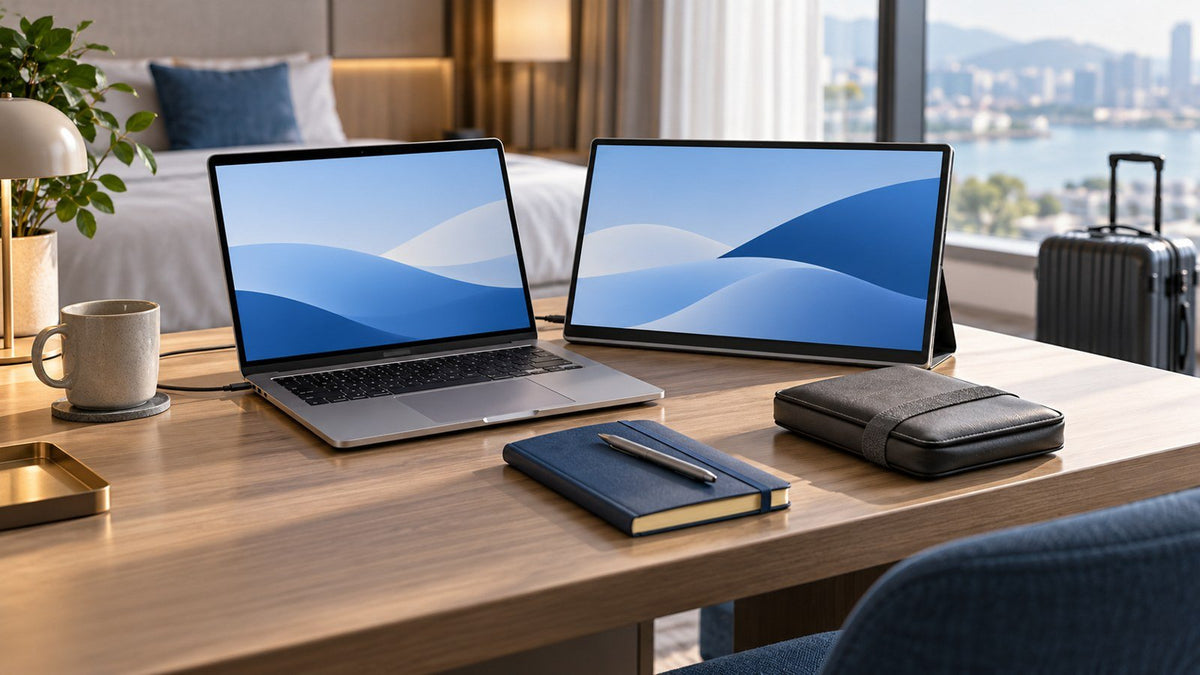
For broader guidance on adapting equipment and desk space across different locations, INVZI's portable office setup guide covers home, hotel, coworking, and travel environments in more detail.
For users who need additional visible workspace away from a permanent desk, INVZI's portable multi-screen workspace options show the available form factors without changing the underlying workflow principle.
Common Multi-Screen Trading Mistakes
A larger desktop can make information easier to separate, but it can also make poor organization easier to hide.
Too Many Charts
A chart deserves permanent visibility when it supports a recurring monitoring or analysis requirement.
Adding charts simply because there is empty screen space creates more information to scan without necessarily creating more useful context.
Ask:
What purpose does this chart serve while it remains visible?
If the answer is unclear, it may not need permanent screen space.
Duplicated Information
Different screens should ideally provide different kinds of value.
If several displays show nearly identical information, the workspace may look information-rich while still requiring attention to move between redundant sources.
Before duplicating information, decide whether the second view provides a genuinely different perspective or simply repeats what is already visible.
Notification Overload
A well-structured screen hierarchy can be undone by poor alert management.
News, communication, email, platform alerts, and operating-system notifications can all compete for attention.
Not every visible information source needs to generate an interruption.
Reserve stronger notifications for information that genuinely requires a change in attention.
Poor Screen Hierarchy
If every display appears equally important, there is no clear place for attention to return.
A well-organized trader workspace should have an obvious center of activity and supporting information around it.
This does not mean peripheral screens are unimportant. It means their job is different.
Using Screen Count as the Goal
Adding a display should solve a recurring visibility problem.
If you cannot describe that problem clearly, another screen may simply create another area to manage.
Start with the workflow bottleneck, not the hardware.
Putting Frequently Used Information Too Far Away
A symmetrical desk is not necessarily an efficient desk.
Information requiring frequent interaction should not be positioned where viewing it requires repeated large head movements.
Place displays according to use frequency and attention requirements rather than visual symmetry.
Keeping Everything Visible
Visible information is not free.
Every open dashboard, chart, browser window, news feed, alert, and message becomes part of the visual environment.
Some information works better as on-demand reference.
Research documents, historical notes, archived news, and occasional tools often do not need to remain open throughout the session.
A better multi-screen workflow sometimes comes from deciding what not to display.
A Simple Process for Building a Trading Workspace
Instead of starting with monitor count, start with a representative working session.
Step 1: List the Information You Actually Use
Write down the applications and information sources that appear repeatedly.
Do not include something simply because it could be useful.
Include what you actually return to.
Step 2: Identify the Active Task
Determine which application or information source receives the most interaction.
That becomes the starting point for the central workspace.
Step 3: Identify Persistent Information
Look for information you repeatedly uncover, reopen, or check while performing the main task.
These are the strongest candidates for secondary screen space.
Step 4: Separate Awareness From Reference
Some information needs to remain visible for awareness.
Other information only needs to be easy to retrieve.
Do not give permanent screen space to reference material merely because extra room is available.
Step 5: Position by Attention Frequency
The more often something is viewed or used, the closer it should generally be to the central work area.
Step 6: Remove Information That Has No Clear Role
If an application remains visible but rarely influences the workflow, minimize it.
A new screen should earn its place by solving a recurring problem.
Build the Workspace Around Information, Not Screen Count
An efficient trading workspace starts with understanding how information behaves.
Some information requires interaction. Some requires persistent monitoring. Some provides context. Some only needs to be available when a specific question arises.
Organize those categories first.
Then assign screen space.
A simple sequence is:
IDENTIFY THE INFORMATION → DEFINE ITS ATTENTION NEED → DECIDE IF IT NEEDS PERSISTENT VISIBILITY → POSITION IT
Two, three, and four-screen workflows can all work well when every display has a clear responsibility.
The goal is not maximum screen count.
It is a workspace where the most important information is easy to find, supporting information stays accessible, and lower-priority content does not constantly compete for attention.
Frequently Asked Questions
What should be on the main screen in a trading workspace?
The main screen should usually contain the application or information receiving the greatest amount of sustained attention and interaction. That role can change with the task. Instead of permanently assigning one application to the center, use the most comfortable viewing position for whatever currently requires the greatest focus.
Does every trading application need its own screen?
No. Dedicated screen space is most useful for information that needs to remain visible repeatedly or continuously. Applications used only occasionally can stay minimized or be opened when needed. Giving every tool its own display can create unnecessary visual complexity without improving the workflow.
Should news and alerts stay visible all the time?
Not necessarily. News or alerts may be useful for contextual awareness, but permanent visibility is different from constant interruption. Decide which information genuinely benefits from remaining visible and which notifications deserve permission to pull attention away from the primary task.
How do you decide what belongs on a secondary monitor?
Consider interaction frequency, how quickly the information changes, and whether hiding it repeatedly interrupts your work. Information that changes frequently and needs regular glances is a stronger candidate for a secondary monitor than static reference material used only occasionally.
How should a portable trading workspace differ from a desktop setup?
A portable setup should preserve information priorities rather than reproduce the exact desktop screen count. Keep the primary task central, maintain visibility for the most important supporting information, and move lower-priority research or reference material on demand when physical workspace is limited.


Leave a comment
This site is protected by hCaptcha and the hCaptcha Privacy Policy and Terms of Service apply.