


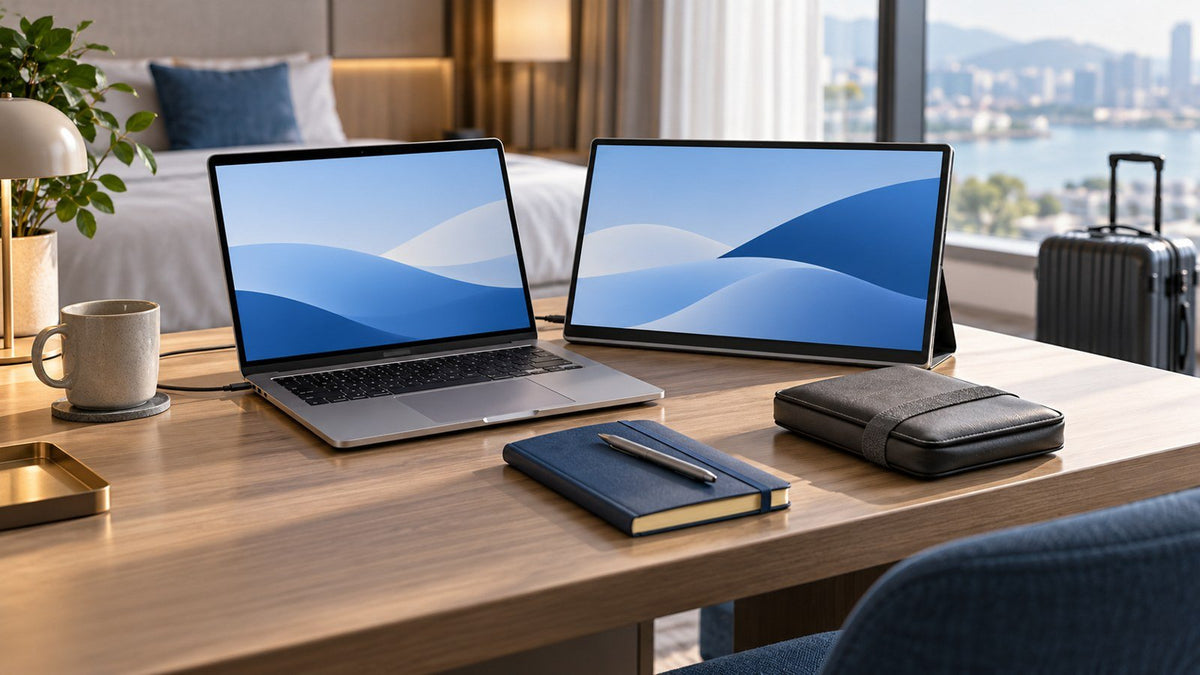
A consultant may review presentation comments at an airport, rebuild part of a financial model from a hotel desk, and present recommendations in a client conference room later the same trip.
Those tasks do not require the same workspace.
That is the central idea behind a practical consultant travel setup: build one portable system, then deploy only the parts that support the work you are doing.
At the airport, that usually means review and prepare. At the hotel, it becomes build and analyze. At the client office, the priority shifts to present and collaborate.
The goal is not to carry a miniature office everywhere. It is to create a predictable professional workspace that can change with the assignment.
Why Consultants Need a Different Travel Workspace
Consulting combines mobility with work that often depends on context.
A consultant may need to move between:
- presentations and speaker notes;
- spreadsheets and supporting data;
- reports and source documents;
- video meetings and working notes;
- research and client deliverables;
- internal preparation and client-facing discussion.
That makes the challenge different from simply being able to answer email while traveling.
The real requirement is client-work readiness.
A useful consultant workspace needs to support serious work while remaining fast enough to deploy in an unfamiliar environment. It also needs to account for presentation compatibility, limited desk space, unpredictable access to power, organizational security requirements, and the possibility that a meeting starts only minutes after arrival.
NIST's guidance on enterprise telework and remote access notes that work performed from external locations introduces security considerations around devices, remote access, and organizational information. Consultants should therefore follow their organization's and client's security policies rather than treating every temporary workspace like a trusted corporate office.
For a broader look at equipment for business travelers in general, see INVZI's mobile workstation for business travel guide.
This article focuses on a narrower question:
How should a consultant adapt the same portable workspace to the work that needs to happen next?
One Kit, Three Consulting Work Modes
Instead of thinking about one fixed mobile office, divide the working day into three modes.
| Mode | Typical Environment | Main Work | Priority |
|---|---|---|---|
| Review & Prepare | Airport, lounge, short gap | Read, review, comment, prepare | Speed and minimal deployment |
| Build & Analyze | Hotel, temporary desk | Create, compare, analyze | Visible workspace and sustained work |
| Present & Collaborate | Client office, meeting room | Present, discuss, workshop | Compatibility and professionalism |
The location matters, but the type of consulting work should determine what comes out of the bag.
This prevents a common travel-work mistake: setting up every accessory simply because you carried it.
A 20-minute review session and a three-hour model-building session should not create the same desk.

Airport Mode: Review and Prepare
Airport work is usually most effective when it is treated as a low-dependency work session.
That means choosing tasks that do not require a large physical workspace, multiple connections, or an elaborate collection of peripherals.
Good Airport Mode tasks can include:
- reviewing presentation comments;
- checking an agenda before a meeting;
- reading reports or client documents;
- reviewing a model rather than rebuilding it;
- preparing talking points;
- making light edits;
- responding to important messages;
- confirming that required files are available.
The question to ask is not:
How much of my workspace can I set up here?
It is:
What useful work can I complete with the least setup friction?
Keep the Physical Setup Minimal
For many airport sessions, a laptop, headphones, and essential power are enough.
Additional hardware can make sense during a long layover with appropriate desk space. But a short session rarely justifies several cables, displays, peripherals, and adapters.
Every item deployed creates another item that needs to be disconnected when boarding starts.
Protect the Next Critical Task
Power management during travel is also easier when it follows the work.
Prioritize the devices required for the next important activity. A laptop needed for a client presentation is usually more critical than keeping every secondary accessory fully charged.
The objective is not to maintain every battery at 100%.
It is to make sure the next important task is not disrupted by a device you failed to prioritize.
Choose Appropriate Work for a Public Environment
Consultants can work with sensitive commercial, financial, operational, or strategic information. Public environments therefore require judgment about what should be visible or accessed.
Follow organizational and client policies, and consider whether the task is suitable for the environment before opening sensitive information.
Sometimes Airport Mode is most productive when it is used for preparation rather than confidential analysis.
Hotel Mode: Build and Analyze
The hotel is where a consultant's portable workspace often shifts from mobility mode into production mode.
Instead of reviewing a few comments, you may be incorporating several rounds of client feedback, building presentation slides, working through a model, comparing documents, or preparing recommendations for the next morning.
These activities have a different workspace requirement:
You often need the work and its supporting context visible at the same time.
Consider a few common examples:
| Consulting Task | Primary Workspace | Supporting Workspace |
|---|---|---|
| Presentation development | Slides | Research, notes, source data |
| Financial analysis | Spreadsheet/model | Assumptions or source data |
| Report writing | Draft | Supporting documents |
| Meeting preparation | Agenda/deck | Notes and reference material |
| Remote client meeting | Call | Notes or working document |
This is a better way to decide whether additional screen space is worthwhile than assuming that more displays automatically improve productivity.
Add Visible Workspace When Context Matters
If you constantly switch between a spreadsheet and the source document behind it, additional visible workspace can reduce the amount of window management required.
The same applies when developing a presentation while checking research or joining a meeting while maintaining working notes.
If the task is simply writing an email or editing one document, the laptop display may already be sufficient.
Think in terms of work + reference, not screen count.
Build Power Around the Full Session
Longer hotel work also changes charging requirements.
Your active devices might include a laptop, phone, headphones, tablet, or other USB-powered equipment. Where the device specifications, charger, ports, and cables are compatible, consolidating several charging functions can reduce the need for separate adapters.
The objective is not to eliminate chargers at any cost. It is to remove unnecessary duplication while keeping the devices your work depends on reliably powered.
Make Practical Ergonomic Improvements
Temporary hotel desks rarely reproduce a well-designed permanent office.
For a longer session, however, simple adjustments still matter. OSHA recommends considering monitor position, viewing distance, keyboard and mouse space, and the overall workstation arrangement; its monitor guidance recommends keeping the display directly in front of the user and generally positioning the top of the screen at or below eye level.
Use the space available rather than forcing an elaborate layout onto a shallow desk.
For the broader principles behind screen space, connectivity, power, input, and ergonomics, see INVZI's guide to building a professional laptop workspace.
For this consultant setup, the important point is simpler:
Hotel Mode earns additional equipment only when the longer work session benefits from it.
Client Office Mode: Present and Collaborate
A client office changes the priority again.
You are no longer optimizing only for your own productivity. You are working in someone else's environment, often with other people watching or depending on the setup.
That makes Client Office Mode less about maximum workspace and more about minimizing surprises.
Prioritize:
- presentation readiness;
- display compatibility;
- clean setup;
- minimal cable footprint;
- fast deployment;
- client IT requirements;
- easy pack-down.
Know How the Room Connects Before You Present
If possible, confirm the expected presentation connection before an important meeting.
A conference room might use USB-C, HDMI, a dedicated conferencing system, wireless presentation technology, or another connection method.
Do not assume that two ports that look like USB-C provide identical capabilities.
USB-IF distinguishes the USB Type-C connector from technologies such as USB Power Delivery, USB 3.2, USB4, and optional modes; supported capabilities depend on the product implementation.
Before presenting, verify:
- the expected display connection;
- the cable or adapter required;
- whether your laptop supports the required output;
- whether software or drivers are required;
- whether the client restricts their installation;
- whether the correct presentation is available offline if necessary;
- whether audio is required and working.
A small amount of verification before the meeting is more valuable than carrying a collection of adapters you have never tested.
Keep the Client-Facing Workspace Controlled
A client conference table is not the place to demonstrate everything your travel kit can do.
If the meeting requires only a laptop and presentation connection, leave the rest packed.
If you have an assigned desk and need to spend several hours analyzing information, deploying additional workspace may make sense.
The rule is:
Use the smallest setup that fully supports the client interaction.
A professional consultant workspace should make the meeting easier, not make the technology itself the center of attention.
What Should Be in a Consultant's Portable Workspace?
A consultant's workspace is easier to plan by function than by product category.
The basic functions are:
Computer: Run the Client Work
The laptop is the core environment for presentations, models, documents, meetings, and client systems.
The surrounding kit should be designed around the computer you actually use, including its ports, display support, charging requirements, and organizational restrictions.
Display: Keep Relevant Context Visible
Additional display capacity is useful when the workflow repeatedly requires active work and reference material to remain visible together.
It should solve a defined information problem, not simply increase screen count.
Connectivity: Work With Unfamiliar Environments
The connectivity layer exists to bridge your laptop with displays, peripherals, presentation systems, and other approved equipment you encounter while traveling.
Prioritize tested compatibility over carrying the maximum possible number of ports.
Power: Keep Critical Devices Available
Plan charging around the devices that matter to the working day.
Where technically appropriate, consolidating compatible devices onto fewer charging sources can reduce adapter and cable duplication.
Input: Support Longer Production Sessions
A separate mouse or keyboard may be unnecessary for a short review session but useful during extended spreadsheet, presentation, or report work.
Match the equipment to session length.
Organization: Reset Quickly
Every essential cable and adapter should have a predictable place.
The purpose is not perfect bag organization. It is to make transition between locations faster and reduce the chance that an important adapter stays behind in a meeting room.
How to Reduce Travel Tech Weight Without Losing Capability
The most effective way to reduce a consultant's technology load is not to remove useful functions.
It is to remove duplicated functions.
A simple four-test framework can help.
1. The Function Test
What recurring consulting problem does this item solve?
If there is no clear answer, reconsider whether it belongs on every trip.
2. The Frequency Test
How often did I use it during my last three business trips?
Something used every day deserves a different place in the kit from something carried for months without being deployed.
3. The Dependency Test
If this item is unavailable, can another item already in the kit perform the same function?
This helps distinguish useful backup capability from unnecessary duplication.
4. The Setup-Cost Test
Does the benefit justify the item's weight, cables, desk space, and setup time?
An accessory may be valuable at a permanent desk while creating too much friction for frequent travel.
A useful rule is:
Keep capability. Remove redundancy.
That can mean reducing duplicate adapters, unnecessary cables, separate chargers where compatible charging can be consolidated, or accessories carried automatically despite rarely supporting real client work.
The Consultant 5-Minute Setup Workflow
A repeatable physical setup reduces the number of small decisions you need to make every time you arrive somewhere new.
Five minutes is a useful target for a familiar system, not a requirement for every environment.
Minute 0–1: Assess
Before unpacking, determine:
- What work am I about to do?
- How long will I be here?
- How much desk space is available?
- Do I need to present?
- What connection is required?
- Is the environment appropriate for the information I will use?
Choose the workspace mode first.
Minute 1–2: Establish Power
Connect the laptop or other priority device as required.
Add power for secondary devices only if the work session justifies it.
Minute 2–3: Establish Connectivity
Connect only what the task needs:
- presentation output;
- additional display;
- hub or dock;
- input device;
- approved network connection.
Minute 3–4: Build the Work Context
Set up the digital workspace for the consulting task.
Review: deck + comments
Analyze: model + source material
Build: deliverable + reference
Present: presentation + notes
Meet: call + working notes
Close unrelated material before entering a client-facing context.
Minute 4–5: Verify
Before starting, confirm:
- correct file version;
- power;
- display output;
- internet or approved network connection;
- audio when required;
- presentation mode;
- necessary reference material.
For an important meeting, verifying the correct deliverable version may matter more than deploying another peripheral.
Pack Down With a Reset Routine
Fast setup works best when pack-down is equally consistent.
Use the reverse sequence:
- Save and sync work where permitted.
- Disconnect from client systems.
- Remove storage devices and peripherals.
- Close or secure client material as required.
- Return cables and adapters to their assigned locations.
- Confirm charger and power connections have been collected.
- Scan the desk, outlet, and presentation area before leaving.
Think of this as a reset, not merely packing.
The goal is to leave the workspace ready for the next context rather than reorganizing the entire kit at the next airport or hotel.
A Consultant's Pre-Meeting Readiness Check
Before entering an important client session, confirm:
- the correct presentation or deliverable is ready;
- essential files are accessible offline where appropriate;
- the expected display connection is supported;
- the required adapter or cable is available;
- laptop power is sufficient;
- audio is tested if needed;
- the meeting link is ready for hybrid sessions;
- unrelated client or project material is not visible;
- relevant client IT requirements are understood;
- equipment not required for the meeting remains packed.
The value of this checklist is not its length.
It is that it catches predictable failures before the client meeting begins.
When Should a Consultant Add More Screen Space?
A consultant should consider additional screen space when the work repeatedly depends on seeing active work and supporting context at the same time.
Examples include:
- spreadsheet + source data;
- presentation + research;
- report + supporting documentation;
- meeting + notes;
- dashboard + analysis;
- recommendations + underlying evidence.
Additional screen space is less valuable when the session is brief, desk space is limited, fast pack-down matters more, or the work requires only one focused application.
It may also be inappropriate when displaying more information creates privacy concerns or when compatibility has not been verified.
For consultants who regularly perform multi-document analysis or presentation work away from a permanent desk, INVZI's portable laptop screen extenders provide options for expanding visible workspace during the sessions that genuinely benefit from it.
The principle remains the same:
Do not carry or deploy more screen space simply because you can. Use it when the workflow earns it.
Build One System for Review, Build, Present, and Reset
A consultant does not need to carry an entire office through every airport.
A better consultant travel setup is one predictable system that changes with the work:
Review & Prepare when mobility matters.
Build & Analyze when the session requires deeper work.
Present & Collaborate when you enter the client environment.
Reset when the work is complete and you move to the next context.
This approach shifts the focus away from collecting travel accessories and toward removing recurring friction.
Fewer duplicated functions. Fewer unnecessary cables. Faster setup. More predictable presentation readiness. Enough workspace for demanding analysis when it is actually required.
The best portable consultant workspace is not the one that carries the most equipment.
It is the one that lets you arrive at an unfamiliar desk and quickly create exactly the working environment the next client task requires.
Frequently Asked Questions
What makes a consultant travel setup different from a general travel laptop setup?
A consultant travel setup is built around changing professional tasks rather than travel alone. It needs to support activities such as presentation review, spreadsheet analysis, client meetings, document comparison, and presenting in unfamiliar offices while remaining quick to set up and pack down.
What work is best suited to Airport Mode?
Airport Mode is best for lower-dependency tasks such as reviewing slides, reading client documents, checking agendas, preparing talking points, resolving comments, and making light edits.
Tasks that require extensive screen space, complicated connectivity, or sensitive information may be better saved for a more controlled workspace.
How should a consultant set up for spreadsheet or presentation work in a hotel?
Start with the task rather than the equipment.
For spreadsheet analysis, keep the active model and relevant source data accessible. For presentation development, keep the deck and its supporting research or notes visible where practical. Add display space and input devices only when the duration and complexity of the session justify them.
What should I check before connecting my laptop in a client meeting room?
Confirm the room's expected display connection, verify that your laptop supports the required output, have the correct tested cable or adapter available, check whether software or drivers are needed, and ensure the correct presentation can be accessed.
Do not assume that every USB-C port supports the same capabilities.
Does a consultant need an additional screen while traveling?
Not always.
Additional screen space is most useful when the work repeatedly requires two information areas to stay visible, such as a model and source data or a presentation and supporting research.
For short sessions or single-document work, the laptop display may be sufficient.
How can consultants reduce setup and pack-down time?
Use a consistent workspace system.
Give essential cables and adapters fixed locations, deploy equipment according to the task rather than unpacking everything, verify presentation connections before meetings, and follow the same pack-down sequence after each session.
A familiar system reduces both physical setup time and the number of decisions required when moving between locations.

Leave a comment
This site is protected by hCaptcha and the hCaptcha Privacy Policy and Terms of Service apply.