


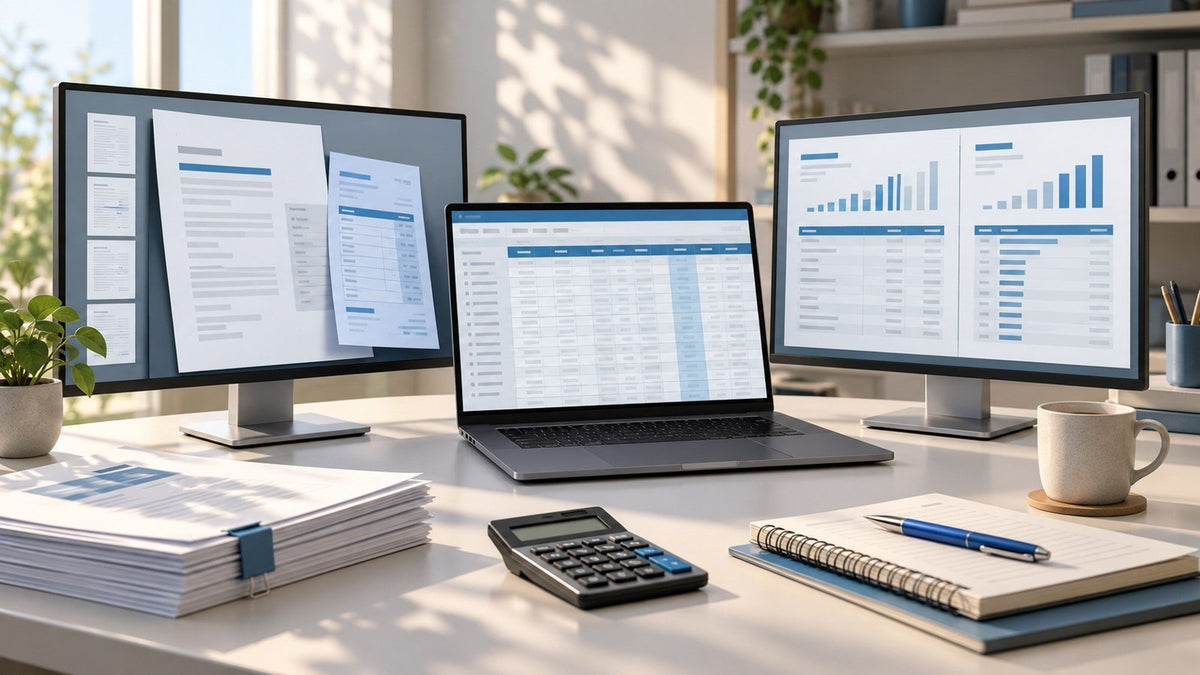
During a tax return, reconciliation, audit test, or month-end close, the main risk is not simply having too little screen space. It is losing alignment between the active client or entity, the source document, the supporting workpaper, and the action being recorded.
A multiple monitor setup for accountants works best when each display supports one defined function: action, evidence, control, or review. The workflows below show how to apply that model to tax preparation, bookkeeping, audit work, and close procedures without turning additional screens into a collection of unrelated windows.
Quick answer: Most accounting tasks work well with two or three total displays. Use the clearest central display for the tax, ledger, ERP, or audit file where actions are recorded. Keep source documents on one side and Excel workpapers or review notes on the other. Add a fourth display only when it has a permanent role. Before posting or signing off, verify the client or entity, reporting period, document source, and active application.
Before Assigning the Screens
Confirm that the laptop can support the total number of displays you plan to use. Check the operating system, laptop model or chip, available ports, connection method, power requirements, and whether the setup needs software. Test extended-display mode before a deadline or client visit.
Also choose the primary working display before opening files. This is the clearest, most stable screen positioned directly in front of you. It may be the laptop display or an external screen. The primary display should hold the application where entries, approvals, or sign-offs occur.
Use an Action–Evidence–Control–Review Model
A useful accounting screen layout separates the action being recorded, the evidence supporting it, the control used to verify it, and the review activity that completes the workflow.
In this article:
- Action display: The tax, accounting, ERP, or audit system where work is entered, posted, approved, or signed off.
- Evidence display: Statements, invoices, receipts, tax forms, contracts, confirmations, or other source files.
- Control display: Excel schedules, reconciliations, roll-forwards, sampling files, variance analysis, or checklists used to verify the work.
- Review display: Reviewer notes, client requests, exception queues, task status, or communication related to the active job.
This is an editorial workflow model for organizing screen space. It is not an accounting standard, internal-control framework, or compliance requirement.
| Workflow | Action display | Evidence display | Control display | Review display | Required check |
|---|---|---|---|---|---|
| Tax preparation | Current-year tax return | W-2s, 1099s, K-1s, receipts, and organizer files | Prior-year return, carryforward schedule, or approved research | Missing-items list and reviewer notes | Client, tax year, issuer, and document date |
| Bank reconciliation | Ledger or reconciliation module | Bank or card statement | Reconciliation workbook and outstanding-item schedule | Approvals and exception queue | Entity, account, statement period, and ending balance |
| Audit testing | Audit workpaper | Invoice, contract, confirmation, or other evidence | Population, sample, and recalculation file | Client request list and review comments | Entity, period, sample ID, and procedure |
| Month-end close | ERP, journal-entry, or account-inquiry screen | Subledger and supporting reports | Roll-forward, reconciliation, and variance analysis | Close checklist and task dependencies | Entity, ledger, posting period, and report date |
The right number of displays is determined by the number of information roles that must remain visible, not by the maximum number of screens a laptop can connect.
Tax Preparation: Keep the Current Return Separate From Its Sources
For tax preparation, place the current-year return on the action display. Keep the active client name and tax year visible, especially when several returns are open during a busy filing period.
Use the evidence display for the source document being processed: a W-2, 1099, K-1, receipt, organizer response, or client-uploaded PDF. Avoid leaving an entire folder of unrelated documents open. Use the firm’s approved status labels or workpaper references to distinguish files that are unprocessed, entered, reviewed, or awaiting clarification, and preserve the original source file.
The control display can hold the prior-year return, carryforward schedule, depreciation detail, or firm-approved research. Separating prior-year context from current-year evidence reduces the chance of treating historical information as a current source.
Use an optional review display for the missing-items list, reviewer comments, or client portal. Treat email subjects, portal notifications, and client names as potentially confidential; the communication screen is not automatically the least sensitive display.
Example: When entering a K-1, the preparer should be able to see the current return, the relevant K-1 page, and the prior-year treatment without moving any of those windows. Before completing the entry, verify the client, tax year, issuing entity, and applicable box or statement detail.
Bookkeeping and Reconciliation: Keep the Balance and Period Visible
For bank or credit-card reconciliation, use the action display for the accounting platform, transaction register, bank-feed review, or reconciliation module.
The evidence display should show the relevant statement page. Keep the account identifier visible when it is needed for verification, but position the screen away from public sightlines and avoid placing full account details on an outward-facing display.
Use the control display for the reconciliation workbook, outstanding checks, deposits in transit, timing differences, fees, or roll-forward schedule. Arrange the workbook so the account, period, book balance, statement balance, and unresolved difference can be identified without switching tabs repeatedly.
The optional review display can hold approvals, uncategorized items, vendor questions, or an exception list. Keep unresolved transactions separate from entries that are ready to post.
Example: Before clearing a transaction or recording an adjustment, compare the ledger item with the matching statement line and the reconciliation schedule. Confirm the entity, account, statement period, amount, and transaction date before changing the accounting record.
Audit Review: Match Every Conclusion to the Correct Evidence
For audit testing or workpaper review, keep the active workpaper or procedure on the action display. This is where the test, reference, explanation, or conclusion is documented.
Use the evidence display for the specific invoice, contract, confirmation, bank record, meeting minutes, or other document supporting the procedure. Open only the evidence required for the current test and use clear file names or references.
The control display should hold the population, sample list, recalculation, or exception tracker. Freeze identifying columns where useful so the entity, document number, sample ID, and period remain visible while reviewing detailed fields.
Place the client request list, reviewer comments, or status tracker on the optional review display. During a video meeting, keep the call separate from the workpaper and evidence. Before sharing a screen, confirm whether you are sharing one application, one display, or the entire desktop.
Example: When testing an invoice sample, the workpaper, source invoice, population row, and reviewer comment should show the same sample identifier. Before documenting a conclusion, confirm the entity, period, sample, procedure, and evidence reference.
Month-End Close: Separate Posting, Support, Analysis, and Status
For month-end close, place the general ledger, ERP, journal-entry, account-inquiry, or approval screen on the action display. Use this display for activities that can change the accounting record.
The evidence display can hold subledger reports, bank activity, payroll summaries, fixed-asset schedules, allocation support, or other close documentation. Keep the entity, reporting date, and report parameters visible.
Use the control display for reconciliations, account roll-forwards, budget-versus-actual analysis, flux explanations, or management-report schedules. This allows a preparer or reviewer to trace a variance without covering the ledger or its support.
The optional review display should show the close checklist, task owner, dependency status, review comments, or team communication. Limit nonessential notifications during focused review.
Example: Before posting or approving a journal entry, compare the entry with its supporting report and the relevant reconciliation or roll-forward. Confirm the entity, ledger, currency where applicable, posting period, effective date, and approval status.
Use Portrait Mode for Long Documents, Not Every Application
Portrait orientation can make long statements, invoices, returns, and page-based PDFs easier to scan because more vertical content remains visible. It is usually less suitable for wide Excel workbooks, dashboards, or applications with several horizontal panels.
Choose orientation by document shape and task. A tax form or statement may benefit from portrait mode, while a reconciliation workbook may require landscape width. Keep critical identifiers—such as client, account, period, and page number—visible at a readable size.
Mixed display sizes and resolutions can produce uneven text or interface scaling. Start with the operating system’s recommended settings, then adjust each display for comfortable reading. For detailed troubleshooting, see how to fix blurry text and mismatched scaling across laptop screens.
Plan Power for Long Review Sessions and Client-Site Work
Before a long tax-season session, close, or client visit, identify available outlets and test the complete setup under realistic conditions. Confirm that the charger, cables, and connection arrangement can support the laptop and active displays.
When working unplugged, reduce unnecessary brightness and turn off displays that do not support the current task. Screen count, brightness, laptop workload, connection method, battery condition, and external power arrangements can all affect runtime. For a more detailed explanation, review how a screen extender affects laptop battery use.
Protect Client Data Across Every Display
More visible workspace also creates more places where confidential information can be exposed. Position displays away from hallways, neighboring desks, reception areas, windows, cameras, and public seating. In shared environments, consider an appropriate privacy filter and reserve the least exposed display for sensitive source documents.
Lock the computer whenever you step away. Close unrelated client files, disable message previews where appropriate, and verify the selected application or display before screen sharing. Do not assume that email, task software, or reviewer comments are nonconfidential.
Use approved storage, communication, access-control, and retention procedures. A multi-screen layout may support an organized workflow, but it does not establish regulatory compliance or replace an organization’s security program.
For U.S. tax professionals, workspace precautions should form only one part of a broader written data-security plan. IRS Publication 4557, Safeguarding Taxpayer Data provides official guidance; requirements and professional obligations vary by jurisdiction and organization.
Practical Accounting Workspace Checklist
Before starting an accounting task, confirm:
- The laptop supports the required total display count.
- The operating system, ports, cables, and software are compatible.
- The clearest central screen has been designated as the primary working display.
- Every screen has one defined role: action, evidence, control, or review.
- The active client or entity and reporting period remain visible.
- Text, forms, spreadsheets, and application controls are readable.
- Portrait orientation is used only where it improves document review.
- Power access and unplugged runtime have been tested.
- Confidential screens are positioned away from public sightlines.
- Message previews and unrelated files are closed before screen sharing.
- A single-screen fallback workflow is available for travel or technical problems.
A fallback workflow should preserve the same sequence: verify the active client or entity, open the source evidence, perform the action, complete the control, and document the review.

Build the Accounting Workflow Before Choosing the Hardware
The most useful multiple monitor setup for accountants begins with the work itself. Identify where actions are recorded, which evidence must remain visible, which control verifies the result, and how the work is reviewed. Then decide whether two, three, or four total displays are justified.
Once those roles are clear, confirm the laptop’s supported display count, available ports, software requirements, desk space, portability needs, screen orientation, and power arrangement. The INVZI portable monitors and screen extenders collection can then be used to evaluate hardware configurations against a defined accounting workflow rather than choosing a screen count first.
Frequently Asked Questions
How many monitors do accountants actually need?
There is no universal number. Many accounting tasks work well with two or three total displays: one for the active accounting or tax system, one for source evidence, and one for a control such as Excel or a review list. A fourth display is useful only when it has a stable role and does not add visual clutter.
What should stay visible during a bank reconciliation?
Keep the ledger or reconciliation module, the matching bank statement, and the reconciliation schedule visible at the same time. The entity, account identifier, statement period, ending balance, and unresolved difference should be easy to verify. Approvals and exception items can use a separate display when they are part of the active workflow.
Is portrait mode useful for tax returns and bank statements?
Portrait mode can help with long, page-based documents because it shows more vertical content at once. It may be useful for tax forms, statements, invoices, and supporting PDFs. Landscape mode is usually better for wide workbooks and software interfaces. Choose the orientation that keeps identifiers and figures readable without excessive scrolling.
How can accountants protect client information on multiple screens?
Position confidential content away from public sightlines, lock the computer when unattended, and close files that are not required for the current task. Before screen sharing, disable unnecessary previews and confirm the exact application or display being presented. Follow the organization’s approved security, storage, communication, and retention procedures.
Can a Multi-Screen Accounting Workflow Work Outside a Permanent Office?
Yes, provided the setup is planned around available space, power, privacy, and laptop compatibility. Test the complete workstation before visiting a client site or traveling. Maintain a single-screen fallback so the same evidence, action, control, and review sequence can continue when additional displays are unavailable.

Leave a comment
This site is protected by hCaptcha and the hCaptcha Privacy Policy and Terms of Service apply.