


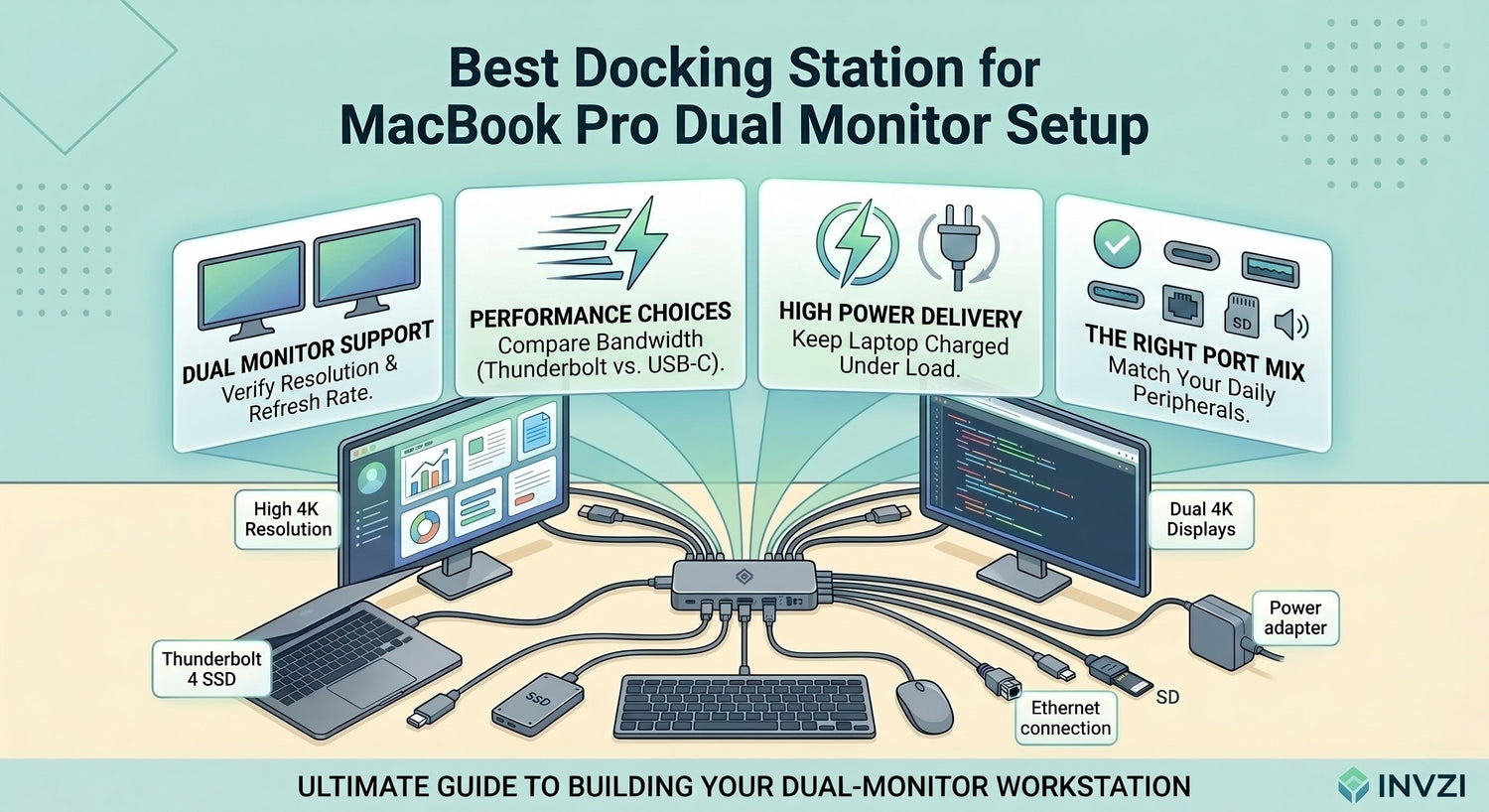
A good docking station can make a MacBook Pro dual monitor setup much easier to manage. The best option is the one that supports your display needs, delivers enough charging power, and gives you the ports you actually use every day.
For many MacBook Pro users, a dock is not just about adding more connections. It is a way to create a cleaner desk, reduce cable clutter, and switch from laptop mode to a full workstation with a single cable. If you use two external monitors for work, design, editing, coding, or multitasking, the right dock can make the whole setup feel simpler and more reliable.

Why You Need a MacBook Pro Dual Monitor Docking Station
MacBook Pro models are powerful enough for demanding work, but desk setups often require more than the built-in ports can comfortably support. Once you add two monitors, charging, external storage, keyboard, mouse, audio, and networking, a docking station becomes much more useful.
A MacBook Pro dual monitor docking station helps by:
- Connecting two external displays from one central hub
- Charging your MacBook Pro while you work
- Reducing the number of adapters on your desk
- Making it easier to connect and disconnect in one step
- Keeping accessories plugged in and ready to use
This matters even more for hybrid workers and anyone moving between office, home, and shared workspaces.
What Makes the Best Docking Station for MacBook Pro Dual Monitors
The best dock is not always the one with the most ports. It is the one that matches your MacBook Pro, your monitors, and your daily workflow.
1. Dual monitor support
This is the first thing to check. A dock may have multiple display ports, but that does not automatically mean it will support your exact two-monitor setup the way you expect.
Look for clear information on:
- Number of external displays supported
- Maximum resolution per display
- Refresh rate support
- HDMI, DisplayPort, or USB-C display outputs
- Whether dual display support is native or software-based
For this keyword, display support is the real decision point. If that part is wrong, the rest of the dock does not matter much.
2. MacBook Pro compatibility
Before buying any docking station for a MacBook Pro dual monitor setup, make sure it matches your actual device and display requirements.
Check these first:
- Your MacBook Pro model
- The chip generation
- Your monitor resolution
- The inputs on your monitors
- Whether you want extended displays or mirrored screens
- How much power delivery you need
This is where a lot of buyers make mistakes. A dock can look impressive in a product listing but still be a poor fit for the exact MacBook Pro and monitor setup you plan to use.
3. Power delivery for charging
A dock should do more than connect screens. It should also support daily charging, especially if you want a proper one-cable desk setup.
A good MacBook Pro dock dual monitor setup should allow you to:
- Keep the laptop charged during normal work
- Reduce the need for a separate charger
- Simplify the desk with fewer cables
- Support connected accessories without making the setup feel underpowered
Higher charging power becomes more important for larger MacBook Pro models and more demanding tasks.
4. Useful ports for real setups
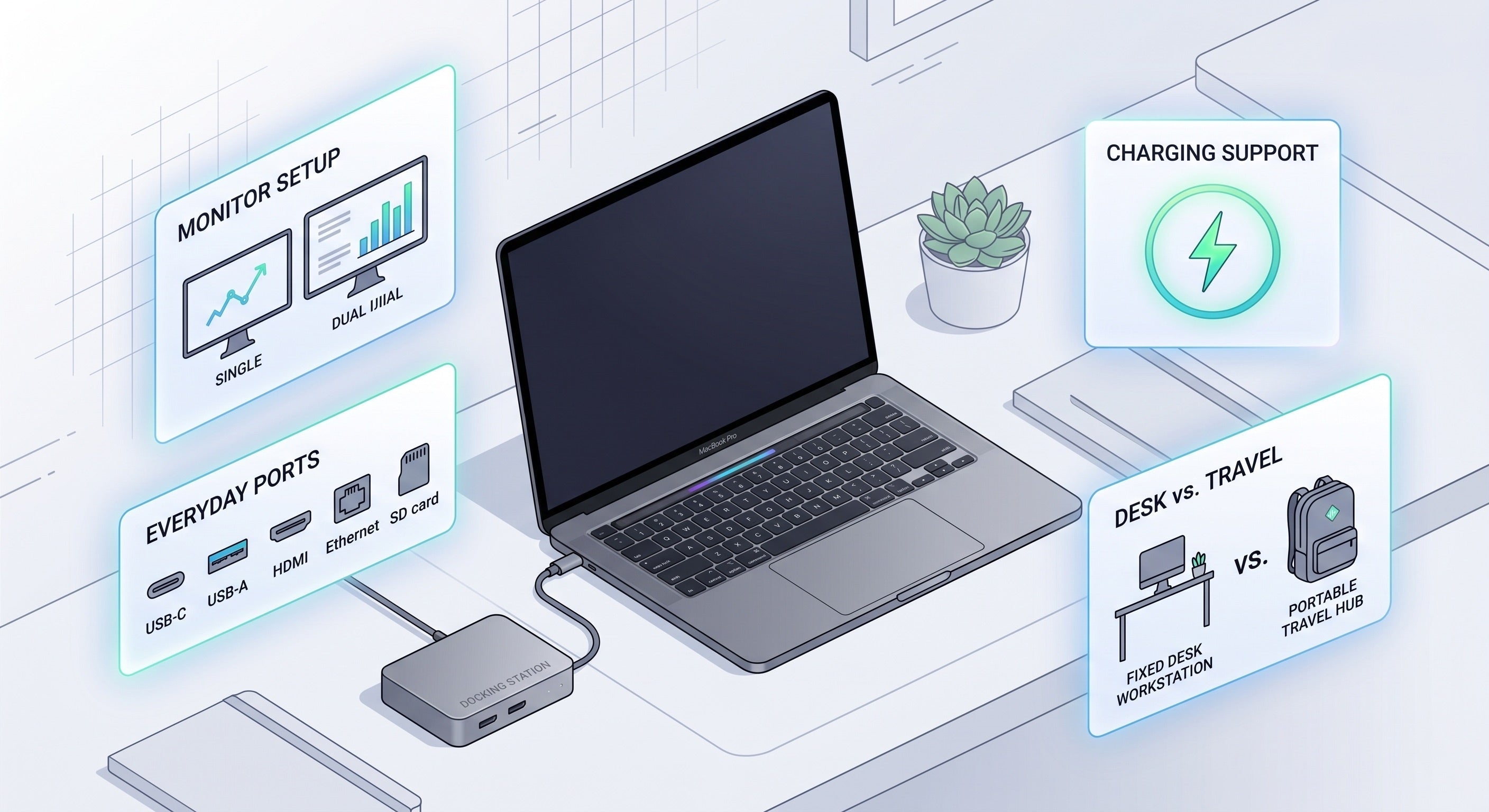
Display outputs matter most, but the best docking station for MacBook Pro users should also support the rest of the desk.
Helpful ports often include:
- USB-C for modern accessories and storage
- USB-A for legacy devices
- Ethernet for stable wired internet
- SD or microSD for media workflows
- Audio jack for speakers or headphones
Instead of choosing based on port count alone, choose based on what stays plugged in every day.
Thunderbolt vs USB-C Dock for MacBook Pro Dual Display
This is one of the most important buying choices.
Thunderbolt dock for MacBook Pro
A Thunderbolt dock is usually better for more demanding dual monitor setups. It is a strong option for users who want higher bandwidth, better expansion, and stronger support for fast external storage or higher-end displays.
A Thunderbolt dock is often best for:
- Designers
- Video editors
- Developers with larger desk setups
- Users with fast SSDs
- Professionals building a more permanent workstation
Why it stands out:
- Better overall bandwidth
- Stronger support for demanding accessories
- More flexibility for advanced setups
- Better fit for premium workstations
USB-C dock for MacBook Pro dual display
A USB-C dock can still be a smart choice if your setup is more focused on everyday productivity and desk simplicity.
A USB-C dock is often best for:
- Remote workers
- Students
- Home office users
- Lighter productivity setups
- Users who want a more compact dock
Why it works well:
- Usually smaller and simpler
- Often more affordable
- Good for standard dual monitor needs
- Easier to fit into flexible or travel-friendly setups
If your workflow is mostly meetings, documents, browser tabs, spreadsheets, and communication apps, a USB-C dock may be enough. If you work with demanding visuals, large files, or multiple high-speed accessories, Thunderbolt is usually the better long-term choice.
Best Docking Station Types for Different MacBook Pro Users
A stronger way to choose is to start with how you work.
Best for remote work and hybrid setups
For remote workers, the best dock is usually the one that makes the desk easier to use every day. The priority is not maximum complexity. It is smooth, repeatable convenience.
Look for:
- Dual monitor support
- Reliable laptop charging
- USB ports for keyboard, mouse, and webcam
- Ethernet for stable calls
- A clean one-cable connection
Best for designers and content creators
For design, editing, and creative work, display quality and bandwidth matter more. A stronger dock can support a more capable workstation with fewer compromises.
Look for:
- Thunderbolt connectivity
- Better support for higher-resolution monitors
- Fast external storage connection
- SD card support if needed
- Higher power delivery
Best for coding and multitasking
Developers and heavy multitaskers usually care about screen space, desk stability, and enough ports for everyday tools.
Look for:
- Stable dual monitor output
- USB-C and USB-A ports
- Wired network connection
- Reliable reconnect behavior
- Desk-friendly layout
Best for compact home office setups
Some users simply want two monitors, charging, and a few basic ports without overbuilding the setup.
Look for:
- Compact form factor
- Dual display support
- Enough charging power
- Just the core ports you need
- Easy setup and minimal clutter
How to Choose the Best Dock for Your Setup
The easiest way to decide is to match the dock to three things: displays, power, and workflow.
Choose based on your displays
Start with the monitors you plan to use. Their resolution, refresh rate, and inputs should guide the whole decision. If the dock cannot support the display setup you want, it is not the right dock.
Choose based on charging needs
If you want a true one-cable setup, the dock should support enough power delivery for your MacBook Pro. This becomes more important if you use demanding apps or want to leave your regular charger in your bag.
Choose based on desk habits
Think about what stays connected every day:
- Keyboard
- Mouse
- External SSD
- Webcam
- Ethernet
- SD card
- Audio accessories
The best docking station for MacBook Pro is the one that handles your real desk, not just the monitor connection.
Common Mistakes to Avoid
A lot of disappointing purchases come from focusing on the wrong details.
Buying based only on brand or appearance
A dock may look premium but still be a poor match for your MacBook Pro and display setup.
Ignoring display support details
This is the biggest mistake. Always verify how the dock handles two external monitors with your MacBook Pro.
Choosing too few ports
A dock should reduce adapter clutter. If you still need extra dongles afterward, it may not be the right choice.
Overpaying for features you will not use
Not every setup needs the most advanced dock. If your work is mostly standard productivity, a simpler dock may be the smarter buy.
Forgetting charging power
A dock that connects your monitors but struggles to keep your laptop powered can make the setup less convenient, not more.
Quick Comparison: Which Dock Type Fits Best?
| Need | Best dock type |
|---|---|
| Basic office dual monitor setup | USB-C dock |
| Higher-performance workstation | Thunderbolt dock |
| Fast storage and creator workflow | Thunderbolt dock |
| Compact desk or flexible home office | USB-C dock |
| Premium permanent desktop setup | Thunderbolt dock |
Final Thoughts
The best docking station for a MacBook Pro dual monitor setup is the one that supports your monitors properly, delivers enough charging power, and fits the way you actually work. That usually means choosing display support first, then power delivery, then the ports that matter most to your setup.
If you want a cleaner desk, easier laptop docking, and better multitasking across two screens, the right dock can make a noticeable difference. For lighter productivity, a USB-C dock may be enough. For more demanding workflows and more capable desktop setups, a Thunderbolt dock is often the better fit.
FAQ
Can a MacBook Pro support two external monitors through one dock?
Yes, many MacBook Pro setups can support two external monitors through one dock, but the result depends on your MacBook Pro model, chip, and the dock’s display technology.
Is Thunderbolt better than USB-C for MacBook Pro dual monitors?
Thunderbolt is usually better for more demanding setups because it offers higher bandwidth and stronger expansion potential. USB-C can still work well for lighter productivity setups.
How much power delivery does a MacBook Pro dock need?
It depends on your MacBook Pro model and your workload. A dock should provide enough power to keep the laptop charged during normal daily use.
What ports should I look for in a MacBook Pro dual monitor dock?
Focus on the ports you actually use, such as HDMI or DisplayPort for displays, USB-C and USB-A for accessories, Ethernet for wired internet, and SD card slots if needed.
Will a docking station reduce cable clutter?
Yes. One of the main benefits of a docking station is that it combines multiple desk connections into one central hub, making the setup cleaner and faster to use.
Is a USB-C dock enough for a MacBook Pro dual display setup?
It can be, especially for standard work and home office use. The key is making sure it supports your exact monitor configuration and charging needs.
What is the most important thing to check before buying?
Display compatibility is the most important factor. Always confirm that the dock supports your MacBook Pro and the two-monitor setup you want to run.

Leave a comment
This site is protected by hCaptcha and the hCaptcha Privacy Policy and Terms of Service apply.