


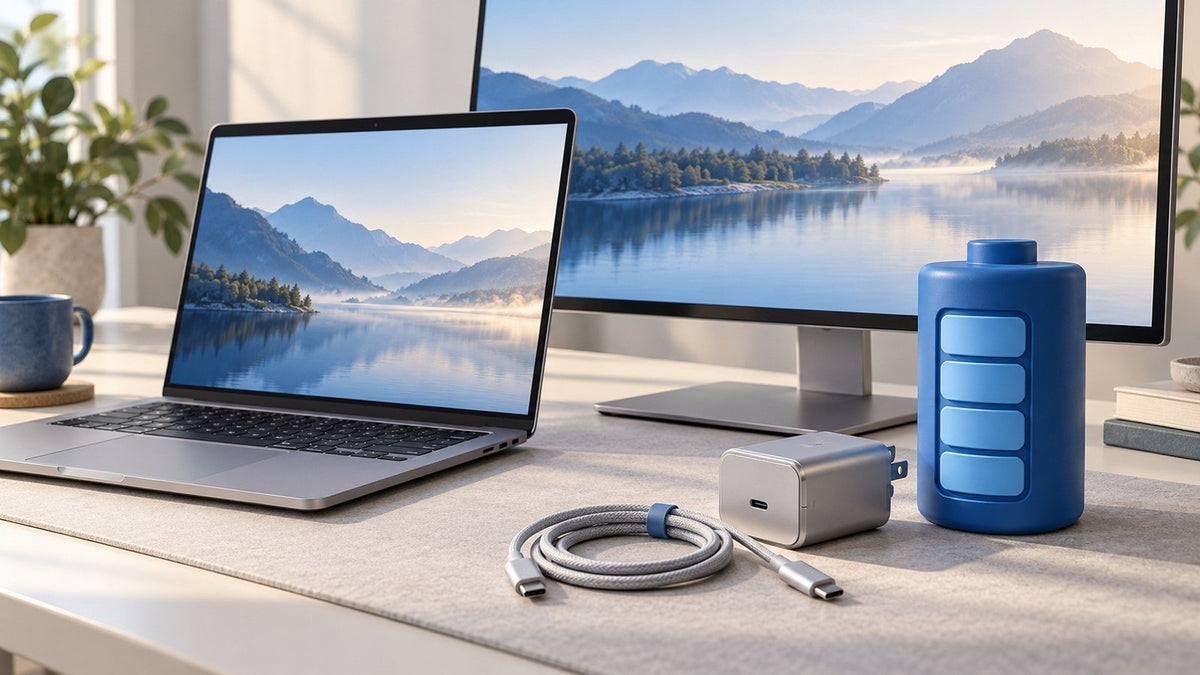
Yes. A laptop screen extender can shorten battery runtime when it draws power from the laptop. Even when the extender has a separate power source, the laptop may still use additional energy to render and transmit content to the extra displays.
The actual impact depends on the number of active screens, display brightness, laptop workload, connection method, battery condition, and power arrangement.
Quick answer: A laptop-powered screen extender draws energy directly from the battery. An externally powered extender reduces that direct load, but the laptop still has to generate the images shown on every active display. Separate power can reduce battery drain, but it does not always eliminate it completely.
Does a Laptop Screen Extender Use Your Laptop’s Battery?
When a screen extender receives both video and operating power through a laptop’s USB-C or USB connection, it uses energy from the laptop whenever the computer is unplugged. That additional demand usually reduces the time available between charges.
The effect is not identical for every setup.
One additional screen at moderate brightness may have a smaller impact than two or three bright displays. A laptop showing documents and spreadsheets may also consume less power than one running video calls, editing software, games, animations, or continuously updating dashboards.
An externally powered extender changes where the display hardware receives its electricity. However, it does not remove every source of additional laptop power consumption. The laptop still needs to create, process, and transmit the content shown on the extra screens.

Where Does the Extra Power Go?
A multi-screen setup adds several types of power demand.
Display Panels and Backlights
Every active display panel requires electricity. On a typical portable LCD screen, the backlight is a significant part of the display’s power consumption.
Increasing brightness generally increases the amount of power required by the backlight. This is why reducing screen brightness is often one of the simplest ways to extend unplugged runtime.
Display Controllers and Connection Hardware
A screen extender contains controller electronics that receive the video signal and control the display panel. These components consume power even when the image on the screen is mostly static.
The USB-C, USB, HDMI, adapter, or hub used in the connection may also add a small amount of power overhead.
CPU and GPU Activity
The laptop must render the desktop, applications, video, animations, and other content shown on every active screen.
Additional displays may increase graphics activity, especially when they use:
- Higher resolutions
- Higher refresh rates
- Video playback
- Animated interfaces
- Live dashboards
- Games
- Design or editing software
The size of the increase depends on the laptop hardware, operating system, applications, and display configuration.
DisplayLink Processing, When Applicable
Some multi-display systems use DisplayLink technology to encode and transmit display data over USB.
A DisplayLink-based setup may add host-side processing because the laptop helps compress and transmit the desktop image. The actual CPU or GPU impact depends on the displayed content, resolution, refresh rate, driver, and computer hardware.
What Determines Laptop Screen Extender Power Consumption?
There is no universal wattage or battery-loss percentage that applies to every laptop screen extender. The complete setup matters more than the display alone.
| Factor | Lower-demand condition | Higher-demand condition | Likely effect |
|---|---|---|---|
| Number of active screens | One additional display | Two or three additional displays | More active panels generally increase total power demand |
| Brightness | Low or moderate brightness | Maximum brightness | Higher brightness usually increases backlight power |
| Displayed content | Documents and static pages | Video, animation, games, or live charts | Rapidly changing content may increase processing |
| Resolution | Lower supported resolution | Higher supported resolution | Higher resolution may increase rendering and data-transfer demand |
| Refresh rate | Standard refresh rate | Higher refresh rate | More frequent screen updates may increase system activity |
| Laptop workload | Writing, email, and research | Conferencing, editing, rendering, or gaming | Greater CPU and GPU use reduces runtime |
| Power source | Separately powered extender | Laptop-powered extender | Laptop-powered operation creates more direct battery load |
| Battery condition | Healthy battery | Aged or degraded battery | Lower usable capacity shortens runtime |
These factors interact with one another.
For example, three additional displays showing mostly static documents may behave differently from one extra display playing high-resolution video while the laptop runs a demanding application.
Reducing the display resolution may lower rendering and data-transfer demand, but it does not necessarily reduce the power used by the LCD backlight. In many situations, brightness has a more direct effect on backlight consumption.
Does External Power Stop Battery Drain?
External power can reduce battery drain, but it does not necessarily eliminate the complete impact of using additional displays.
Laptop-Powered Setup
In a laptop-powered configuration, the laptop supplies power to the extender through its USB-C or USB connection.
The laptop battery may therefore need to support:
- The extender’s display panels
- Display backlights
- Controller electronics
- Connection hardware
- Laptop processing and graphics activity
This arrangement is convenient when traveling because it may require fewer cables. However, it generally places more direct demand on the laptop battery than an independently powered setup.
Externally Powered Setup
In an externally powered configuration, a wall charger, powered hub, or dedicated display input supplies some or all of the extender’s operating power.
This can reduce the amount of display power drawn directly from the laptop. The laptop may still consume additional energy for graphics rendering, display management, and video transmission.
External power should therefore be viewed as a way to reduce direct display load, not as a guarantee of zero additional battery use.
Shared-Power Setup
Some setups use one charger to supply the laptop, screen extender, hub, and other connected devices.
In this arrangement, the charger’s advertised wattage may be divided between multiple ports. A charger labeled with a particular total output does not necessarily provide that full output to the laptop while other devices are connected.
The following components must all support the intended power arrangement:
- Charger
- Cable
- Hub or adapter
- Laptop port
- Screen extender
USB-C Power Delivery allows compatible devices to negotiate power requirements. For a more detailed explanation of charging standards and power negotiation, see INVZI’s guide to USB Power Delivery 3.1.
How Can You Estimate Battery Runtime with an Extender?
A basic runtime estimate uses the battery’s usable energy capacity and the complete system’s average power draw.
Estimated runtime in hours = usable battery capacity in Wh ÷ average total system power draw in W
A watt-hour, written as Wh, represents stored energy.
A watt, written as W, represents the rate at which the laptop and connected devices are using energy.
Hypothetical Example
The following numbers are provided only to demonstrate the calculation. They are not INVZI product test results.
Assume a laptop has 60 Wh of usable battery energy. During light work with only the built-in screen active, the laptop averages 10 W.
60 Wh ÷ 10 W = approximately 6 hours
Now assume the same laptop averages 15 W after a screen extender is connected.
60 Wh ÷ 15 W = approximately 4 hours
In this example, estimated runtime falls from about six hours to four hours.
The increase in average system power draw is:
(15 W − 10 W) ÷ 10 W × 100 = 50%
This does not mean every screen extender increases power consumption by 50%. It only demonstrates how a measured increase in total system power can be converted into a rough runtime estimate.
Actual battery life may differ because a laptop’s power consumption changes continuously as applications, background processes, graphics activity, network usage, and power-management settings change.
Nominal Capacity Versus Usable Capacity
A laptop’s advertised battery capacity usually represents its rated capacity when the battery is new.
The energy available during actual use may be lower because of:
- Battery aging
- System power reserves
- Temperature
- Power-conversion losses
- Battery protection settings
- The laptop’s shutdown threshold
A battery may therefore be labeled as 60 Wh while providing less than 60 Wh of usable energy during a real session.
For this reason, a calculated runtime should be treated as an estimate rather than a guaranteed result.
How to Measure the Battery Impact of Your Own Setup
A controlled comparison provides a more useful answer than a generic battery-drain percentage.
Step 1: Charge the Laptop Fully
Charge the laptop to the same starting level before every test. Disconnect external power before beginning the battery test.
Step 2: Fix the Display Settings
Use the same settings during each test, including:
- Laptop display brightness
- Extender brightness
- Resolution
- Refresh rate
- Operating-system power mode
Changing these settings between tests makes the results harder to compare.
Step 3: Use the Same Workload
Run the same applications and perform the same type of work during each test.
For example, do not compare a laptop-only writing session with an extender-connected video meeting. The workload difference would affect the result independently of the screen extender.
Step 4: Test the Laptop Without the Extender
Run the laptop for a fixed period using only the built-in screen. Record the battery percentage used or the average system power draw.
Step 5: Repeat the Test With the Extender
Connect the intended screen configuration and repeat the same workload for the same amount of time.
Step 6: Compare the Results
Compare:
- Average power draw
- Battery percentage used
- Estimated runtime
- Battery temperature
- Performance or charging behavior
For a more complete evaluation, test several conditions:
- One additional display
- Two additional displays
- Three additional displays, where supported
- 25% brightness
- 50% brightness
- 100% brightness
- Laptop-powered operation
- Externally powered operation
- Light office work
- Video playback or video meetings
- Heavier multitasking
Run each condition at least three times and calculate the average. Repeating the test helps reduce the effect of temporary background activity or other short-term changes.
Record the following information with the results:
- Laptop model
- Battery capacity
- Battery health
- Operating system
- Power mode
- Active applications
- Resolution and refresh rate
- Laptop and extender brightness
- Cable configuration
- Charger or hub
- Test duration
- Ambient conditions
Without this context, one battery-drain figure may not be comparable with another laptop or extender configuration.
How to Reduce Battery Drain When Using Extra Screens
Lower the Extender Brightness
Use the lowest brightness level that remains comfortable and readable.
Maximum brightness is often unnecessary indoors and may increase display power use. Reducing extender brightness can be particularly useful during long unplugged sessions.
Disable Displays That Are Not Needed
When the extender and operating system allow individual displays to be disabled, turn off panels that are not required for the current task.
A multi-panel extender does not need to operate at maximum screen capacity during every workflow.
Use a Suitable Refresh Rate
Documents, email, research, and spreadsheets usually do not require a high refresh rate.
Use a standard supported refresh rate when battery runtime is more important than maximum motion smoothness.
Limit Demanding Content
Video, animations, live previews, games, and continuously updating dashboards may increase graphics activity.
Pause or close this content when it is not needed.
Close Unnecessary Applications
Background applications may continue using:
- CPU resources
- Graphics resources
- Memory
- Storage
- Network connections
Closing unnecessary applications reduces the laptop’s baseline power demand, leaving more battery capacity available for the displays that are needed.
Use Battery-Saving Settings
An operating system’s battery-saving mode may reduce background activity and limit performance where appropriate.
This mode is most suitable for lighter tasks such as:
- Writing
- Reading
- Document review
- Web research
A performance-limited mode may not be suitable when the workflow depends on demanding creative, engineering, or analytical applications.
Use External Power When Available
When the extender supports a separate power input, supplying the display independently can reduce the direct load on the laptop battery.
Confirm that the charger or powered hub provides sufficient usable output for all connected devices.
Check the Cable and Port Capabilities
USB-C ports and cables do not all support the same combination of:
- Video
- Data
- Charging
- Power delivery
Use the connection method specified for the extender. Verify that the selected cable supports the required display signal and power level.
A cable that physically fits the port may not necessarily support every required function.
Power Planning for Travel and Remote Work
When access to outlets is limited, decide how much screen space the task actually requires.
Running fewer displays, reducing brightness, and avoiding heavy processing can preserve battery life during flights, train journeys, café sessions, hotel stays, and temporary workspaces.
Before traveling:
- Test the complete setup on battery
- Confirm whether the extender supports separate power
- Check the required charger output
- Verify the power bank’s laptop charging capability
- Pack the correct video and power cables
- Reduce brightness before beginning a long unplugged session
- Disable panels that are not needed
Do not assume that every USB-C cable can handle the complete setup. Some cables support charging but not video, while others support data and video but have different power limits.
For broader guidance on chargers, hubs, power banks, cables, and mobile work accessories, see INVZI’s travel laptop setup guide.
What Power Specifications Should You Check Before Buying?
Before choosing a screen extender, review how the intended display configuration will be powered.
Check the following details:
- Number of additional panels
- Manufacturer-stated power input
- Independent power support
- Laptop battery capacity in Wh
- Charger total output
- Charger per-port output
- Multi-port power allocation
- Required cable specifications
- Laptop port capabilities
- Supported connection methods
- Intended brightness and resolution
- Whether the setup will normally be plugged in or battery-powered
A setup designed mainly for a fixed desk may have different power requirements from one intended for frequent travel.
After reviewing these requirements, browse INVZI portable monitors and screen extenders to find a screen configuration that matches the intended workspace and power plan.
Frequently Asked Questions
Does a Laptop Screen Extender Drain the Battery Faster?
Yes. A laptop screen extender normally shortens runtime when it receives power from the laptop. The computer may also use additional energy to render and transmit content to the extra display. The effect depends on screen count, brightness, workload, connection method, battery capacity, and external power availability.
How Much Power Does a Laptop Screen Extender Use?
There is no single figure for every product or setup. Power consumption varies with panel size, screen count, brightness, resolution, refresh rate, controller hardware, connection type, and laptop workload. Measuring the complete laptop-and-extender system provides a more useful result than measuring the display alone.
Does a Dual-Screen Extender Use Less Power Than a Triple-Screen Extender?
A configuration with fewer active panels will generally require less display power than a comparable configuration with more panels. However, the difference is not always proportional because panel specifications, brightness, processing method, resolution, and laptop workload can vary.
Does Lowering the Extender’s Brightness Save Battery?
Yes. Lowering brightness generally reduces the electricity required by the display backlight. The total runtime improvement depends on the panel and the rest of the laptop’s power consumption, so brightness should be evaluated alongside screen count and workload.
Can I Power a Screen Extender Separately From My Laptop?
Some screen extenders can receive power from a charger, powered hub, or dedicated input. Separate power can reduce the display power drawn directly from the laptop. The laptop may still use additional energy to render and transmit content to the extra screens.
What Charger Wattage Do I Need for a Laptop and Screen Extender?
There is no universal charger wattage for every setup. The charger must cover the laptop’s operating and charging requirements, the extender’s power needs, and any other connected devices. Check the total output, per-port output, cable rating, and power allocation when multiple charger ports are active.
Conclusion
A laptop screen extender can reduce battery runtime, especially when the laptop supplies power directly to the additional displays.
The actual impact depends on the number of active screens, brightness, laptop workload, connection method, battery health, and whether the extender has an external power source.
For the most accurate estimate, test the complete laptop-and-extender setup under the same conditions in which it will normally be used.

Leave a comment
This site is protected by hCaptcha and the hCaptcha Privacy Policy and Terms of Service apply.