


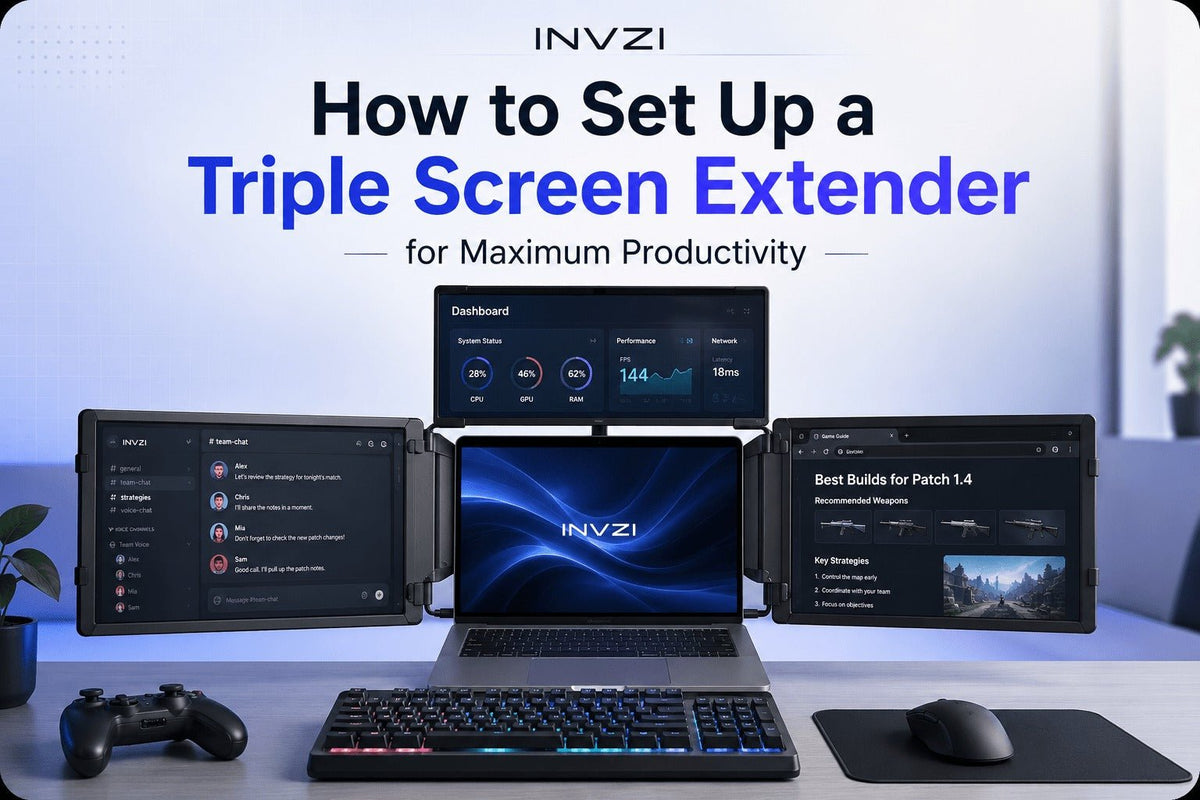
The biggest productivity problem is not always a slow laptop or a lack of tools. Often, it is the time lost switching between windows.
A report in one tab, a video call in another, notes in a separate app, and messages somewhere in the background can quickly turn a simple task into a cluttered workflow. A triple screen extender helps solve this by giving your laptop more visual workspace, so your main task, reference materials, and communication tools can stay visible at the same time.
For better triple screen extender productivity, the goal is not just to use more screens. The real advantage comes from setting up each screen with a clear purpose.
What Is a Triple Screen Extender?
A triple screen extender is a portable multi-screen display setup that expands your laptop workspace with additional screens. Instead of working from one built-in laptop display, you can spread your tasks across multiple screens and create a more desktop-like workstation.
It is especially useful for people who work with several apps at once, such as:
- Video calls
- Spreadsheets
- Research documents
- Code editors
- Dashboards
- Email and chat apps
- Presentations
- Design or editing tools
Unlike a traditional desktop monitor setup, a portable triple screen extender is designed for users who need more screen space while still keeping their workspace flexible. It can be used at home, in the office, in a coworking space, or while traveling.
How a Triple Screen Extender Improves Productivity
A triple screen extender improves productivity by reducing the friction of switching between tasks. When the information you need is already visible, you can work faster and stay more focused.
Less Tab Switching
On a single laptop screen, users often waste time jumping between browser tabs, documents, and apps. With a triple screen extender, you can keep your most important tools open at the same time.
For example, you can write on the main screen, keep research on one side, and leave email or chat on the other. This makes the workflow feel smoother and less interrupted.
Better Side-by-Side Comparison
Many tasks require comparison. You may need to compare two spreadsheets, review a report against source data, check a design against a brief, or reference notes while writing.
A triple screen setup makes this easier because you do not need to constantly resize or hide windows.
More Organized Meetings
Online meetings often involve more than just the call. You may need to view participants, take notes, follow a shared document, and check your calendar or task list.
With multiple screens, you can keep the meeting on one display, notes on another, and your main document or presentation in the center.
Improved Focus
More screens can improve focus when they are organized correctly. Instead of placing everything on one crowded display, you can separate your main work from secondary tools.
The key is to keep your main screen dedicated to focused work and move supporting apps to the side screens.
Portable Multi-Screen Productivity
A triple screen extender is especially useful for remote workers, digital nomads, and business travelers who want a productive setup without relying on full-size monitors. It helps turn a laptop into a more complete workstation in different locations.
How to Set Up a Triple Screen Extender
A good setup starts with compatibility, connection, display arrangement, and cable management. Taking a few minutes to set things up properly can make the entire workflow feel more natural.
1. Check Your Laptop Compatibility
Before using a triple screen extender, confirm that your laptop can support multiple external displays.
Check:
- USB-C video output support
- HDMI output availability
- Thunderbolt or DisplayPort Alt Mode support
- Operating system compatibility
- Power requirements
- Adapter requirements
- External display limitations
Some laptops support multiple external screens directly, while others may require a specific adapter. This step is important because compatibility affects how smooth the setup will be.
2. Connect the Screens
Connect the screen extender using the supported ports, such as USB-C, HDMI, or a combination of both.
For a cleaner setup, use the simplest connection method available for your laptop. USB-C can reduce cable clutter, but not every USB-C port supports video output. If your laptop does not support direct multi-display output, you may need an adapter.
3. Set the Displays to Extend Mode
After connecting the screens, open your display settings and choose Extend instead of Mirror.
Extend mode allows each screen to show different content. This is what makes a triple screen extender useful for productivity. Mirror mode simply duplicates the same screen and is usually better for presentations, not multitasking.
4. Arrange the Screen Order
Your digital screen arrangement should match the physical layout on your desk.
If one screen is on the left side of your laptop, place it on the left in your display settings. If another screen is on the right, place it on the right. This allows your mouse to move naturally between screens.
5. Adjust Brightness, Resolution, and Scaling
For comfortable long-term use, match the brightness and scaling across your displays as closely as possible.
If text looks too small or too large on one screen, adjust scaling. If one display feels too bright or too dim, adjust brightness. A balanced setup helps reduce visual strain and makes the screens feel like one connected workspace.
6. Choose the Right Screen Orientation
Most users prefer a horizontal layout for general multitasking. However, vertical mode can be useful if your screen extender supports it.
Vertical orientation works well for:
- Coding
- Reading long documents
- Reviewing PDFs
- Writing
- Editing articles
- Managing chat or task lists
- Browsing long web pages
Choose the orientation based on the type of work you do most often.
7. Organize Your Cables
Cable management matters, especially for portable workstations. Messy cables can make your setup feel unstable and distracting.
Keep cables routed behind the laptop when possible, use shorter cables if available, and avoid placing cables across your keyboard or mouse area.

Triple Screen Extender Setup Checklist
Before starting your work session, use this checklist:
- Confirm your laptop supports multiple displays
- Check whether you need USB-C, HDMI, or an adapter
- Connect the screens securely
- Set displays to Extend mode
- Arrange the screen order correctly
- Adjust brightness and scaling
- Choose horizontal or vertical orientation
- Assign each screen a clear role
- Open your main work apps and test the layout
- Keep cables neat and away from your workspace
This simple checklist helps prevent common setup issues and makes your triple screen extender productivity setup easier to use every day.
Best Triple Screen Extender Layouts for Productivity
The most effective layout is simple: give each screen a job.
A strong default setup is:
- Center screen: main task
- Left screen: reference materials
- Right screen: communication, calendar, or monitoring tools
This layout keeps your most important work in front of you while keeping supporting information visible but not distracting.
Productivity Tips for Different Workflows
Different users need different screen layouts. Here are practical ways to organize a triple screen extender based on your work style.
Remote Work Layout
For remote work, use the center screen for your main document, browser, or task.
A good layout:
- Center: main task or document
- Left: meeting notes, project brief, or research
- Right: Slack, Teams, email, or calendar
This setup helps you stay responsive without letting messages take over your main workspace.
Coding Layout
Developers benefit from keeping code, documentation, and testing tools visible at the same time.
A useful layout:
- Center: code editor
- Left: documentation, design specs, or browser reference
- Right: terminal, logs, preview window, or task board
This reduces context switching and helps make coding, debugging, and testing more efficient.
Spreadsheet and Data Analysis Layout
For spreadsheet-heavy work, a triple screen extender makes it easier to compare data and reports.
A useful layout:
- Center: main spreadsheet or workbook
- Left: source data or reference file
- Right: report, dashboard, notes, or calculator
This is helpful for financial analysts, operations teams, accountants, and anyone who works with large amounts of information.
Trading Layout
Traders often need to monitor several sources in real time.
A useful layout:
- Center: main trading platform or primary chart
- Left: watchlist or market news
- Right: secondary charts, order panel, or alerts
This layout helps keep key information visible without stacking windows on top of each other.
Online Meeting Layout
For video calls and presentations, multiple screens can make meetings easier to manage.
A useful layout:
- Center: shared document, presentation, or main discussion material
- Left: video call
- Right: notes, agenda, chat, or action items
This helps you follow the meeting while still capturing important details.
Content Creation Layout
Creators often work with editing tools, assets, scripts, and previews.
A useful layout:
- Center: editing software or writing workspace
- Left: script, brief, or asset folder
- Right: preview, upload settings, analytics, or publishing tool
This can help writers, designers, video editors, and social media managers keep the creative process more organized.
Common Setup Mistakes to Avoid
A triple screen extender can improve productivity, but only if it is used intentionally. Avoid these common mistakes.
Using Every Screen Without a Purpose
More screen space does not automatically mean better productivity. If every screen is filled with random windows, the setup can become distracting.
Give each display a clear role.
Keeping Distracting Apps Too Visible
Email, chat, and social apps can interrupt your focus if they are placed in the center of your workspace.
Keep communication tools on a side screen and reserve the main screen for focused work.
Ignoring Laptop Power Needs
Multiple screens can increase power demand. Make sure your laptop, charger, and connection method can support your setup, especially during long work sessions or travel.
Forgetting Compatibility Checks
Not every laptop supports every multi-screen setup. Always check display output support before buying or setting up a triple screen extender.
Poor Screen Angle or Height
If the screens are angled poorly, you may feel uncomfortable after extended use. Adjust the screen position so your neck, shoulders, and eyes stay relaxed.
Letting Cables Take Over the Desk
A messy setup can reduce the benefit of a portable workstation. Keep cables organized so your workspace stays clean and easy to use.
Who Should Use a Triple Screen Extender?
A triple screen extender is useful for anyone who regularly works across multiple apps or sources of information.
It is especially helpful for:
- Remote workers who manage calls, documents, chat, and project tools
- Developers who need code, documentation, terminals, and previews
- Financial analysts who compare spreadsheets, dashboards, and reports
- Traders who monitor charts, news, and watchlists
- Project managers who track timelines, tasks, meetings, and messages
- Content creators who work with scripts, assets, editing tools, and previews
- Students and researchers who read, write, and reference sources
- Business travelers who want a more productive laptop setup away from the office
If your daily work involves constant tab switching, a laptop screen extender can help create a more organized and efficient workflow.
Build a Portable Productivity Setup with INVZI
For users who work from different locations, an INVZI triple screen extender can help create a cleaner and more flexible portable workstation without relying on bulky desktop monitors.
It is designed for laptop users who need more space for multitasking, remote meetings, analysis, coding, content work, or travel productivity. By expanding your screen area, you can keep essential tools visible and reduce the friction of constantly switching between windows.
Instead of building a fixed desk setup, a portable triple screen extender gives you a practical way to work with more screen space wherever your laptop goes.
Conclusion
A triple screen extender can make your laptop much more productive, but the setup matters. The best approach is to assign each screen a clear role: one for your main task, one for reference, and one for communication or monitoring.
With the right layout, triple screen extender productivity becomes less about having more screens and more about building a cleaner, faster, and more focused workflow.
Whether you are working from home, traveling, coding, analyzing data, managing meetings, or creating content, a well-organized triple screen extender setup can help you get more done with less tab switching and less workspace clutter.
FAQs
Is a triple screen extender good for productivity?
Yes. A triple screen extender can improve productivity by giving you more space to organize apps, documents, calls, dashboards, and reference materials. It is especially useful for users who often switch between tabs or compare information across multiple windows.
How should I arrange my screens for multitasking?
A practical layout is to use the center screen for your main task, the left screen for reference materials, and the right screen for communication, calendar, dashboards, or notes. This keeps your focus centered while keeping supporting tools visible.
Can I use a triple screen extender for remote work?
Yes. A triple screen extender is useful for remote work because it helps you manage video calls, documents, email, chat, and project tools at the same time. It can make a laptop feel closer to a full desktop workstation.
Is a triple screen extender useful for coding?
Yes. Developers can use one screen for the code editor, another for documentation or browser preview, and another for terminal, logs, or task management. This layout reduces context switching and makes coding workflows easier to manage.
Can I travel with a triple screen extender?
Yes, many triple screen extenders are designed for portable work setups. They can be useful in hotels, coworking spaces, temporary offices, and client locations. Before traveling, check the weight, cable needs, power requirements, and laptop compatibility.
What should I check before buying a triple screen extender?
Check your laptop’s operating system, USB-C or HDMI support, external display limits, power requirements, screen size, resolution, weight, and whether adapters are needed. Compatibility is one of the most important factors for a smooth setup.

Leave a comment
This site is protected by hCaptcha and the hCaptcha Privacy Policy and Terms of Service apply.