
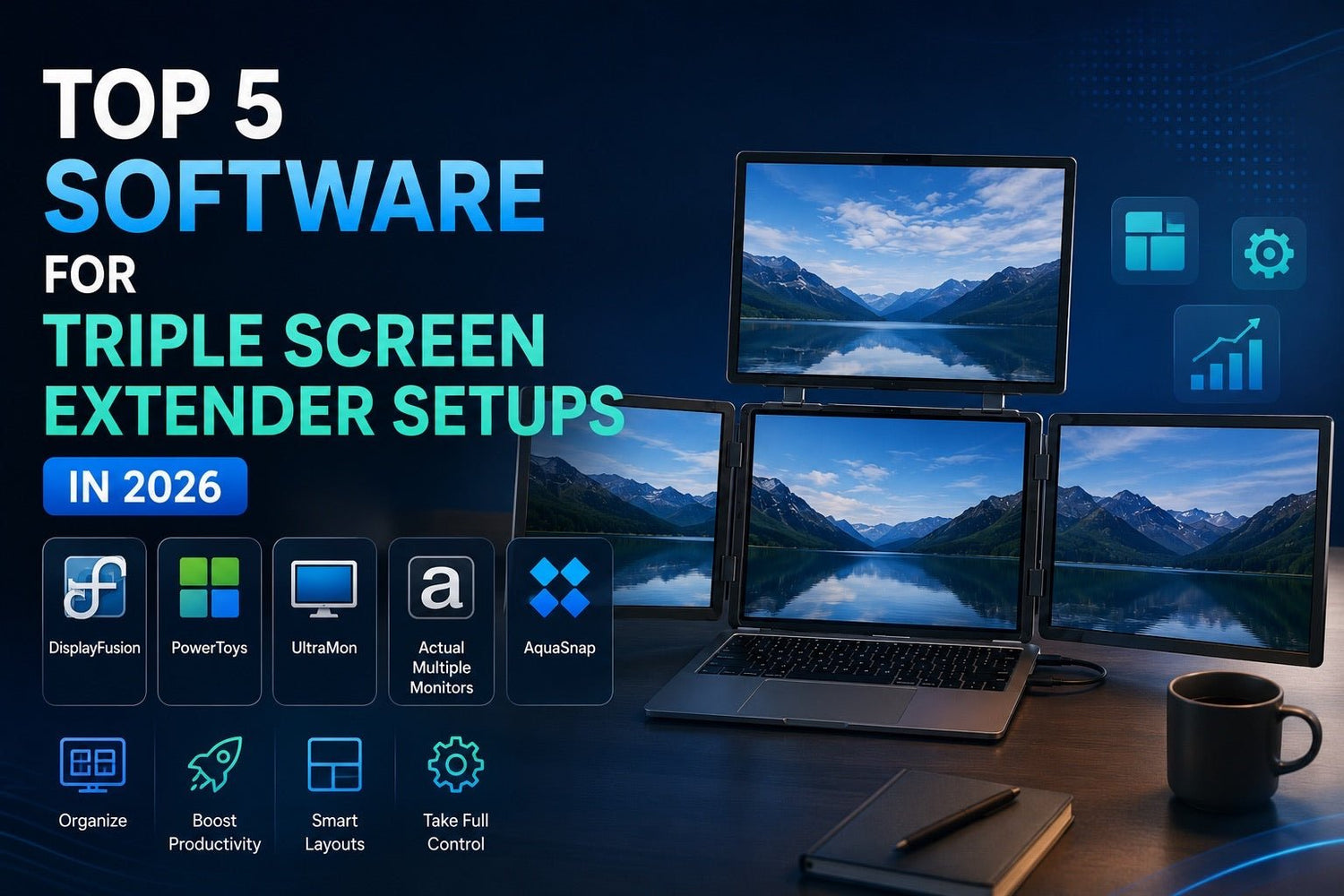
A triple screen setup is supposed to make you more productive — but for many users, it creates even more digital chaos.
Windows disappear across monitors. Notifications constantly interrupt focus. Cursors get lost between displays. And after restarting your computer, your carefully arranged workspace suddenly resets itself.
Whether you’re a trader tracking live charts, a developer managing multiple coding environments, or a remote worker juggling meetings and documents, a triple monitor workstation can quickly become overwhelming without the right software.
That’s why professional users increasingly rely on dedicated triple monitor software to organize workflows, automate screen layouts, and optimize multi-monitor productivity.
In this guide, we’ll break down the top 5 software solutions for triple screen extender setups in 2026, compare their features, and help you choose the best option for your workflow.
Best Triple Monitor Software at a Glance
|
Best For |
Software |
|
Best Overall |
DisplayFusion |
|
Best Free Option |
Microsoft PowerToys |
|
Best for Stability |
UltraMon |
|
Best for Heavy Multitasking |
Actual Multiple Monitors |
|
Best Lightweight Window Manager |
AquaSnap |
Why More People Are Using Triple Screen Setups
Triple monitor workstations are no longer limited to finance professionals or hardcore gamers.
Modern users are building multi-monitor setups for:
· Remote work productivity
· Laptop screen extension
· Video editing
· Programming
· Streaming
· Stock trading
· AI-assisted workflows
· Creative production
Portable triple screen extenders have also become increasingly popular among digital nomads and hybrid workers who want desktop-level productivity from laptops.
But while hardware has evolved rapidly, operating systems still struggle with advanced triple display management.
That’s where specialized software becomes essential.
What Makes Great Triple Monitor Software?
The best screen extender software doesn’t just add features — it removes friction.
1. Smart Window Management
A quality multi-monitor tool should:
· Snap windows intelligently
· Remember layouts
· Restore applications after reboot
· Support drag-and-drop workflows
Real-World Example
A developer might keep:
· VS Code on Monitor 1
· Browser documentation on Monitor 2
· Terminal and debugging tools on Monitor 3
The right software automatically restores this layout every day.
2. Workflow Automation
Modern users want:
· Keyboard shortcuts
· App launch automation
· Workspace profiles
· AI-assisted window organization
Advanced users can even create dedicated workspaces for:
· Meetings
· Gaming
· Editing
· Streaming
· Focus sessions
3. Performance Optimization
Triple monitor environments can increase:
· GPU load
· RAM usage
· Background rendering
Good software minimizes system overhead while maintaining smooth performance.
4. Multi-Monitor Compatibility
The best tools support:
· 4K displays
· Ultrawide monitors
· Vertical monitors
· Portable laptop monitor extenders
· Mixed resolutions and scaling
Top 5 Software for Triple Screen Extender Setups
1. DisplayFusion — Best Overall Triple Monitor Software
Overview
DisplayFusion is widely considered the gold standard for advanced multi-monitor productivity.
It transforms triple displays into a highly customizable workspace with intelligent automation, advanced window controls, and powerful workflow tools.
For power users, it’s often the first software installed after setting up a triple monitor workstation.
Best Features
· Advanced window snapping
· Multi-monitor taskbars
· Custom keyboard shortcuts
· Monitor fading and focus controls
· Automatic window positioning
· Workspace profiles
· Trigger-based automation
· Remote monitor control
Real Workflow Example
A stock trader can:
· Keep trading charts on one screen
· News feeds on another
· Order execution software on the third
DisplayFusion automatically restores every layout after rebooting.
Pros
· Extremely powerful customization
· Excellent automation features
· Saves workspace layouts
· Ideal for advanced users
Cons
· Learning curve for beginners
· Some advanced features require Pro version
Best For
· Developers
· Traders
· Productivity enthusiasts
· Remote professionals
Pricing
· Free version available
· Pro version starts around $34
Why It Stands Out
DisplayFusion feels like a true operating system upgrade for triple monitor users.
Its automation tools alone can save hours every week for heavy multitaskers.
2. Microsoft PowerToys — Best Free Triple Monitor Software
Overview
Microsoft PowerToys has evolved into one of the best free productivity tools for Windows users.
Its FancyZones feature dramatically improves window organization across triple displays.
Best Features
· FancyZones custom layouts
· Keyboard Manager
· Quick launcher
· File preview tools
· Lightweight performance
· Simple UI
Real Workflow Example
A remote worker can create:
· A centered video conferencing zone
· Dedicated Slack/email sections
· A focused document workspace
All across three monitors.
Pros
· Completely free
· Beginner-friendly
· Excellent performance
· Official Microsoft support
Cons
· Windows only
· Less advanced automation
Best For
· Students
· Office workers
· Everyday productivity users
Pricing
· Free
Why It Stands Out
FancyZones alone makes PowerToys one of the best free triple monitor window managers available today.
3. UltraMon — Best for Stability and Enterprise Use
Overview
UltraMon has been trusted by enterprise users for years thanks to its reliability and lightweight performance.
While its interface feels older, it remains highly effective.
Best Features
· Additional taskbars
· Smart app positioning
· Display mirroring
· Shortcut customization
· Lightweight resource usage
Real Workflow Example
A cybersecurity analyst can monitor:
· Live alerts
· Log dashboards
· Communication channels
Without system slowdowns or interface instability.
Pros
· Very stable
· Low GPU impact
· Excellent for business environments
Cons
· Dated interface
· Fewer modern UI features
Best For
· Enterprise workstations
· IT professionals
· Legacy systems
Pricing
· Starts around $40
Why It Stands Out
UltraMon prioritizes reliability over aesthetics, making it ideal for mission-critical workflows.
4. Actual Multiple Monitors — Best for Heavy Multitasking
Overview
Actual Multiple Monitors significantly expands Windows’ native display management capabilities.
It’s especially useful for users who constantly switch between complex workflows.
Best Features
· Individual monitor taskbars
· Desktop profiles
· Multi-monitor screen savers
· Custom title buttons
· Mirroring support
Real Workflow Example
A designer can create separate workspace profiles for:
· UI design
· Video editing
· Client presentations
· Asset organization
Switching instantly between them.
Pros
· Deep customization
· Excellent profile management
· Strong multitasking tools
Cons
· Interface may feel overwhelming
· Premium pricing
Best For
· Designers
· Analysts
· Creative professionals
Pricing
· Starts around $25
Why It Stands Out
Its workspace profile system is one of the best productivity features for advanced triple monitor users.
5. AquaSnap — Best Lightweight Window Management Tool
Overview
AquaSnap focuses on making window organization feel intuitive and fluid.
It’s lightweight, responsive, and ideal for users who want simplicity without sacrificing functionality.
Best Features
· Smart snapping
· Window docking
· Mouse gesture controls
· Multi-monitor support
· Window tiling
Real Workflow Example
A content creator can quickly organize:
· Editing software
· Social media dashboards
· Research tabs
Across three displays with minimal setup.
Pros
· Easy to learn
· Lightweight
· Smooth user experience
Cons
· Limited advanced automation
· Fewer enterprise tools
Best For
· Freelancers
· Creators
· Casual multitaskers
Pricing
· Free personal version
· Premium upgrades available
Why It Stands Out
AquaSnap delivers one of the smoothest and most user-friendly experiences for triple screen productivity.
Triple Monitor Software Comparison Table
|
Software |
Free Version |
Automation |
Window Snapping |
GPU Impact |
Ease of Setup |
AI Workflow Friendly |
Best For |
|
DisplayFusion |
Yes |
Advanced |
Excellent |
Medium |
Moderate |
High |
Power users |
|
PowerToys |
Yes |
Basic |
Excellent |
Low |
Easy |
Medium |
General productivity |
|
UltraMon |
No |
Moderate |
Good |
Very Low |
Easy |
Low |
Enterprise |
|
Actual Multiple Monitors |
Trial |
Advanced |
Excellent |
Medium |
Moderate |
Medium |
Heavy multitasking |
|
AquaSnap |
Yes |
Basic |
Excellent |
Low |
Very Easy |
Medium |
Everyday users |
Common Problems with Triple Screen Setups
Even expensive setups can suffer from frustrating workflow problems.
Cursor Getting Lost Between Screens
Users frequently lose track of the cursor across large monitor layouts.
Modern monitor management tools now include:
· Cursor highlighting
· Edge resistance
· Focus indicators
Window Clutter
More screen space often leads to:
· Too many open apps
· Notification overload
· Reduced focus
Without proper organization, triple monitors can decrease productivity.
Scaling and Resolution Problems
Mixed monitor resolutions create:
· Blurry interfaces
· Inconsistent text sizing
· Awkward UI scaling
Especially common with portable monitor extenders.
Performance Lag
Running:
· Triple 4K monitors
· Streaming software
· AI tools
· Editing applications
Can significantly impact GPU performance.
Eye and Neck Strain
Poor monitor positioning causes:
· Fatigue
· Neck pain
· Reduced concentration
Ergonomics matter as much as software.
Triple Screen Setup Tips for Better Productivity
Assign Each Monitor a Purpose
Example:
· Left monitor → Communication
· Center monitor → Primary work
· Right monitor → Research/reference
This reduces mental clutter.
Use Workspace Profiles
Save layouts for:
· Meetings
· Gaming
· Editing
· Coding
· Trading
Switch instantly depending on tasks.
Reduce Notification Noise
Triple monitors increase visual distractions.
Turn off:
· Non-essential notifications
· Background popups
· Unnecessary overlays
Explore AI-Assisted Productivity Workflows
2026 productivity trends increasingly include:
· AI window recommendations
· Smart workflow prediction
· Voice-controlled workspace switching
· AI meeting summarization
Modern workflows are becoming more adaptive and automated.
Optimize Monitor Positioning
For best ergonomics:
· Keep the center monitor directly ahead
· Align eye level with the top third of displays
· Match brightness across monitors
Final Thoughts
A triple screen setup can completely transform productivity — but only if the software matches the hardware.
If your workspace still feels cluttered or inefficient, the problem may not be your monitors at all. It may be your workflow management system.
Here’s the simplest way to choose:
· Choose DisplayFusion if you want maximum control and automation.
· Choose PowerToys if you want a powerful free solution.
· Choose UltraMon for stability and enterprise workflows.
· Choose Actual Multiple Monitors for advanced multitasking.
· Choose AquaSnap for lightweight simplicity.
The right software can turn three disconnected screens into a streamlined productivity ecosystem.
Frequently Asked Questions
1. What is the best software for triple monitor setups?
DisplayFusion is widely considered the best overall option due to its advanced automation and customization features.
2. Is there free software for triple screen extenders?
Yes. Microsoft PowerToys and AquaSnap both offer excellent free versions for multi-monitor productivity.
3. Which software is best for gaming and streaming setups?
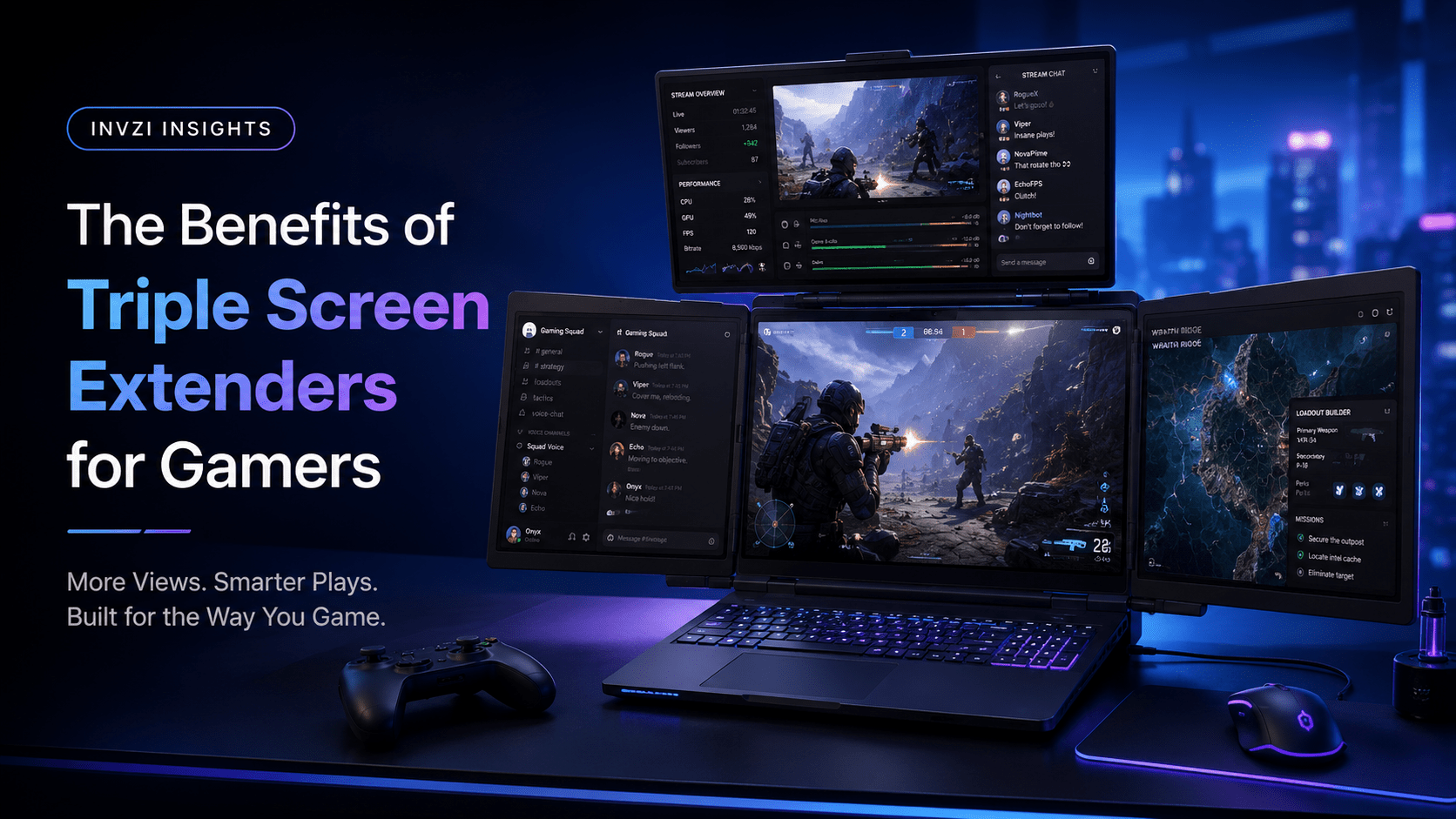
DisplayFusion and AquaSnap are both excellent for gamers and streamers managing overlays, chat apps, and recording tools.
4. Can triple monitor software improve productivity?
Yes. Proper monitor management software reduces clutter, improves workflow organization, and minimizes context switching.
5. Does triple monitor software work with laptop screen extenders?
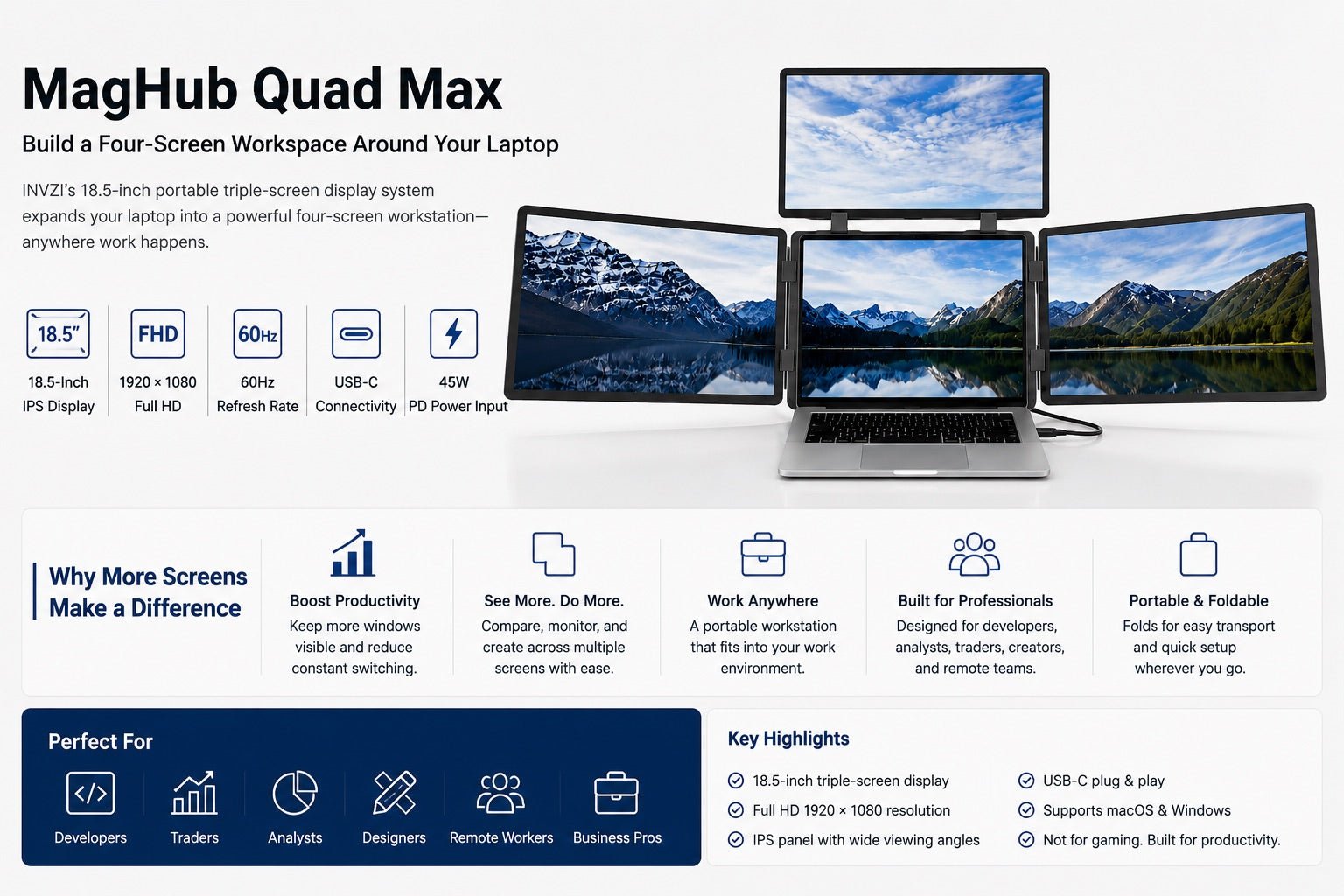
Most modern multi-monitor tools support portable laptop monitor extenders and USB-C docking stations.

Leave a comment
This site is protected by hCaptcha and the hCaptcha Privacy Policy and Terms of Service apply.