
Introduction
If you use a MacBook for work, study, or travel, you’ve likely hit the same limitation: not enough screen space.
A laptop screen extender for MacBook adds one or more external displays to your MacBook Pro or MacBook Air, making it easier to manage multiple apps without constantly switching tabs.
Whether you're working remotely, editing content, or handling multiple tasks at once, the right screen extender can significantly improve how efficiently you work.
This guide will help you choose the best option based on your setup, workflow, and portability needs.
Why MacBook Users Often Need More Screen Space
MacBooks are powerful, but their single screen can slow down real workflows.
Common productivity bottlenecks
- Switching between browser, documents, and communication apps
- Limited visibility for spreadsheets, code, or timelines
- Difficulty managing multiple tasks during meetings or travel
Real-world MacBook use cases
-
MacBook Air users:
Prioritize lightweight setups but still need extra space for multitasking -
MacBook Pro users:
Often run heavier workflows like editing, coding, or data analysis -
Remote workers and travelers:
Need a dual-screen setup without carrying a full monitor
What improves with a screen extender
- Fewer interruptions from tab switching
- Better focus with dedicated screens
- Faster task completion across apps
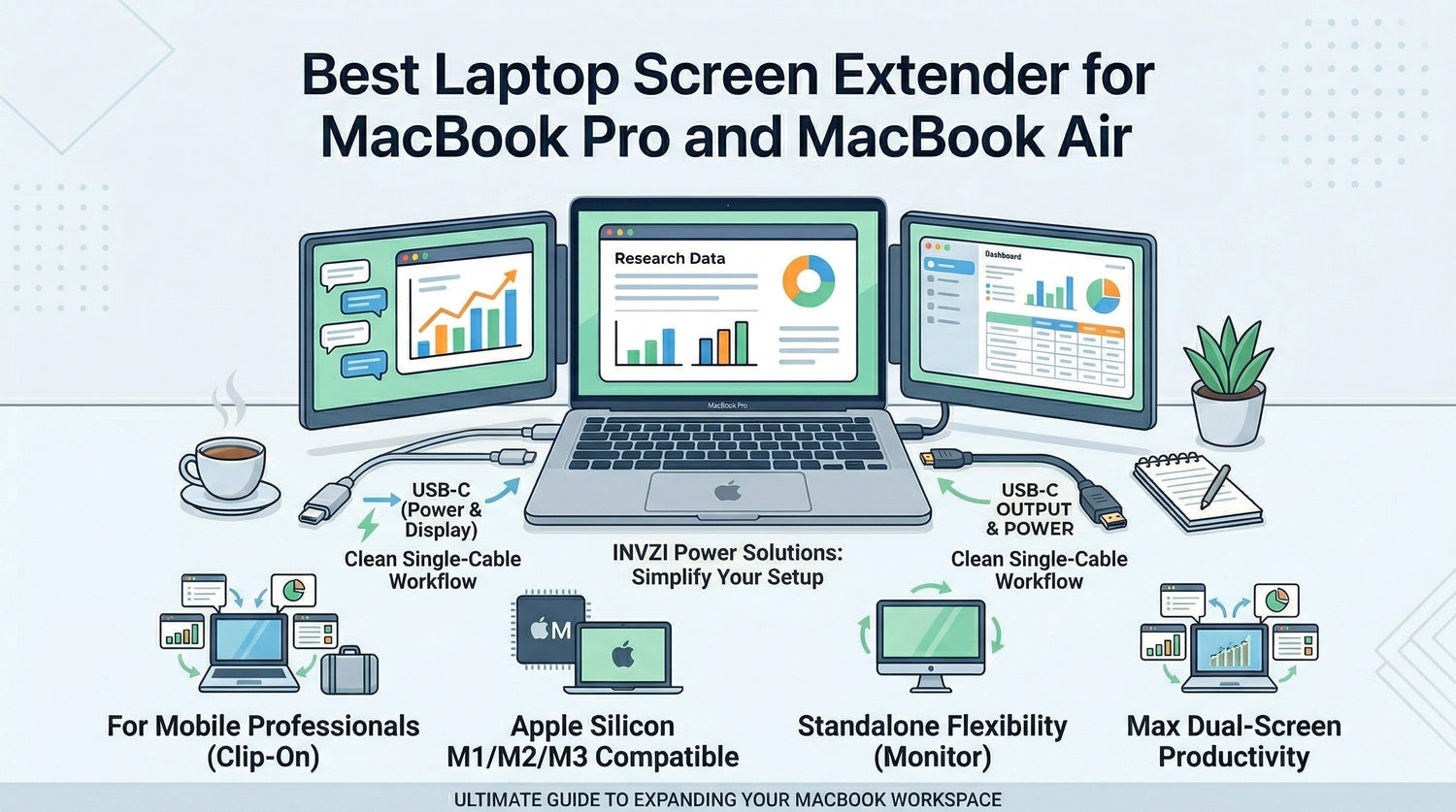
Types of Screen Extenders for MacBook
Choosing the right type depends on how you use your MacBook.
1. Clip-On Screen Extenders (Best for Mobility)
Attach directly to your MacBook and expand outward.
Best for:
Travelers, mobile professionals, café work
Trade-offs:
- Less flexible positioning
- Adds weight to the laptop lid
2. Portable Monitors (Best Overall Flexibility)
Standalone displays that connect via USB-C.
Best for:
Home + travel setups, hybrid workers
Trade-offs:
- Requires desk or stand space
- Slightly less compact than clip-on designs
3. Dual / Triple Screen Extenders (Best for Heavy Workflows)
Multi-display setups designed for maximum multitasking.
Best for:
Developers, traders, content creators
Trade-offs:
- Bulkier
- Higher power requirements
- Less travel-friendly
Key Features to Look For (MacBook-Specific)
1. Apple Silicon Compatibility (M1 / M2 / M3)
Not all MacBooks support multiple displays the same way.
- Some models natively support only one external display
- Others may require software-based solutions
Why it matters:
Choosing the wrong extender can limit your setup or require extra steps.
2. USB-C and Thunderbolt Support
Modern MacBooks rely heavily on USB-C.
A good extender should:
- Connect with a single cable
- Support stable video output
- Work without complicated adapters
3. Power Delivery and Charging
If you're using an external display, power becomes critical.
Look for setups that allow you to:
- Charge your MacBook while using the screen
- Avoid carrying multiple chargers
4. Portability and Weight
Especially important for MacBook Air users.
- Slim designs fit easily into bags
- Lightweight builds reduce travel fatigue
5. Display Quality
For long sessions:
- Full HD is standard
- Higher brightness helps in cafés or travel environments
- Good viewing angles improve comfort
6. Setup Simplicity
The best experience is:
- Plug-and-play
- Minimal cables
- Quick setup anywhere
Best Laptop Screen Extender for MacBook (How to Choose)
Instead of focusing on brands, the best choice depends on how you work.
Best for Travel: Clip-On Screen Extender
Choose this if you:
- Work in cafés, airports, or shared spaces
- Want an all-in-one setup
- Prefer minimal gear
Why it works:
Everything stays attached to your MacBook, making it easy to set up anywhere in seconds.
Best Overall: Portable Monitor with USB-C
Choose this if you:
- Work both at home and on the go
- Want flexible positioning
- Care about viewing comfort
Why it works:
You get more control over screen placement and a more natural dual-screen experience.
Best for Clean Multi-Device Setup: Portable Monitor + Multi-Port Charger
For many MacBook users, the challenge is not just adding a screen—it’s managing power and cables.
This setup combines:
- A USB-C portable monitor
- A high-output multi-port GaN charger
Why it works:
- Charge your MacBook and accessories at the same time
- Reduce cable clutter
- Create a cleaner, more efficient workspace
A compact multi-port charger makes it easier to support both your laptop and display without carrying multiple power adapters—especially useful for travel or hybrid work setups.
Best for Power Users: Dual Screen Extender
Choose this if you:
- Run complex workflows (coding, editing, trading)
- Need multiple dedicated screens
- Work mostly at a desk
Why it works:
It maximizes screen space without requiring a full desktop setup.
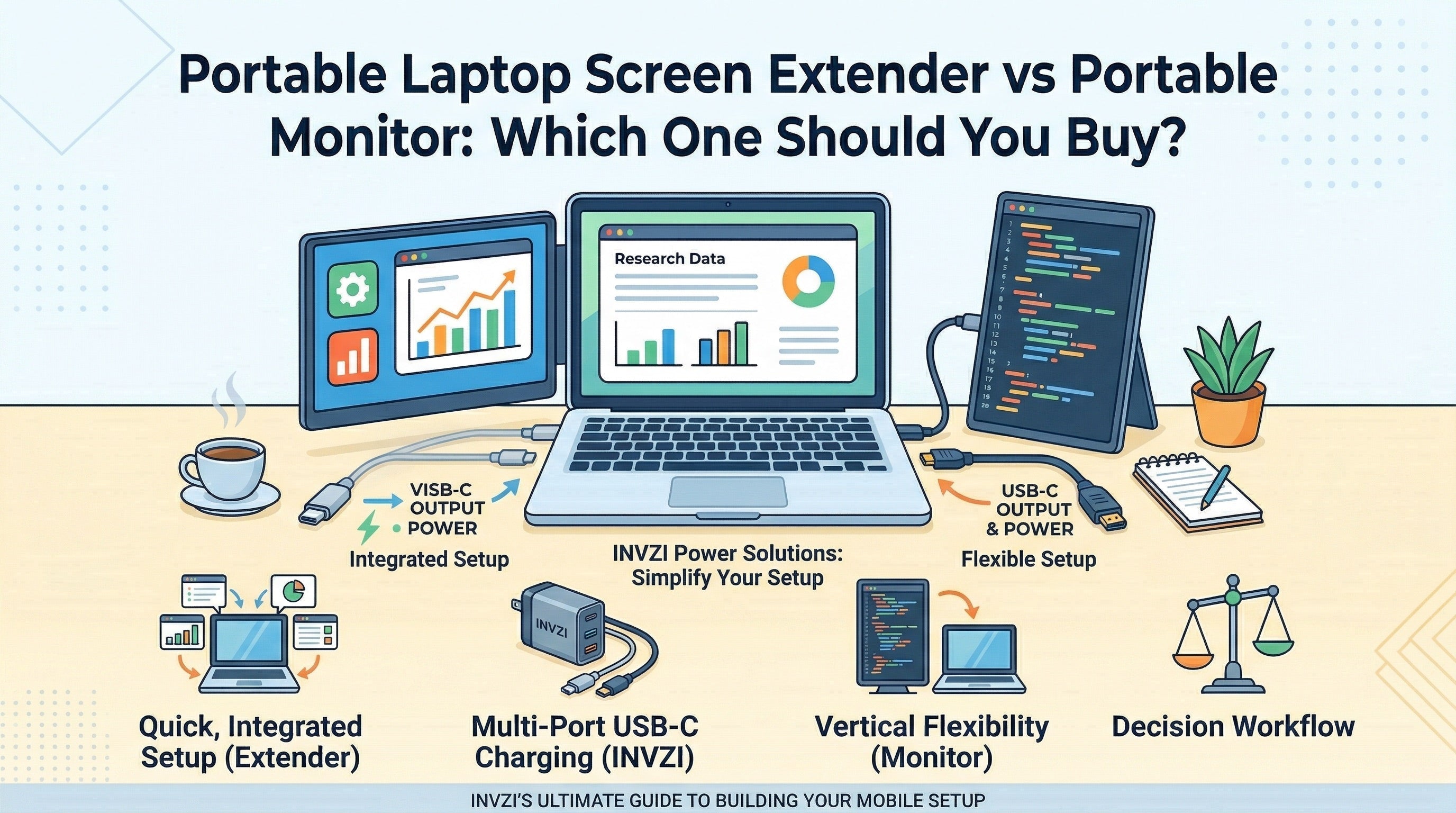
Screen Extender vs Portable Monitor for MacBook
| Feature | Screen Extender | Portable Monitor |
|---|---|---|
| Setup Style | Attached to laptop | Separate display |
| Portability | More compact | Slightly larger |
| Flexibility | Limited angles | Adjustable |
| Comfort (long use) | Moderate | Better |
| Best Use | Travel | Hybrid / desk setups |
Quick decision guide
- Choose a screen extender if portability is your priority
- Choose a portable monitor if comfort and flexibility matter more
Setup Tips for MacBook Users
Use USB-C for Simplicity
Most MacBooks support display and power through one cable, reducing setup time.
Optimize Display Arrangement
In macOS:
- Go to Display Settings
- Drag screens to match your physical layout
- Set your primary display
Plan Your Power Setup
When using a screen extender:
- Ensure your charger provides enough wattage
- Consider a multi-port charger to power multiple devices
This is especially useful when traveling or working in limited outlet environments.
Conclusion
The best laptop screen extender for MacBook depends on how you use your device.
- For travel: Clip-on extenders offer convenience
- For flexibility: Portable monitors provide better comfort
- For advanced workflows: Dual-screen setups maximize productivity
For many users, combining a portable display with a clean charging setup creates the most practical solution—balancing portability, performance, and simplicity.
The goal is not just adding another screen, but building a setup that helps you work more efficiently wherever you are.
FAQ
Does a screen extender work with M1, M2, or M3 MacBook?
Yes, but support varies by model. Always check compatibility with Apple Silicon devices.
Can a MacBook support two external displays?
Some models can natively, while others require additional software or docking solutions.
Do I need to install drivers?
Many modern displays are plug-and-play, but some multi-screen setups may require software.
Can I charge my MacBook while using a screen extender?
Yes, if your setup supports power delivery or you use a multi-port charger.
Is a portable monitor better than a screen extender?
It depends on your workflow. Portable monitors offer flexibility, while extenders prioritize portability.

Leave a comment
This site is protected by hCaptcha and the hCaptcha Privacy Policy and Terms of Service apply.